

Blocking a phone number on an Android device prevents certain callers from contacting you. Whether you’re avoiding an ex, hiding from family members, or tired of hearing about your car’s extended warranty, there are plenty of reasons to restrict phone calls.
Luckily, you can stop select callers or texters using your phone’s built-in operating system, mobile carrier tools, or third-party apps. Learn how to block a number on Android to limit who can contact you.
How to Block a Number on an Android
Stock Android devices let you easily block calls using the default dialer or messaging apps. I tested these steps on my Google Pixel 6 Pro, but most Android 6.0 devices and up should work fine with these call blocking methods.
How to block a number on Android using the Phone app
The dialer app works well for blocking numbers on Android if the unwanted caller is in your recent history.
- Fire up your Phone dialer app.
- Tap the vertical three-dot more menu.
- Select Call history.
- Hit a call from the list.
- Pick Block/report spam.


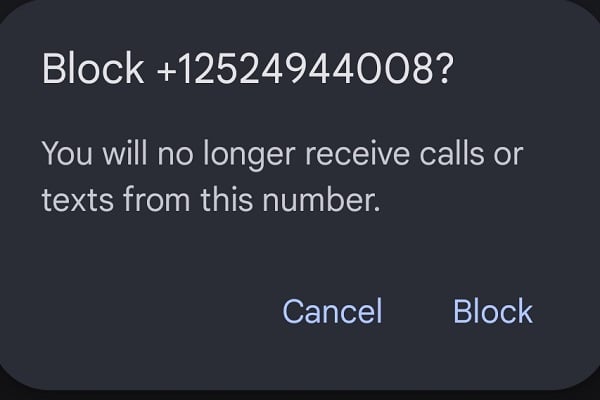
You can also block calls from all unknown numbers. To do this, head to the Phone dialer app > Three-dot menu > Settings > Blocked numbers and toggle on Unknown.
How to block a number on Android using your Contacts tab
Got a number (or several) to block saved in your contacts list?
- Fire up the Phone app and navigate to the Contacts tab.
- Tap a contact you want to block.
- Hit the three-dot menu and pick Block numbers.
- Tick the box to report as spam or hit block.
How to block a number using the Messages app on Android
If you’ve got text messages from a number you want to restrict, try blocking numbers using the stock Android Messages app:
- Open your Messages app.
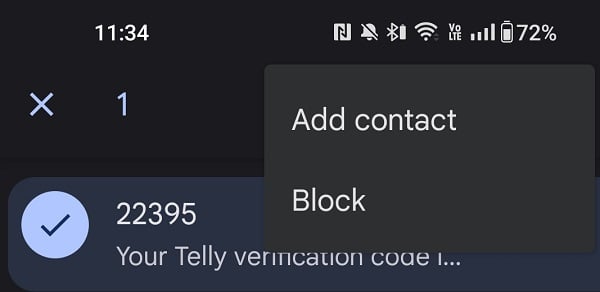
- Long-press a text thread.
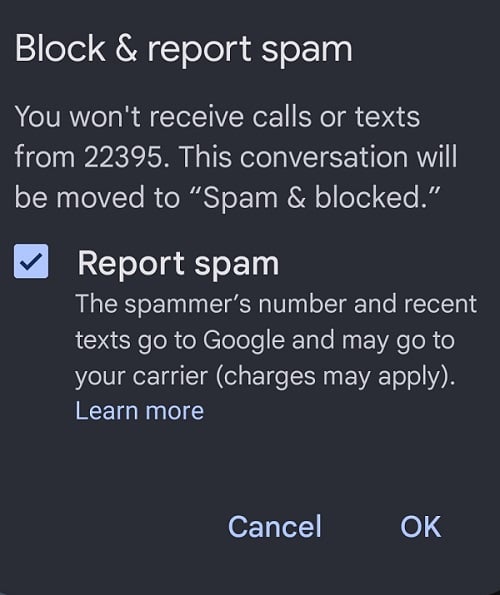
- Tap the Three-dot menu and select Block.

How to block a number on Androud using the Settings menu
The Android Settings app lets you manually block numbers you type in. Head to the Phone dialer app > three-dot menu > Settings > Blocked numbers > Add a number.
Device-specific Android Phone Number Blocking
Certain phone manufacturers like Samsung and LG offer their own number blocking procedures. Let’s check out the device-specific steps below.
How to block a number on Samsung phones
Here’s how to block phone numbers with Samsung Android phones. I tested using a Samsung Galaxy S9+, but the following instructions should work on most newer Samsung handsets like the Galaxy S23 series.
- Head to the Contacts app.
- Find the contact you want to block.
- Hit the three-dot menu and tap Block contact.
- Click Block again to confirm or select Cancel if you have second thoughts.
Alternatively, Samsung devices let you block numbers using the phone app:
- Fire up the Phone app.
- Pick the three-dot menu and choose Settings.
- Navigate to the Block numbers area.
- Tap Add phone number, type in the digits, and click the plus (+) sign. You can also import numbers to block from Recents or Contacts.
Need to block unknown and hidden numbers on a Samsung phone? Head to Phone app > three-dot menu > Settings > Block numbers and toggle on Block unknown/hidden numbers.
How to block a number on LG Android phones
For LG phones, here’s how to block phone numbers:
- Open the dialer app.
- Hit the three-dot menu and head to Call settings.
- Choose Call blocking & Ignore with message.
- Tap Blocked numbers, then pick the plus (+) icon.
- Select where to block numbers from New number, Call logs, or Contacts.
- Input a number and follow the steps for restricting calls.
Alternatively, use the Recent section:
- Fire up the Phone app and pop over to the Recent tab.
- Choose either Contact or Recent number.
- Tap the three-dot button and choose Block number.
How to Block a Number Through Your Carrier
Individual carriers let you limit the numbers that can contact you. Find out how to block numbers with Verizon, AT&T, and T-Mobile.
How to block a number with Verizon
Verizon offers its Call Filter feature for $2.99/month. Call Filter gets you a block list and spam filter, spam detection, and a caller details profile. Verizon Smart Family will set you back $4.99/month and lets you permanently block specific numbers in addition to inappropriate websites and apps. The My Verizon app or web portal can help you temporarily block certain phone numbers for 90 days.
How to block a number with AT&T
ActiveArmor from AT&T comes in two tiers: Basic and Advanced. The Basic tier provides:
- automatic fraud/spam/nuisance call controls
- sending unknown calls to voicemail (if you've yet to do so, learn how to set up voicemail on an Android phone)
- a personal blocklist
- and breach reports
Advanced sets you back $4.99/month but adds public Wi-Fi protection, reverse phone number lookup, identity monitoring, and theft alerts for Android users.
How to block a number with T-Mobile
T-Mobile Scam Shield sports advanced spam call protection, including number blocking and a full caller ID.
Third-party Android Number Blocking Apps
Aside from using your phone’s built-in settings to restrict calls and texts, tons of Android number blocking apps provide greater control over who can contact you. Our favorite apps to limit calls and texts include Mr. Number, Calls Blacklist, and the aptly-named Stop Calling Me. Found someone with an iPhone you want to chat with? Find out how to use FaceTime on Android. Having app issues or low on storage space? Try clearing your cache on Android. Or, delete Android apps you aren't using anymore.
Best Android Phones
A new handset is a real treat, whether you’re switching from iOS, upgrading from an older device, replacing a broken phone, or getting the latest hardware every few months. Our favorite Android phones include the Google Pixel 7 Pro, Samsung Galaxy S23 Ultra, and OnePlus 11. But we recommend most modern Google Pixel and Samsung Android phones. Lose your device? Here's how to locate it with Find My Android. For more Android fun, learn how to screenshot on a Samsung phone. Or discover how to make the most of your Android phone with tips, tricks, and troubleshooting hacks.
Moto G 5G (2026) 128GB
- 6.7 inch display
- Rear Cameras: 50MP, 2MP
- Front Camera: 32MP
Galaxy A26 5G
- 6.7 inch display
- Rear Cameras: 50MP, 8MP, 2MP
- Front Camera: 13MP
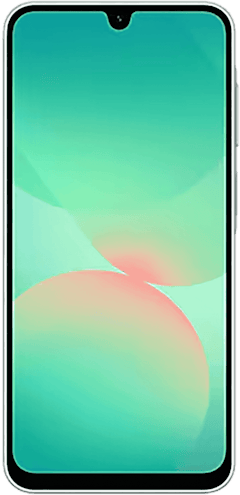
Galaxy A27 5G 128GB
- 6.7 inch display
- Rear Cameras: 50MP, 5MP, 2MP
- Front Camera: 12MP
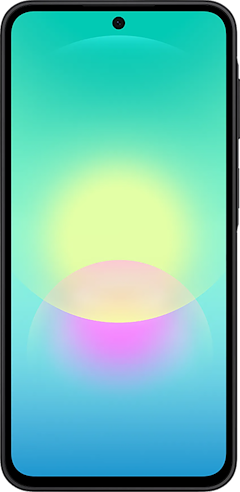
Galaxy A37 5G 128GB
- 6.7 inch display
- Rear Cameras: 50MP, 8MP, 5MP
- Front Camera: 12MP
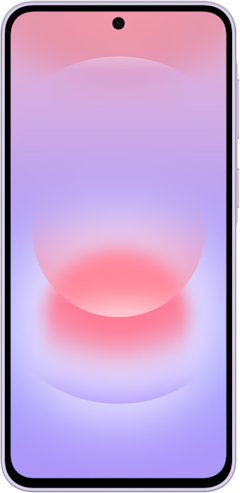
Edge (2026) 128GB
- 6.3 inch display
- Rear Cameras: 50MP, 50MP, 10MP
- Front Camera: 50MP
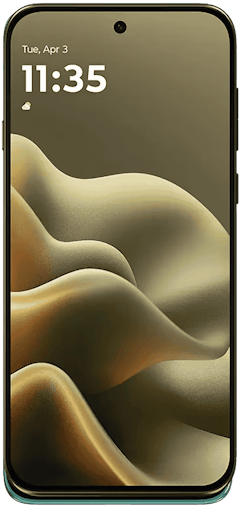

How to Block a Number on Android: FAQs
Moe Long
Senior Writer

Thousands of cell phone plans unpacked. All the facts. No surprises.





.png?w=280&h=280&usm=20&usmrad=0.8&fit=crop "The Best Cheap Phone Plans for 2026: We Tested Them All to Help You Save")


