

Taking a screenshot on an Android phone lets you save important documents, snapshot funny memes from Twitter, or even make your own phone wallpapers. While most screen capture methods work universally, some handsets feature manufacturer-specific commands.
While you’ve got a bevy of Android options to pick from, Samsung devices remain some of our favorites. There are several ways to screen capture on a Samsung handset, including a quick button press combo, voice commands, and gesture control. Here are all the ways to take a screenshot on a Samsung phone.
How to Screenshot on a Samsung Phone

The easiest way to take a screenshot on a Samsung phone is to simultaneously press the power and volume down buttons. After properly clipping an image, you’ll see a preview picture with options to crop and edit your photo or share it via various apps.
Gesture screenshots
Samsung phones let you utilize a palm swipe to take screenshots without using the volume or power buttons. Here’s how:
- Head to Settings > Advanced features > Motions and gestures.
- Toggle on Palm swipe to capture.
- Press and swipe across your Samsung phone screen from one side to the other using the side of your palm.
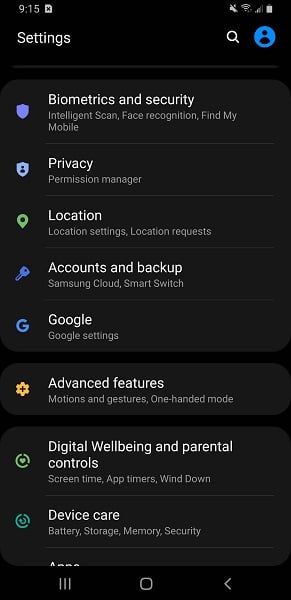

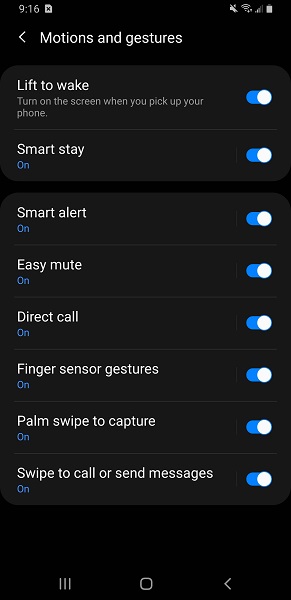
Left-to-right or right-to-left motions both function flawlessly. Palm swipe screenshots are convenient and don’t require a button-mashing combo.
Voice command screenshots
You can take hands-free screenshots on Samsung handsets with voice control. Google Assistant and Samsung’s Bixby can both accomplish this task. Here’s how:
- With Bixby voice: Say, “Hey Bixby, take a screenshot.” You can even chain commands such as “Hey Bixby, take a screenshot and share on Instagram.”
- Using Google Assistant: Say, “Hey Google, take a screenshot.”
Tasks Edge panel screenshots
Select Samsung Galaxy phones provide screenshot functionality from the Edge panel. First, add the screenshots shortcut to your Edge panel with these steps:
- Swipe left on the Edge panel on the screen's right-hand side.
- Hit the Settings icon and swipe to the Tasks panel.
- Choose Edit to view shortcuts.
- Find and select Take screenshots to add it to your shortcuts list.
Now you can launch the Edge panel and pick Take screenshot instead of using a button combo or gesture.
S Pen screenshots
The S Pen, which comes with the Samsung Galaxy S22 Ultra, allows you to capture screenshots quickly. Armed with your S Pen, hit the Air command menu, then select Screen write to take a snapshot of your device's screen immediately. If you like, you can draw and write on the image or just press save. The S Pen is one of our favorite Samsung accessories, and it’s also great for writing and drawing.
Scrolling screenshots
Sometimes, a webpage is too long to capture in a single screenshot. Maybe you’re perusing a food blog with an author’s entire life story before the recipe buried paragraphs below, or a helpful tutorial on taking screenshots with a Samsung phone. Whatever it might be, here’s how to take long screenshots on Samsung handsets:
- Head to a screen you wish to capture, then press the volume down and power buttons simultaneously.
- Tap the Scroll capture icon (it’s an arrow pointing down) at the Smart capture window.
- Hit the icon again to initiate scrolling capture and continue tapping until you reach the desired location.
- Press save when finished.
Best Samsung Galaxy Phones
Our favorite Samsung smartphones include the flagship Samsung Galaxy S22 Ultra, marvelously multitasking Galaxy Z Fold4, and budget-priced Galaxy A53. We also like the high-end S22+, midrange S22, and compact Samsung Galaxy Z Flip3. Getting rid of your old phone? Learn how to reset a Samsung phone! For more Android awesomeness, learn how to set up your voicemail.
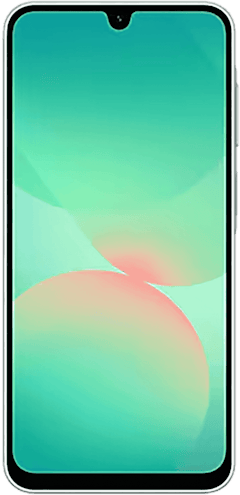
Galaxy A26 5G
- 6.7 inch display
- Rear Cameras: 50MP, 8MP, 2MP
- Front Camera: 13MP
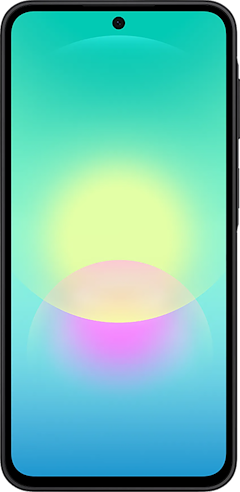
Galaxy A27 5G 128GB
- 6.7 inch display
- Rear Cameras: 50MP, 5MP, 2MP
- Front Camera: 12MP
Galaxy A37 5G 128GB
- 6.7 inch display
- Rear Cameras: 50MP, 8MP, 5MP
- Front Camera: 12MP
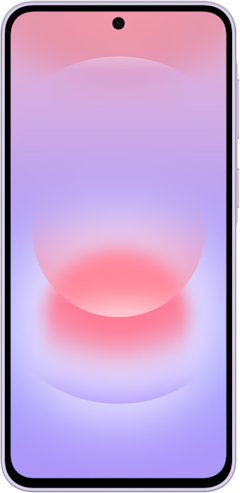
Galaxy A57 5G 128GB
- 6.7 inch display
- Rear Cameras: 50MP, 12MP, 5MP
- Front Camera: 12MP
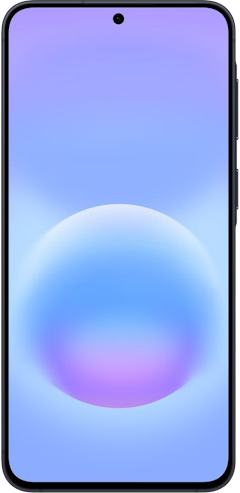
Galaxy S26 5G 256GB
- 6.3 inch display
- Rear Cameras: 50MP, 10MP, 12MP
- Front Camera: 12MP

How to Screenshot on a Samsung Phone: FAQs
How do you take a screenshot on a Samsung phone?
The easiest way to take a screenshot on a Samsung phone is by simultaneously pressing the power and volume down buttons.
How do you take a screenshot without the power or volume buttons on Samsung phones?
You can take a screenshot on a Samsung phone without using the power or volume buttons by enabling the palm swipe or voice command methods.
How do you take a hands-free screenshot on a Samsung phone?
Samsung's Bixby Voice and Google Assistant let you take hands-free screenshots on Samsung phones. You can say, "Hey Bixby, take a screenshot" or "Hey Google, take a screenshot," depending on your smart assistant preference.
How do you capture a scrolling screenshot on Samsung phones?
To take a rolling screenshot on a Samsung phone, initiate your preferred screen capture method. At the Smart capture window, tap the Scroll capture icon twice to capture a longer screenshot, then hit Save.
Moe Long
Senior Writer

Thousands of cell phone plans unpacked. All the facts. No surprises.





.png?w=280&h=280&usm=20&usmrad=0.8&fit=crop "The Best Cheap Phone Plans for 2026: We Tested Them All to Help You Save")


