

Have you accidentally deleted an important message from your iPhone and need it back? Don’t panic! While it may seem like the message is gone forever, there's a good chance you can recover it—especially if you deleted it in the last 30 days.
Ways you can get back deleted text messages include recovering them from your Recently Deleted folder, restoring from a previous backup, contacting your carrier, or using third-party recovery software. Read on to find out how each option works.
Recover recently deleted messages
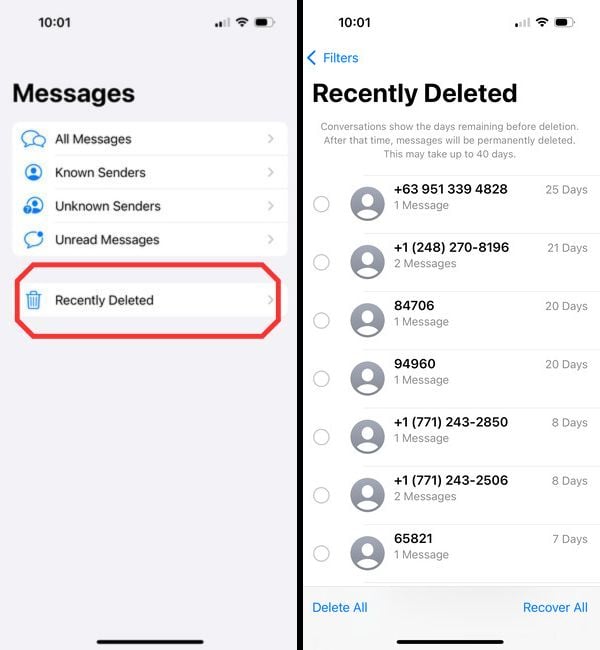
The easiest way to bring back deleted text messages is recovering them from your Recently Deleted folder in your Messages app. Apple finally heard our moans of regret—iPhone's can now see (and undo) deleted text messages for up to 30 days. (Just make sure you have the latest iOS software updates or iOS 16 at the minimum to find deleted text messages.)
To recover deleted text messages:
- Open your Messages app.
- Tap Edit or Filters in the top-left corner of the screen.
- Select the Recently Deleted folder or choose to filter by Recently Deleted.
- Mark which conversations you want to recover.
- Tap Recover, and then tap Recover Messages to confirm.
However, any messages deleted more than 30 days back become a permanently deleted text message. But don't fear; you can possibly still recover permanently deleted texts with an iOS backup or by contacting your service carrier.
Do unsent messages go to my Recently Deleted folder?
No, unfortunately, unsent text messages will not appear in the Recently Deleted folder or with the filter. If you're lucky (or unlucky) enough to unsend a message in Apple's two-minute window, your iPhone will completely remove the message completely. The only record left will be a notification to your and your recipient's conversation saying you unsent a message.
Restore lost messages from an iOS backup
You can recover deleted iPhone messages by restoring your iPhone from a previous backup. There are two methods of doing so: via iCloud or via iTunes. iCloud backups are done automatically in the background, while iTunes requires you to physically tether your phone to your computer to save your data.
For this method to be successful, you need to be in the habit of frequently backing up your device to one of these services. Otherwise, your messages will not have been saved. You could also lose any updates made from when you last backed up your device, so make sure there’s nothing you’d be seriously missing before you restore.
Restore from iCloud
The easiest way to restore deleted iPhone messages is via iCloud. If you’ve already turned on iCloud backup, your device likely already automatically backs up every 24 hours. If you just recently deleted your iPhone messages, this method will be a fast way to get them back. However, if you deleted them a few days ago and your iCloud backup has synced since then, the messages have already been wiped from your backup, too.
To check when your last iCloud backup was, go to Settings on your iPhone and click your Apple ID at the top of the screen. Then select iCloud and iCloud Backup. There you will see the date and time of your last backup. If this backup was before you deleted your messages, you’re good to go.
To recover your deleted iPhone messages from iCloud:
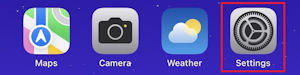
- Go to Settings.
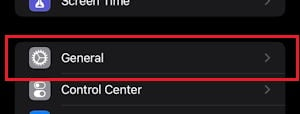
- Select General.
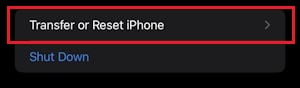
- Scroll down to the bottom and select Transfer or Reset iPhone.
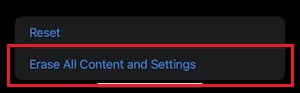
- Tap Erase All Content and Settings and confirm. This will reset your phone to its factory settings and wipe all information off the device.
- When the process is complete, turn the phone back on.
- You’ll see the welcome screen for your phone. Follow the first few steps for setting up the device until you get to Apps & Data.
- Select Restore from iCloud backup. You’ll need to sign in to your account. From there it will start the process of restoring your phone and give you access to the deleted message.
Restore deleted messages from iTunes
If you prefer using your computer instead of iCloud, you can use iTunes to restore your deleted iPhone messages. Again, make sure you’ve made the backup before you deleted the messages.
To restore your deleted iPhone messages via iTunes:
- Open iTunes on your computer. Make sure it’s fully updated.
- Connect your iPhone to the computer. iTunes will automatically detect your phone. Once the phone appears, select it. This opens up the specific section for your device.
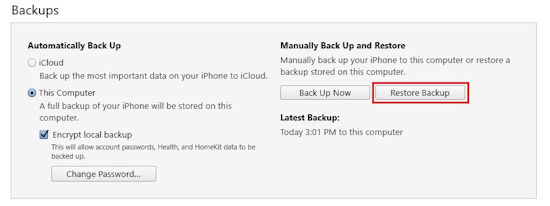
- Look for the section called Backups and click Restore Backup.
- Choose the backup you want to use and click Restore. Make sure to keep your phone connected to the computer throughout the restoration process.
Contact your carrier
If restoring your iPhone messages from a backup didn’t work, you can contact your network carrier. Some carriers keep records of text messages for a limited time after the message is sent, though there is no guarantee of this, nor are they guaranteed to give them to you. Note that this method only applies to text messages.
What’s the difference between a text message and iMessage?
iMessages, which are part of Apple’s proprietary instant messaging system, are sent using Wi-Fi or data through Apple’s encryption service. Text messages are sent through your carrier’s network. Though text messages and iMessages both operate out of your Messages app, they are not the same thing.
The color of your chat bubbles is a quick way to tell whether you are sending an iMessage or a text message. If your message is blue, it’s an iMessage. If it’s green, it’s a text message.
Purchase recovery software
Using recovery software should only be a last-ditch effort to recover deleted messages from an iPhone. We only recommend using one if you cannot live without the deleted message. Why? Not only are these services usually pretty expensive, but also once you download the software, you are at the mercy of its developers. From a security standpoint, you have to trust that the developers aren’t using them to scrape information off your phone.
If you do want to give recovery software a try, there are plenty of choices. iBeesoft, Tenorshare, and iMoble PhoneRescue are all potential options. Just be sure to do thorough research to make sure the one you like is reputable and highly reviewed.
Upgrade your iPhone
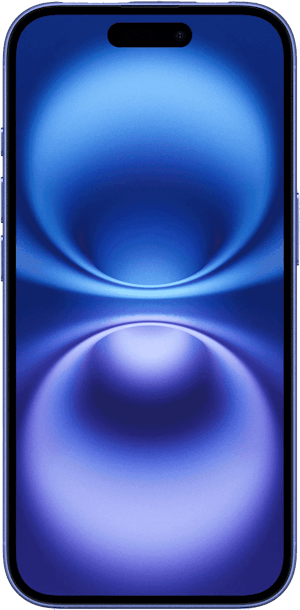
If your iPhone has started frequently crashing and causing you to lose your text messages, or you’ve noticed how much its performance has slowed, it may be time for an upgrade. Apple's latest phone series brings the hot, new tech to its base models, no Pro or Max needed. The iPhone 16 comes with Apple's latest tech upgrades—Apple AI and a camera control button—which means you won't have to completely drain your wallet to have them too.
iPhone 16 128GB

| Description | |
|---|---|
| Screen Size | 6.1" |
| Available On | 160 Plans from 17 carriers |
| Available From |


|
| Priced From | $829.99 upfront |
| View Full Details |
 Apple's 2024 model featuring their new Apple Intelligence with the custom-built A18 Bionic chip and the new iPhone 16 camera system.
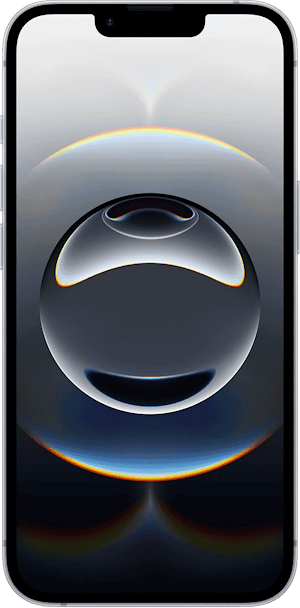
If you still want more savings, check out the iPhone 16e. It gives you fast speeds and great functionality at a fraction of the base model's price. Plus, our recommendations for the top iPhone deals right now are your one-stop shop for finding the best price on any device.
iPhone 16e 128GB
| Description | |
|---|---|
| Screen Size | 6.1" |
| Available On | 150 Plans from 14 carriers |
| Available From |


|
| Priced From | $5 per month + $512 upfront |
| View Full Details |
 2025 New iPhone 16e features 5G connectivity, a powerful A18 chip, 6.1" Super Retina XDR display, 48MP Fusion Rear camera, 4K video recording and Visual intelligence action button on the side
Not sure which iPhone is the right call for your needs? Our guide on which iPhone is best for you can help steer you in the right direction, or you can browse some of the most popular iPhones available today:
iPhone 16 128GB
- 6.1 inch display
- Rear Cameras: 48MP, 12MP
- Front Camera: 12MP
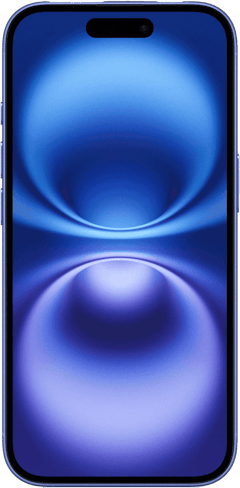
iPhone 18 Pro 256GB
- 6.3 inch display
- Rear Cameras: 48MP, 48MP, 48MP
- Front Camera: 18MP
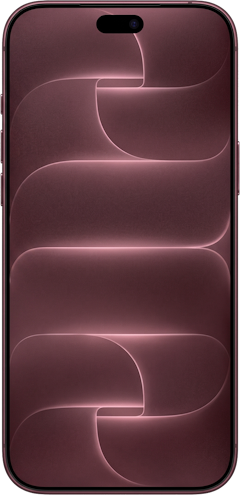
iPhone 18 Pro Max 256GB
- 6.9 inch display
- Rear Cameras: 48MP, 48MP, 48MP
- Front Camera: 18MP
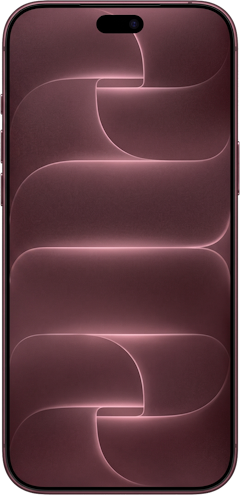
iPhone 18 Pro 512GB
- 6.3 inch display
- Rear Cameras: 48MP, 48MP, 48MP
- Front Camera: 18MP
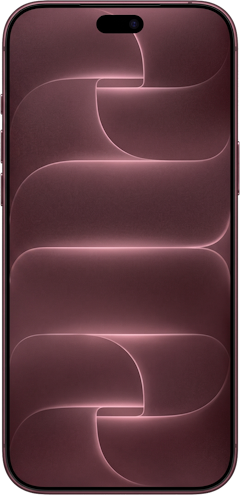
iPhone 18 Pro Max 512GB
- 6.9 inch display
- Rear Cameras: 48MP, 48MP, 48MP
- Front Camera: 18MP

Max McCaskill
Sr. Staff Writer

Thousands of cell phone plans unpacked. All the facts. No surprises.
Related Articles


Related Topics
iOSPopular Topics
Featured App Reviews iOS News Coverage Device Reviews Device Explainers Carrier Explainers App Roundups T-Mobile


Free iPhone 18 Pro, up to $1,200 off, with a trade-in in any condition or a line switch on Experience Beyond


.png?w=280&h=280&usm=20&usmrad=0.8&fit=crop "Best Cell Phone Deals for October 2026: Get the New iPhone 18 Pro for Free")





