
Imagine for a moment that all of your iPhone data just suddenly disappeared. Apologies for starting with a scare tactic, but consider what that means. On my iPhone, I’ve got priceless pictures of my toddler, videos of vacations, and most importantly, my high score on Flappy Bird.
To avoid this terrifying hypothetical, you can backup your iPhone with iCloud or your computer. A backup allows you to keep all those photos and videos stored somewhere safely. With iOS 17 out now, it's crucial you back up your phone before downloading and installing the update. Apple's operating system updates are usually pretty safe, but you don't want to take a risk that it fails and you lose all your data.
Follow this guide for step-by-step instructions on how to use both iPhone backup methods. After all, you never know if the next time you drop your phone, it may be the last you see of your data! Sorry, scare tactic again.
What doesn’t get backed up on my iPhone?
iPhone backups cover basically everything on your phone, with a few notable exceptions:
- Apple Mail data
- Any data stored in other cloud services, like Gmail or Spotify.
- Apple Pay card information
- Face ID or Touch ID information
- Some app store content (you can redownload your apps from the iTunes Store on your new phone)
Backup an iPhone with iCloud
If you’re on a Wi-Fi network, you can easily set up an automatic backup of your iPhone data to iCloud. Instead of being stored on the physical device, your iPhone data will exist on Apple’s secure servers. Here’s how to backup your iPhone via iCloud:
- Connect to a Wi-Fi network.
- Click the Settings app button, tap your name, and select iCloud.

- Toggle the iCloud Backup switch and tap Back Up Now to start the backup. Backup Over Cellular. Note: You can also toggle the switch if you’re connected to a 5G network and have unlimited data available to handle backups.

Once a backup is complete, you’ll see a line of text that reads, “Last successful backup: [today’s date].”
Your phone will now perform automatic iCloud backups while plugged in, locked, and connected to the internet. That means no more worrying about the scary situations mentioned earlier.
How much iCloud storage do I need?
Of course, to save your data to iCloud, you’ll need to pay for the storage space. Thankfully, the storage is pretty dang cheap. Here are the cost breakdowns for iCloud storage:
- 5GB: Free
- 50GB: $0.99/month
- 200GB: $2.99/month
- 2TB: $9.99/month
The amount of space you need all depends on how many iPhone photos and videos you have. You get about 200 photos for every gigabyte of data, so if you have less than 10,000 iPhone photos, you can go with the 50GB option. Videos, on the other hand, take up more space depending upon how long they are. Opt for the 200GB or 2TB iCloud plan if you have lots of videos and photos.
How to restore iPhone data from iCloud
With everything set up, you now have the option to Restore from iCloud Backup when you reset your phone. You can’t transfer your iCloud backup until you’ve reset your device completely. Here are the quick steps to reset your iPhone:
- Go to your Settings app and select General.
- Scroll down until you see Transfer or Reset iPhone
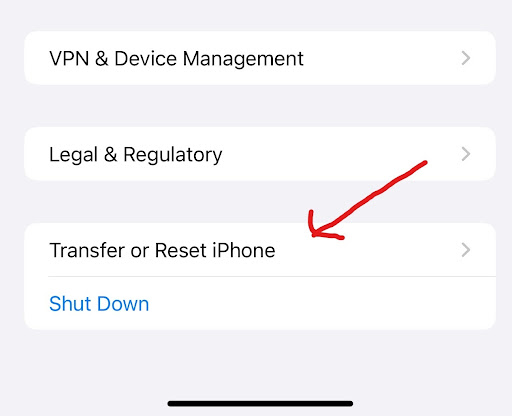
- Tap Erase All Content and Settings and follow the prompts until your phone resets.
- Select Restore from iCloud Backup when the phone finishes rebooting.
Backup an iPhone Using Your Computer
You can also backup your iPhone manually on your Mac computer or Windows PC. It won’t require any internet connection, and you can rest assured that your data is safe at home. The downside is that your data won’t automatically back itself up like it will with iCloud; instead, you’ll need to manually backup your data every time.
Backup iPhone using your Mac
- Connect your iPhone to your computer using the USB charger cable.
- Open the Finder app on your Mac.
- Click General at the top of the Folder window.
- Select the Backup all of the data on your iPhone to this Mac option.
- (Optional) Choose Encrypt local backup if you want to protect your data with a password.
- Click Back Up Now to save your iPhone data to your Mac computer.
Backup an iPhone using a Windows PC
- Plug your iPhone into your computer using your USB charging cable.
- Download the iTunes app if you don’t already have it installed on your computer.
- Open the iTunes app, and you should see an iPhone button at the top left corner of the iTunes window.
- Select Summary and then Back Up Now.
- Encrypt your data with a password by choosing the Encrypt local backup option.
How to restore data from your computer to an iPhone
If you want to transfer your data from your computer to your iPhone, these are the steps:
- Plug your iPhone into your computer.
- Open iTunes and click the iPhone icon in the top-left corner.
- Click Summary.
- Select Restore, and then follow the prompts to access your backup folder and transfer the data.
When you restore your phone, it will erase all of your current data. If you’re transferring the data to a new phone, that won’t matter. However, if you’re using your old phone, you should back up your data again.
Why back up my iPhone?
Simply put, backing up your iPhone is the only way to ensure you don't lose all your data if the device crashes. iPhones are incredible phones, but they aren't perfect. Software can glitch or an iOS update fail leaving your phone unusable. Without a backup, you won't be able to restore your phone.
Backups also let you still have access to your data if you lose or break your device. You can simply buy a replacement iPhone and restore your old data to the new device.
We recommend using iCloud backups if you can. Manually backing up your iPhone on a computer is time-consuming, so many people don't do it as frequently as they should. On the other hand, iCloud backups generally occur every night. There is nothing you must remember to do and you may only lose a day's worth of data.
iPhone Trade-in Deals
If you’re thinking of backing up your iPhone, you’re probably thinking of upgrading your device as well. Upgrading is a great way to get the newest features offered by Apple.
All the major carriers offer deals that can get you a free iPhone if you trade in your old device. You can even get a free iPhone 15 from carriers AT&T, T-Mobile, and Verizon if you trade-in your old phone and sign up for a new unlimited plan. Make sure to read our iPhone 15 review if you’re thinking about getting the newest iPhone available.
If you're looking to save a bit of money on your upgrade, you can also elect to snag an iPhone 14 instead. It got a solid discount when the iPhone 15 was released and sports a lower price point. While the iPhone 15 is newer, the iPhone 14 sports many of the same features and also received the iOS 17 update. If you simply want a base-model iPhone, it might be best to save a bit of money and go with the iPhone 14.
If you do select a trade-in deal, make sure to properly back everything up before you trade-in or sell your old iPhone. Here are the most popular iPhones right now, along with the max savings you can expect when at trade-in:
iPhone 16 128GB
- 6.1 inch display
- Rear Cameras: 48MP, 12MP
- Front Camera: 12MP
iPhone 18 Pro 256GB
- 6.3 inch display
- Rear Cameras: 48MP, 48MP, 48MP
- Front Camera: 18MP

iPhone 18 Pro Max 256GB
- 6.9 inch display
- Rear Cameras: 48MP, 48MP, 48MP
- Front Camera: 18MP

iPhone 18 Pro 512GB
- 6.3 inch display
- Rear Cameras: 48MP, 48MP, 48MP
- Front Camera: 18MP

iPhone 18 Pro Max 512GB
- 6.9 inch display
- Rear Cameras: 48MP, 48MP, 48MP
- Front Camera: 18MP


MVNO trade-in deals
The big carriers are not the only options with iPhone deals. Smaller carriers called MVNOs can sometimes have major discounts on iPhones too. These carriers offer service at discounted rates on the larger carrier’s networks. Because they rent access on the larger networks, they can pass major savings onto their customers. MVNOs may not always have the newest iPhones, but they typically have at least one model for sale.
You can snag a $30 Unlimited Data plan on T-Mobile’s network with 40GB of premium data from Mint Mobile. The plan also includes a 10GB mobile hotspot and 5G service. Mint typically offers discounts on new phones or on its plans. For example, you may find a phone $50 off if you pick the right plan to go with it. Another common deal is paying full price for the phone, but getting half a year of service for free. Either way you're saving money on a new iPhone and aren't locked into an expensive contract.
Mint Mobile Unlimited Data Plan

| Carrier | Mint Mobile |
|---|---|
| Data | Unlimited Data |
| Type | No Contract |
| Current Deal | Get this unlimited plan for just $10/mo. for the first 6 months of service |
| Total Price |
$10 per month
$60 for 6 months of service
|
| View Plan |

Customers wanting AT&T service can look into Boost Mobile. It offers plans on both the AT&T and T-Mobile networks. Boost offers an Unlimited Data plan with 35GB of premium data and a 12GB mobile hotspot for just $40/month. Boost often has the newest iPhones when they come out, but you'll usually find the best deals on the older models.
Boost Mobile Unlimited+ Plan

| Carrier | Boost Mobile |
|---|---|
| Data | Unlimited Data |
| Type | No Contract |
| Total Price |
$50 per month
with AutoPay
|
| View Details |
Tyler Abbott
Contributing Writer

Thousands of cell phone plans unpacked. All the facts. No surprises.





.png?w=280&h=280&usm=20&usmrad=0.8&fit=crop "The Best Cheap Phone Plans for 2026: We Tested Them All to Help You Save")


