
Not a single day goes by that I don’t screenshot something on my phone. Whether it’s a QR code for the post office, a receipt, an image for my iPhone wallpaper, or a drama-filled text exchange, screenshotting is an essential part of the iPhone experience.
It’s incredibly easy to take a screenshot on your iPhone, regardless of what model you own. However, there are slightly different steps for taking a screenshot depending on what iPhone model you own—newer models don't have a Home button, while older models do.
Let's learn how to take a screenshot for iPhones using the side buttons, the Home button, or AssistiveTouch.
Take an iPhone screenshot using the side buttons
If you purchased your iPhone in the past five years or so (or want to get a new phone on a sweet deal), you probably don’t have a Home button, in which case, you'll use your side buttons to take an iPhone screenshot. For reference, here are the iPhone devices without a Home button:
- iPhone 16 series
- iPhone 15 series
- iPhone 14 series
- iPhone 13 series
- iPhone 12 series
- iPhone 11 series
- iPhone XS
- iPhone XR
- iPhone X
To take a screenshot using the iPhone side buttons:
- Set up your phone to display whatever you want to screenshot.
- Press the Volume Up button (left side) and the Power button (right side) at the same time.
- Check out the preview of your screenshot in the corner of the screen.
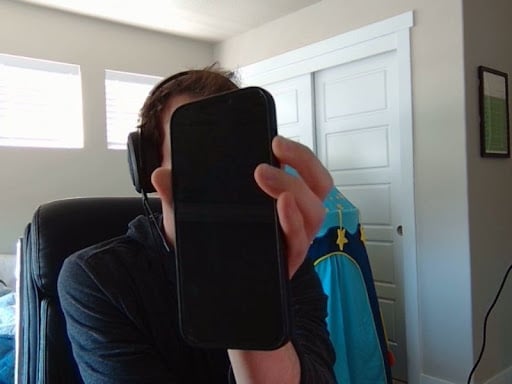
Image: Tyler Abbott
If you’re like me, you’ll put your middle finger on the Volume Up button and your thumb on the power button. Once you press down on both buttons simultaneously, you’ll see a quick screen flash, and your screenshot will briefly appear in the bottom left corner of your screen.
You can open your Photos app and see the screenshot you just took.
Take an iPhone Screenshot with the Home Button
If you see the physical Home button on the bottom of your phone, you’ll press different buttons to take a screenshot. Here are all the iPhones with a physical Home button:
- iPhone SE (2020)
- iPhone 8 Series
- iPhone 7 Series
- iPhone 6 Series
- iPhone 5 Series
- iPhone 4 Series
- iPhone 3G Series
To take a screenshot on an iPhone with a Home button:
- Make sure your iPhone displays what you want to screenshot.
- Press the Home button and the Power button at the same time.
- Preview the screenshot in the bottom corner of the screen.
Once the screenshot preview disappears, it will be saved in your camera roll on your Photos app.
Take an iPhone Screenshot with AssistiveTouch
Some folks can have trouble pressing down two buttons at once, which is why Apple implemented AssistiveTouch. The AssistiveTouch accessibility feature on iOS allows users to perform common tasks without pressing buttons or swiping the screen.
To enable AssistiveTouch and take a screenshot:
- Open your Settings app and select “Accessibility.” Look for the blue icon with the white circle and person inside.
- Select “Touch” (with the blue finger-pointing icon), and then tap AssistiveTouch.
- Toggle the feature on by tapping the white circle at the top of the screen. The circle moves to the right and turns green, the AssistiveTouch feature is enabled.
Now that the feature is enabled, we’ll need to set up how to take a screenshot.
Select “Double-Tap” under the “Custom Actions” menu.

- Tap "Screenshot."
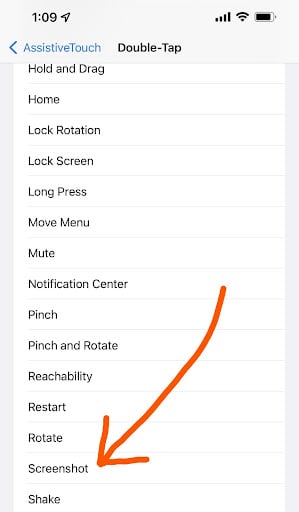
Now you can take a screenshot on your iPhone just by double-tapping the display. After taking a screenshot, your image will save in your camera roll in your Photos app.
Do you want to make your screenshots upload faster while staying on a budget? Considering switching to a different iPhone plan to balance cost and speed. For more display capture fun, learn how to take a screenshot on an Android phone.
Take a longer screenshot on your iPhone
As long as your phone supports the latest version of iOS, Apple offers the ability to capture a full-page screenshot of your iPhone when you need to snapshot more information than just what's shown on your phone's current display. This is especially helpful for capturing a screenshot of an email or a full web page.
To take a long iPhone screenshot:
- Screenshot your display using the applicable method above (either your power + volume buttons or Home button).
- Open your screenshot preview in the bottom left-hand corner, and tap "Full page" near the top of the screenshot.
- Tap "Done" and choose where you want to save your screenshot.
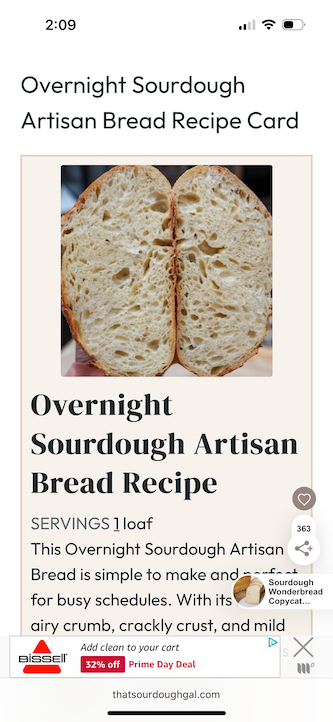
Image: Lauren Hannula | WhistleOut
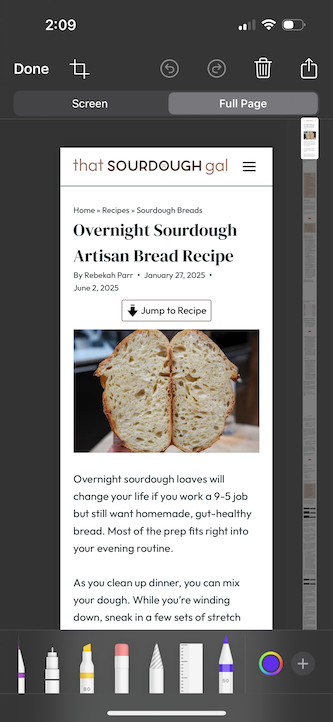
Image: Lauren Hannula | WhistleOut
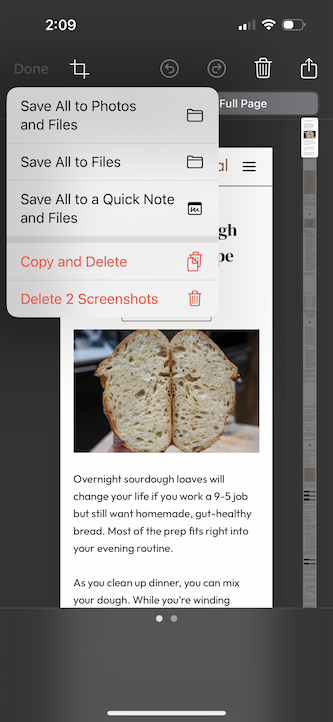
Image: Lauren Hannula | WhistleOut
Where to see your screenshots
Your screenshots live in your iPhone's Photos app. You can view individual screenshots immediately after taking them by tapping the preview image in the bottom left-hand corner; your iPhone will then open an intermediary screen where you can edit your image, doodle on it, crop it, etc. You can then choose to save your image, copy and delete it, or delete it entirely.
In your Photos app, your screenshots will appear as the latest images in your roll, as well as under an automatically created collection called "Screenshots."
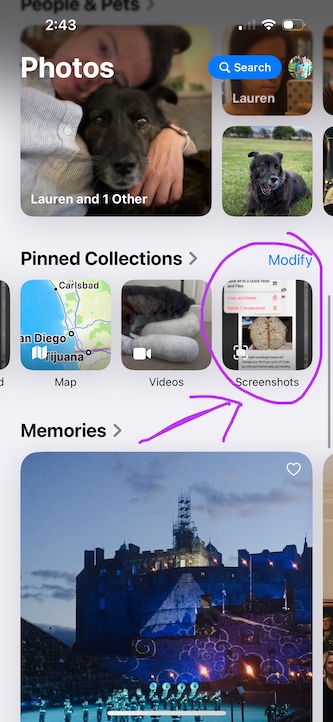
Image: Lauren Hannula | WhistleOut
Looking for a new phone?
If the screenshot process made you realize that you need a new phone, check out our roundup of the best iPhone deals. Here are some of the most popular iPhone devices available right now:
iPhone 16 128GB
- 6.1 inch display
- Rear Cameras: 48MP, 12MP
- Front Camera: 12MP
iPhone 18 Pro 256GB
- 6.3 inch display
- Rear Cameras: 48MP, 48MP, 48MP
- Front Camera: 18MP
iPhone 18 Pro Max 256GB
- 6.9 inch display
- Rear Cameras: 48MP, 48MP, 48MP
- Front Camera: 18MP
iPhone 18 Pro 512GB
- 6.3 inch display
- Rear Cameras: 48MP, 48MP, 48MP
- Front Camera: 18MP
iPhone 18 Pro Max 512GB
- 6.9 inch display
- Rear Cameras: 48MP, 48MP, 48MP
- Front Camera: 18MP

And if you're thinking of switching to a Samsung instead, check out our guide on how to take a screenshot on a Samsung phone.
Tyler Abbott
Contributing Writer

Thousands of cell phone plans unpacked. All the facts. No surprises.





.png?w=280&h=280&usm=20&usmrad=0.8&fit=crop "The Best Cheap Phone Plans for 2026: We Tested Them All to Help You Save")


