
Read Receipts are iOS notifications that inform users whether a contact has viewed their messages. Since their release in 2011, they’ve inspired both praise and condemnation: Some see them as a helpful form of transparency while others view them as a terrifying invasion of privacy.
Whether you love them or hate them, it’s important to know how to turn them off and on so you can make your own decision.
Changing your Read Receipts on an iPhone is actually quite easy. Here’s how:
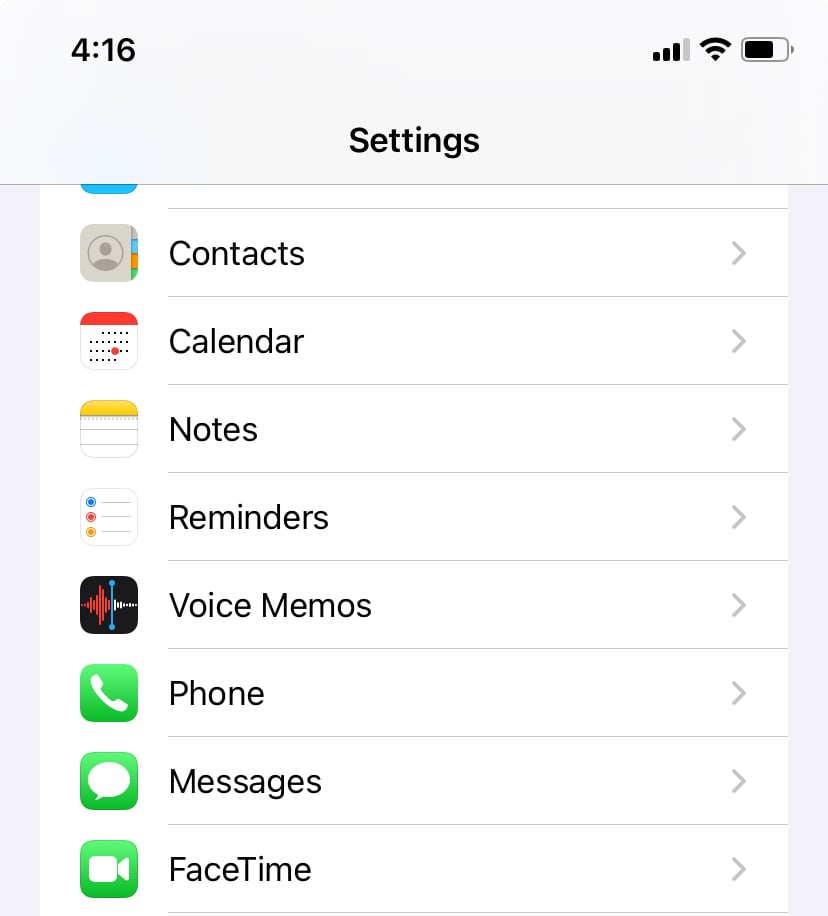
- Open Settings.
- Tap Messages.
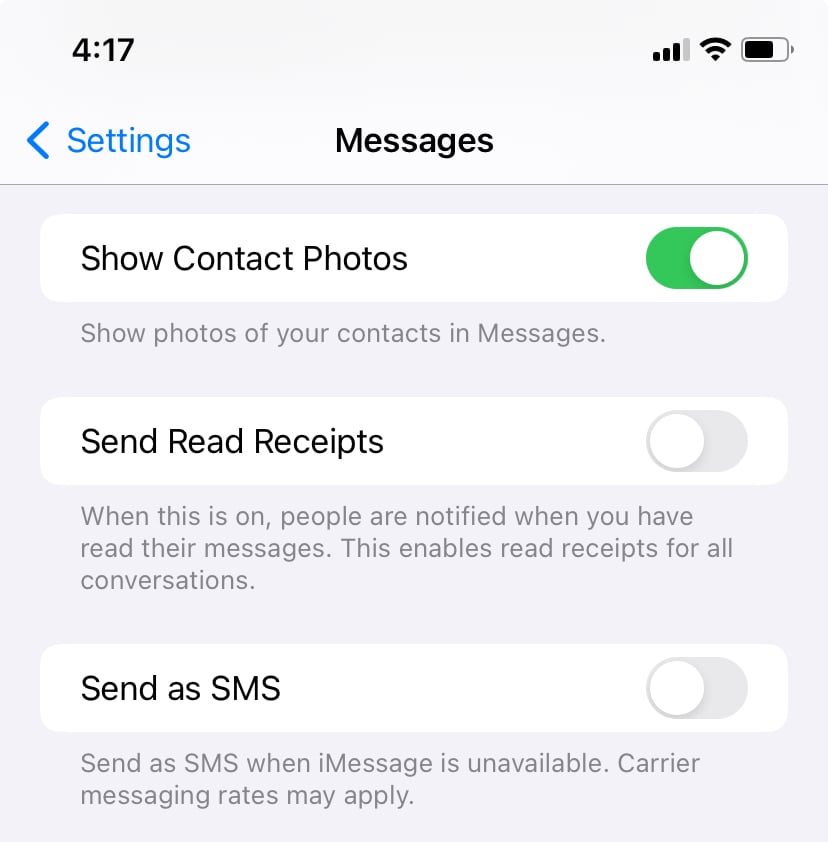
- Scroll down to Send Read Receipts. Toggle the slide on (it will appear green) if you want Read Receipts on. Toggle the slide off (it will appear gray) if you want Read Receipts off.
Read on below for more detailed instructions, including how to enable or disable Read Receipts for individual contacts.
How to turn iPhone Read Receipts off
Turning Read Receipts off will prohibit your contacts from seeing whether or not you’ve viewed their messages. Here’s how to turn off Read Receipts on your iPhone:
- Open Settings.
- Tap Messages.
- Scroll down to Send Read Receipts.
- Toggle the slide to “off” (it will appear gray) to disable Read Receipts. When you disable read receipts, contacts will see “Delivered” instead of “Read” for any messages you’ve viewed. If you're using a Mac or an iPad, the steps are the same. On a iPad, go to Settings > Messages > disable Send Read Receipts to turn off read receipts. For Mac, open Settings > Messages and uncheck Send Read Receipts.
How to turn off Read Receipts for a single contact
If you need Read Receipts off for a particular person (or several of them), Apple also allows you to turn off the feature for individuals while leaving it on for everyone else you text. Here’s how:
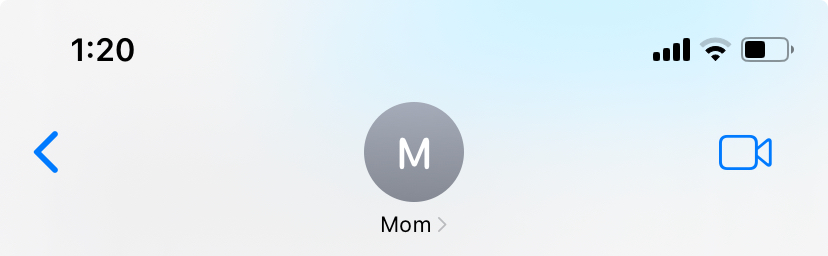
- Open your conversation with the contact you no longer want to see your Read Receipts.
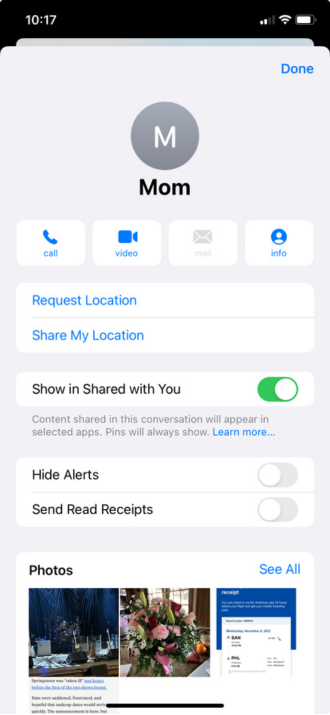
- Tap the circular icon with the contact’s initials.
- Toggle Send Read Receipts to “off” (it will appear gray). If you have read receipts off and the other person has them on, they won’t see if you’ve read their message. Read receipts only work when both sender and recipient have them enabled.
How to turn iPhone Read Receipts on
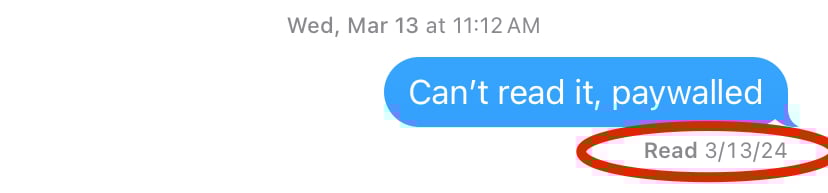
If you turn on Read Receipts, your contacts will be able to see when you’ve viewed a message, even if you haven’t replied to it: the word “Read” will appear below a message.
If you want to turn on Read Receipts, or check to see that they’re enabled, it only takes a few steps. Here’s how:
- Open Settings.
- Tap Messages.
- Scroll down to Send Read Receipts.
- Toggle the slide to “on” (it will appear green) if you want Read Receipts on.
How to turn on Read Receipts for a single contact
Maybe you want to turn Read Receipts off but leave them on for a particular contact—after all, they might be invasive for random acquaintances, but they can be a helpful tool for coordinating the ins-and-outs of daily life with partners, children, and parents.
Here’s how to turn on Read Receipts for a particular contact:
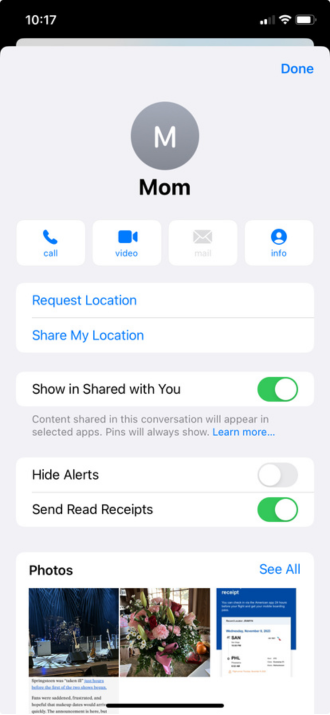
- Open your conversation with the contact you want to see your Read Receipts.
- Tap the circular icon with the contact’s initials.
- Toggle Send Read Receipts to “on” (it will appear green).
Kevin Kearney
Sr. Staff Writer

Thousands of cell phone plans unpacked. All the facts. No surprises.





.png?w=280&h=280&usm=20&usmrad=0.8&fit=crop "The Best Cheap Phone Plans for 2026: We Tested Them All to Help You Save")


