
Wi-Fi Assist is designed to quickly fix weak Wi-Fi signals on your iPhone. When your device detects that a network isn't performing well, Wi-Fi Assist automatically switches to cellular data so your apps, videos, and messages keep loading smoothly.
At home, that's a genuinely useful feature to stay connected. While traveling internationally, it's a feature that can quietly drain your international data allotment before you even realize what's happening.
If you've purchased a small international roaming plan, Wi-Fi Assist off is one of the most important travel settings you should disable before going abroad.
What Wi-Fi Assist actually does
Wi-Fi Assist acts as a backup plan for poor internet connections. If the Wi-Fi network you're on becomes slow or unstable, your iPhone switches to cellular data to keep things moving. This means that your apps, videos, and webpages load without any issues, no matter what is happening with your Wi-Fi.
Most of the time, you won't even notice the switch. It's a seamless background feature your iPhone completes automatically.
Why it's a problem when you travel internationally
When you're abroad, Wi-Fi is the cheapest way to connect to the internet. Airport networks, hotel connections, and café hotspots are how most travelers stay online without touching their cellular plan.
The problem is that those networks are often slow, crowded, or inconsistent, which are the exact conditions that can trigger Wi-Fi Assist.
If your iPhone decides your Wi-Fi isn't cutting it, it will switch to a cellular connection in the background. From your end, everything looks fine, but behind the scenes, you're now burning through your international plan.
International data can be expensive, so many people only buy small allotments when traveling abroad. You don't want to accidentally burn through your entire plan while thinking you were using your hotel's Wi-Fi.
How to turn off Wi-Fi Assist
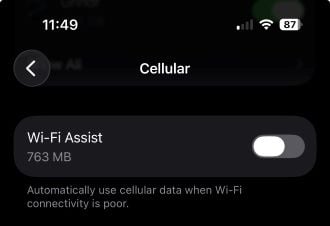
Image: Max McCaskill
If you want to avoid having to buy extra travel data, you should turn off Wi-Fi Assist. The good news is that it only takes a few seconds to disable the feature.
To turn off Wi-Fi Assist on your iPhone:
- Open Settings
- Tap Cellular
- Scroll down to Wi-Fi Assist
- Toggle it off
Important note: Your iPhone can still connect to an international network with Wi-Fi Assist turned off. This feature helps you manage your international usage, not prevent it completely.
Travelers wanting to prevent their device from connecting to international networks in the first place need to disable data roaming instead.
The bottom line: Turn Wi-Fi Assist off before your plane takes off
Wi-Fi Assist is a smart feature for everyday use at home, but not while traveling abroad. That said, the fix takes about ten seconds, and we recommend most people do it before they even board their plane.
That said, if you want to keep Wi-Fi Assist turned on for a better internet experience, you do have options. We can help you find an international phone plan or travel eSIM with enough data to keep you connected for your entire trip.
Max McCaskill
Sr. Staff Writer

Thousands of cell phone plans unpacked. All the facts. No surprises.

Related Articles


Related Topics
iOSPopular Topics
Featured App Reviews iOS News Coverage Device Reviews Device Explainers Carrier Explainers App Roundups T-Mobile


Free iPhone 18 Pro, up to $1,200 off, with a trade-in in any condition or a line switch on Experience Beyond


.png?w=280&h=280&usm=20&usmrad=0.8&fit=crop "Best Cell Phone Deals for October 2026: Get the New iPhone 18 Pro for Free")




