Apple TV has been among the most popular streaming devices for several years. These reliable streamers can help you stay connected to your favorite TV streaming services, but they can experience technical difficulties. For instance, the Apple TV remote may occasionally stop working. Here, we’ll go over the steps you can take to reset the Siri remote or Apple TV remote and how to pair a new remote if you need a replacement.
Types of Apple TV Remotes
There are four types of remotes for Apple TV devices:
- Siri Remote included with Apple TV 4K
- Apple TV Remote included with Apple TV 4K
- Apple Remote (white) included with Apple TV
- Apple Remote (aluminum) included with Apple TV
Troubleshooting Your Apple TV Remote
If your Apple remote is not working, take these initial steps to troubleshoot the problem:
- Charge the remote (Siri Remote or Apple TV Remote), or replace the battery (Apple Remote) to ensure it has power.
- Reset the Apple TV by unplugging it for at least six seconds then plugging it back in.
If the remote control still doesn’t work, move on to reset the remote.
If Siri isn't working on your iPhone, you can fix it any number of ways like rebooting your phone or training Siri to recognize your voice.
How to Reset the Apple TV Remote
Apple TV Siri Remote and Apple TV Remote
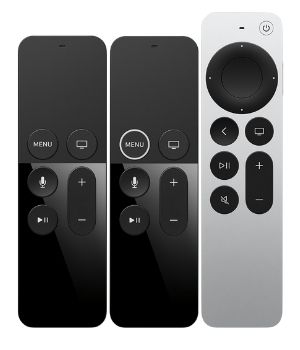
If your Siri Remote or Apple TV remote is not working, take these steps to reset it:
- Point the remote at the Apple TV from about three inches away.
- Simultaneously press and hold the volume up button (+) and the Menu button or back (<) button.
- If prompted, place the remote on top of the Apple TV.
These steps usually do the trick, but if your remote is having trouble re-pairing with the Apple TV, make sure that it is running the latest software version.
Apple Remote
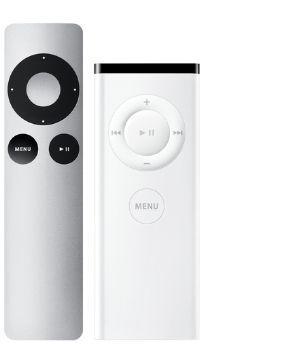
Take these steps to reset your Apple Remote:
- Simultaneously press and hold down the Menu and left arrow buttons until you see Unlink alert (two disconnected chain links) above the remote icon on the Apple TV.
- Simultaneously press and hold down the Menu and right arrow buttons until the Link alert appears (two connected chain links) above the remote icon.
Pairing a New Remote to Apple TV
If your remote is damaged or lost, you can purchase a replacement at your local Apple store. For a new Siri remote, pairing is as simple as bringing the new remote close to the Apple TV and pressing any button. Otherwise, follow the instructions for resetting and pairing remotes listed above.
Set Up Apple TV on Your iOS Device
As an alternative or backup to your physical Apple TV Remote, you can set up the native Apple TV remote app on your iPhone, iPad, or iPod Touch. On iPods and iPads running the latest iOS version, the Apple Remote is available in the control center. On other iOS devices running earlier versions of the operating system, you can add the Apple TV Remote by going to Settings > Control Center and tapping + next to Apple TV Remote.
To link the Apple TV Remote app on your iPhone or another iOS device, take these steps:
- Make sure your device and the Apple TV are both on the same network.
- Open the Apple TV Remote app from the Control Center.
- Select your Apple TV from the list.
- Follow the prompts to enter a four-digit passcode.
Set Up a Universal Remote
If you have a universal remote, you can set it up to work with your Apple TV device. Take these simple steps:
- Go to Settings on your Apple TV.
- Select Remotes and Devices followed by Learn Remote.
- Follow the prompts on the screen.
The Best Internet for Your Apple TV
With your Apple TV Remote back in working order, now is a good time to reevaluate your home internet connection. Having reliable and fast internet goes a long way towards making your Apple TV experience pleasurable.
Your internet speeds should at least meet these minimum requirements:
- 15Mbps for 4K streaming
- 8Mbps for 1080p HD streaming
- 6Mbps for 720p HD streaming
- 2.5Mbps for standard definition streaming
To find the best internet for your Apple TV streamer, enter your address in the WhistleOut internet search tool.
Related content: Apple TV Not Working | Chromecast Not Working
Angelo Ilumba
Senior Writer




.jpg?w=280&h=280&usm=20&usmrad=0.8&fit=crop "Hulu: A complete guide to pricing and plans")