

Few things can ruin your day like putting in your AirPods at work or the gym only to have them cut out or not turn on at all. If your left or right AirPod aren’t working—or even both of them—you can troubleshoot the problem yourself before needing to involve Apple’s tech Geniuses or the Apple Support team.
Why is one AirPod not working? The most common reasons include reasons like a depleted battery, Bluetooth issues, dirty charging ports, and outdated software. Most of these can be easily fixed by simply cleaning your AirPods so they charge properly, restarting your phone, or resetting your AirPods and reconnecting them to your iPhone.
So grab your AirPods, AirPods Pro, or even AirPods Max and follow these tips to help get yours up and running again.1. Charge your AirPods
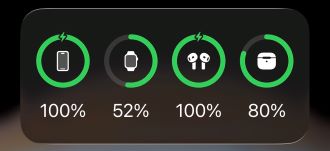
Image: Max McCaskill
If only one of your AirPod earbuds is working, it may have something to do with your AirPods’ battery life.
It’s actually quite common for one of your AirPods to drain the battery more than the other—if you use their microphones often. This extra drain happens because only one AirPod acts as both a microphone and a speaker when you need to talk, either to Siri or someone over your phone. Whichever AirPod you put in your ear first will use its microphone (and speaker), while the other will run only the speaker. So with a few phone calls during the day, the AirPod using its mic drains faster.
If you want to swap which AirPod uses its microphone, you can change it from your device settings:
- Open your Settings.
- Select the name of your AirPods near the top.
- Tap Microphone and select one of the three options:
- Always Left AirPod
- Always Right AirPod
- Automatically Switch AirPods (this setting uses the first AirPod you turn on)
From your AirPod settings, you can also see the battery level of your charging case and each individual AirPod to confirm if one of the AirPods isn’t charging.
2. Restart your iPhone
It often sounds too simple, but the easiest way to troubleshoot tech is the tried-and-true “turn it off and on again.” That applies to devices connected to your AirPods as well. It's entirely possible that there’s some issue with your AirPods not syncing up properly, either to your device or to each other.
AirPods rely on Bluetooth to connect to your iPhone. Sometimes Bluetooth signals can temporarily fail or your AirPods may not sync properly if it's been a while since you've used them. Sometimes simply toggling Airplane Mode on and off can quickly get Bluetooth working again.
If that doesn't work, turn off your iPhone or other device and then turn it back on—it’s really that simple.
To restart your iPhone:
- Hold down the Power button and the Volume Down button.
- When the Power slider appears on screen, slide it to the right to power off.
- Once your phone is off, wait 30–45 seconds, hold down the Power button to turn your iPhone back on.
3. Factory reset your AirPods
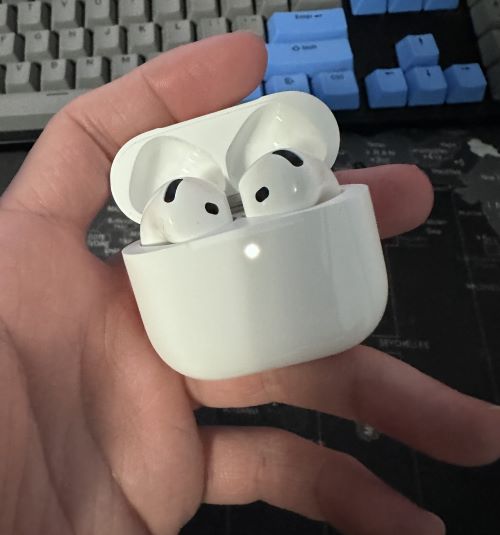
Image: Max McCaskill
Resetting your AirPods may help fix the issue too. If your issue comes from some incorrect or changed setting, doing a factory reset will restore the default settings on your AirPods.
To reset your AirPods, follow these instructions according to your AirPod model and generation..
To reset your AirPods 4:
- Place your AirPods in their charging case and close the lid.
- Wait 30 seconds.
- Open the lid and double-tap the front of the case while the status light is on.
- Double-tap again once the status light begins flashing.
- Double-tap a final time once the status light flashes more quickly.
To reset your AirPods 1, 2, 3, and Pro:
- Place your AirPods in their charging case and close the lid.
- Wait 30 seconds.
- Open the lid, then press and hold the Setup button on the back of your case for roughly 15 seconds.
To reset your AirPods Max:
- On the right headphone, press and hold both the Digital Crown button and the noise control button for about 15 seconds.
Once you finish the reset, reconnect your AirPods to your iOS or Android device and test them out. (Yes, AirPods work on Android devices too.)
4. Clean your AirPods
Sometimes one of your AirPods won’t work due to some ear wax, dirt, or other debris sticking to the sensors on the AirPod earbud's microphone or speaker mesh. Try cleaning each AirPod before reconnecting them to your device to see if it helps your issue.
To safely clean your AirPods, you can follow Apple’s cleaning tutorial videos and walkthroughs:
5. Check for any updates
While your AirPods shouldn't be malfunctioning with any software version, it's entirely possible that an update will fix the issue. Apple sends out regular updates for fixing bugs and security issues like any other tech brands, so update your AirPods and your Mac, iOS, or other devices to try and fix your problem.
Check for updates on your iPhone:
- Open the Settings app, then tap General.
- Then select Software Update. The device will check for any updates to your phone.
- Install any outstanding updates and retry your AirPods.
Update software for your AirPods
Checking for any software updates to your AirPods is a little less simple. Your AirPods should update automatically whenever an update is available.
To initiate an update for your AirPods:
- Make sure your iPhone or Apple device has the latest software version first.
- Plug your AirPods in to charge and keep them in Bluetooth range of your device while it's connected to Wi-Fi.
- After around 30 minutes or so, your AirPods should finish installing any updates.
6. Contact Apple for help
If none of the above works to fix your AirPods wireless earbud issues, it might be time to contact Apple about a repair or potentially an AirPod replacement. You can either find your nearest Apple Store or Apple Authorized Service Provider, or you can contact Apple Support online or over the phone.
What to have on hand when calling Apple Support:
- Your Apple ID
- Your AirPods
- Your wireless charging case (they may ask for the serial number imprinted on the inside of the case)
If they find one of your AirPod earbuds is damaged, you can work with Apple to get replacement AirPod parts. What you pay for the replacement AirPod parts depends on whether or not you subscribe to AppleCare insurance and what the issue turns out to be. In some cases, repairs might be too expensive and it may be worth simply buying new AirPods.
One AirPod not working: FAQ
Why is one of my AirPods not charging?
One of your AirPods might not be charging for a couple of reasons. Dirt, ear wax, or other debris could be stopping the earbud from making a solid connection inside the charging case. Follow cleaning and care recommendations to tidy up your earbuds and make a clean connection. A software setting may have accidentally changed — factory reset your AirPods to see if the default settings fix your charging issue. Check our other AirPod troubleshooting tips before calling Apple Care in case the issue goes beyond the battery charging.
Why are my AirPods connected but there's no sound?
No sound coming from your AirPods could be from dirt or built-up ear wax, a software bug, an incorrect setting, or other issue. Make sure to properly clean your AirPods, install any device updates, and possibly factory reset your AirPods to try and fix the issue. (It doesn't hurt to turn your connected device off and on again too.)
If these quick fixes don't solve the problem, contact Apple Care or speak to one of the in-store tech supports for more help.
Why does only one AirPod play audio at a time?
If only one AirPod is playing audio, it could be caused by a connectivity glitch, poor Bluetooth signal, a dead battery, or skewed audio settings from your iPhone. Try resetting your AirPods, checking the battery levels, and look at your audio settings.
How do I check the battery level of each AirPod separately?
To check the battery of each AirPod, open your charging case near another Apple product, like your iPhone, iPad, or Mac. From there, pull out one AirPod and look at the battery widget or AirPod settings on your device. The battery levels of each individual AirPod and the AirPod case should be visible.
Can I use just one AirPod at a time?
Yes, you can use just one AirPod at a time. That said, be aware that consistently using the same AirPod may cause its battery health to deteriorate faster than the AirPod you don't use as much.
Why does one AirPod keep disconnecting?
If one AirPod keeps disconnecting, it's usually due to a low battery. Make sure that the AirPod has a full charge and that the charging terminals on the AirPod itself and in your case are clean.
Christian de Looper
Contributing Writer

Thousands of cell phone plans unpacked. All the facts. No surprises.





.png?w=280&h=280&usm=20&usmrad=0.8&fit=crop "The Best Cheap Phone Plans for 2026: We Tested Them All to Help You Save")


