
APN (Access Point Name) settings determine how your device connects to your mobile carrier’s network, enabling internet access, messaging, and mobile data services. Without them, you won’t be able to access your mobile data or the internet.
Most modern smartphones automatically configure APN details when you insert a SIM card or activate an eSIM. However, you might need to manually adjust them if you encounter data connectivity problems or bring your own phone to FreedomPop.
Below, you’ll find device-specific instructions to check or update your FreedomPop APN settings.
How to view and edit FreedomPop's APN settings on Android
Note: These instructions are based on a Pixel 6 running Android 15 and above. Steps may vary for your particular device or if you’re using an older version of the Android operating system.
Follow these steps to view or update your FreedomPop APN settings on an Android device:
- Under your phone’s Settings, tap Network and Internet or Connections.
- Select Mobile Networks, Cellular Networks, or SIMs. If you don’t see these options, you’ll need to tap More first.
- If your phone shows the SIMs option, tap and select your SIM two times. Otherwise, skip down to the next step.
- Tap Access Point Names to view your current APN settings.
- To change your APN settings, either tap + to add new APN settings or update your settings by tapping each field and entering FreedomPop’s APN settings. Make sure to leave all other fields not listed in the table blank.
- Restart your phone.
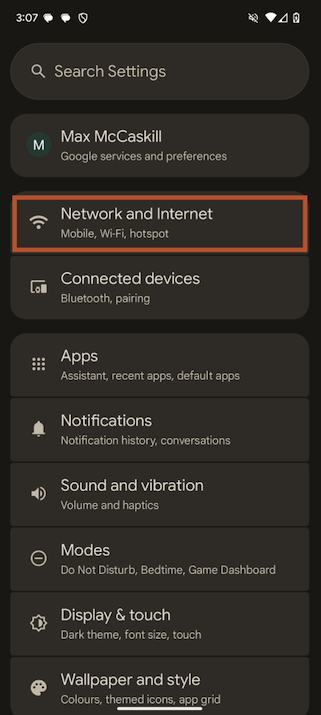
Image: Max McCaskill | WhistleOut
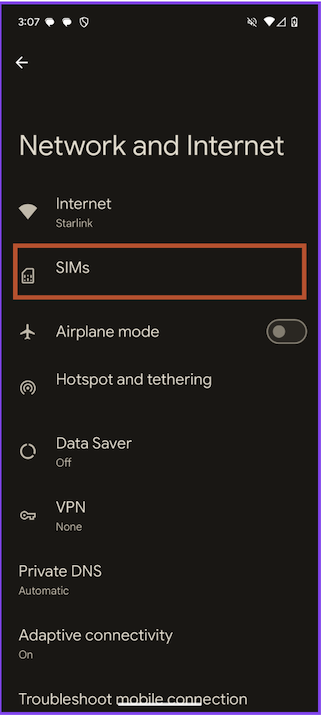
Image: Max McCaskill | WhistleOut
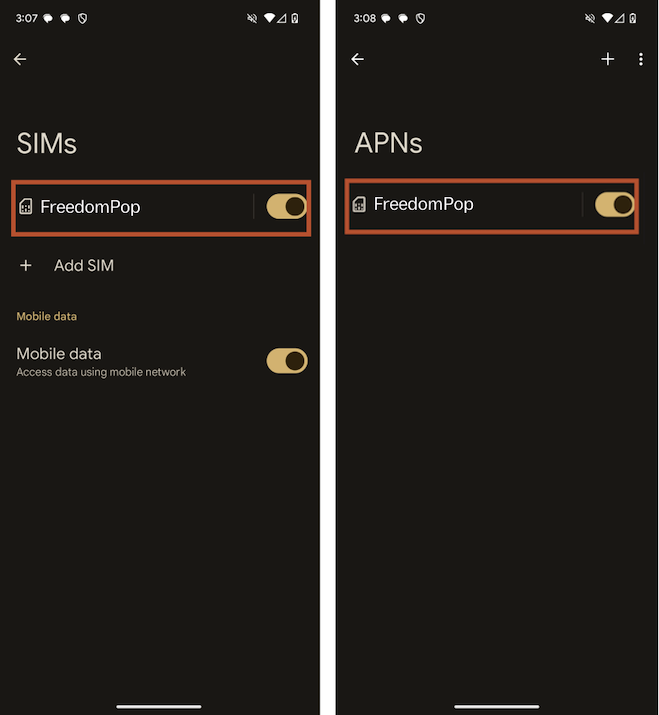
Images: Max McCaskill | WhistleOut
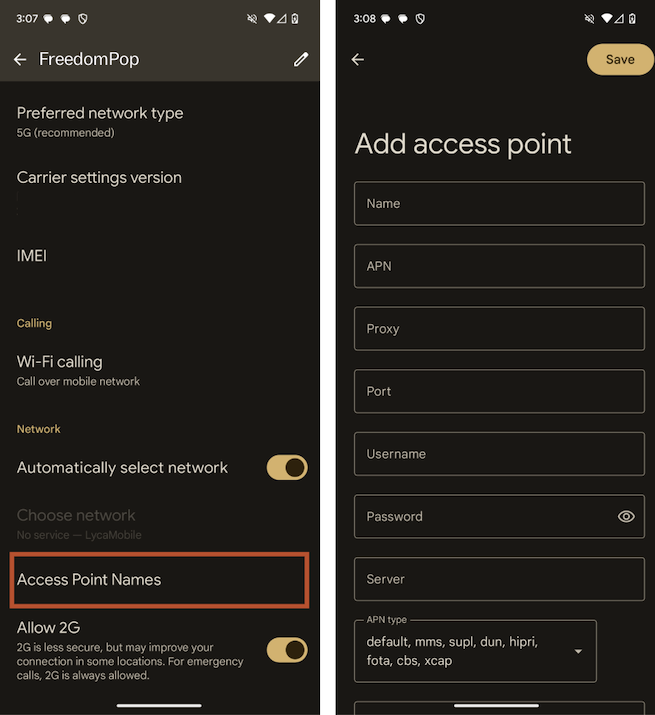
Images: Max McCaskill | WhistleOut
FreedomPop APN settings
| APN name | FreedomPop |
| APN | ereseller |
| MMSC (MMS Center) | http://mmsc.mobile.att.net |
| MCC (Mobile Country Code) | 310 |
| MNC (Mobile Network Code) | 410 |
| APN protocol | IPv4 |
| Proxy | Leave blank |
| Port | Leave blank |
| Username | Leave blank |
| Password | Leave blank |
| Server | Leave blank |
| MMS proxy | proxy.mobile.att.net |
| MMS Port | 80 |
| Authentication type | Leave blank |
| APN type | default,supl,mms,fota |
| MVNO type | Leave blank |
You’ll see FreedomPop’s name at the top of your screen if your SIM setup is successful. However, if these steps don’t work for manual changes to your phone’s APN settings, reach out to FreedomPop’s customer service for further help.
Get better home internet near you
APNs connect your phone to mobile internet—but how's your home internet doing? If you’re tweaking phone settings to get online, it might be time to check your home connection too. Enter your zip code to compare the best internet plans in your area.
How to view and edit FreedomPop's APN settings on iPhone
Note: These instructions are based on the iPhone 11 running iOS version 18 and above. Steps may vary for your particular device, iOS version, or carrier restrictions.
Follow these steps to view or update your APN settings on an iPhone:
- Open Safari and go to FreedomPop’s APN setup tool.
- Select the United States for your country and US LTE SIM for your product before taPping Create APN.
- Open your phone’s Settings, and tap General.
- Tap VPN & Device Management.
- Select the downloaded profile and tap Install.
- Restart your phone.
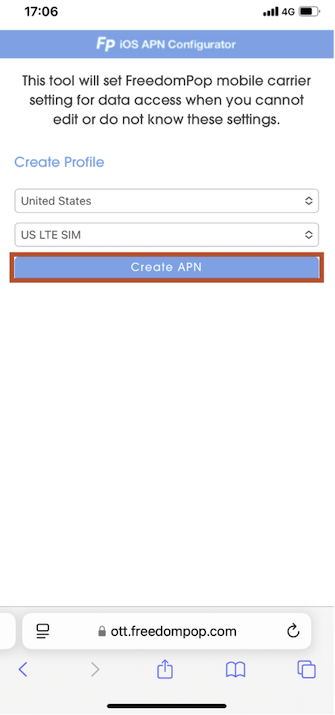
Image: Jessica Santero | WhistleOut
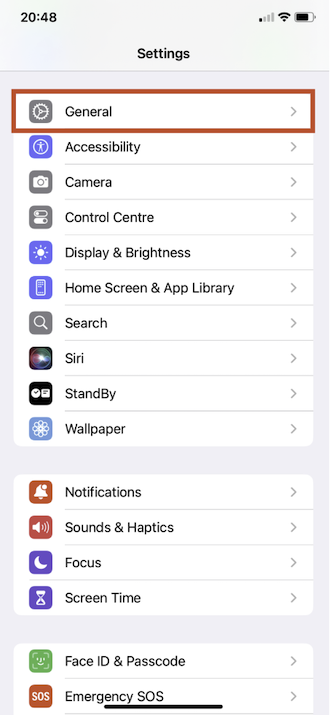
Image: Jessica Santero | WhistleOut
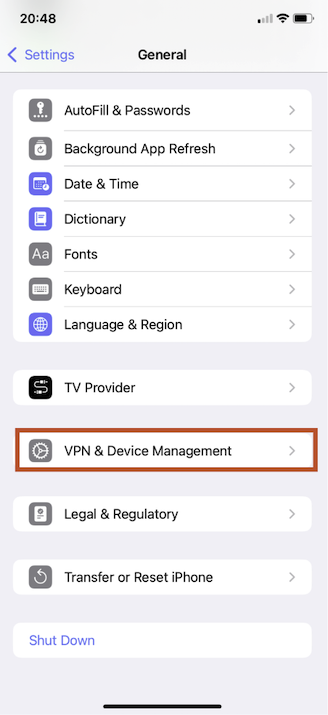
Image: Jessica Santero | WhistleOut
Test to see if your APN settings were correctly installed by opening an app or browsing the internet while disconnected from Wi-Fi. If you still have issues connecting to your mobile data, contact FreedomPop’s customer support for more help.
When should you update your APN settings?
You should update your APN settings if you can’t access the internet on your phone or have recently switched carriers and brought your phone with you.
While most smartphones set up APNs automatically, you may need to manually update them if your data isn’t working despite having an active plan.
However, before you start adjusting technical settings, check out our data connection troubleshooting guide to make sure your mobile data is properly configured. Always use the exact APN details provided by FreedomPop to make sure you connect to the right network, and restart your device after applying changes.
Jessica Santero
Staff Writer

Thousands of cell phone plans unpacked. All the facts. No surprises.





.png?w=280&h=280&usm=20&usmrad=0.8&fit=crop "The Best Cheap Phone Plans for 2026: We Tested Them All to Help You Save")


