

You can add music to a video on iPhones to enhance your recordings.
The easiest way to add sound to videos on Apple iPhones is with QuickTake. However, you can also jazz up videos on iPhones with custom music using iMovie or third-party video editing apps.
Whether you’re shooting a video for your social media channels, making a short film, or simply sending funny clips to family and friends, here’s how to add music to a video on iPhones.
How to add background music to a video on iPhones with QuickTake
QuickTake is a great option for adding music to videos on your iPhone. It’s simple and uses your default iPhone camera app. The QuickTake feature lets you easily add music from various sources like Spotify to videos shot on iPhones. You can use QuickTake on an iPhone XR, XS, or newer running iOS 15 or later.
Here’s how to add music to videos on iPhone from Spotify, Tidal, and other sources:
- Play a desired audio track in your preferred music app, like Spotify, Tidal, or Apple Music.
- Fire up your iPhone camera app (note that QuickTake only works in the default Photo mode).
- Tap play in the Control Center by swiping down from the top right-hand corner of your handset and hitting the play icon in the media playback widget.
- Long-press (press and hold) the on-screen camera shutter button (the big button you tap to take pictures or shoot videos) to begin recording a video clip with a music track playing.
- Release the in-app camera shutter button when you’re finished capturing footage.
Now, you should have a personalized music video captured.
How to record videos with music on iPhones with iMovie
You can also add music to videos on iPhones using iMovie, which is a full-fledged iOS video editing app. Let’s explore how to put music over a video on an iPhone with iMovie:
- Open the iMovie app on your iPhone.
- Select from one of three options: Magic Movie, Storyboard, or Movie. Magic Movie is automatic, while Movie provides more manual control, and Storyboard provides a beginner-friendly way to learn video creation basics. We recommend using Movie for more customization options.
- Tap the plus button (“+”) to make a new project or open an existing project. If you’re creating a new project, import a video file you want to add audio to.
- Choose the Audio option.
- Select My Music, Soundtracks, or iCloud Drive.
- Choose the audio file that you want to add to your video, then tap the Add Audio icon.

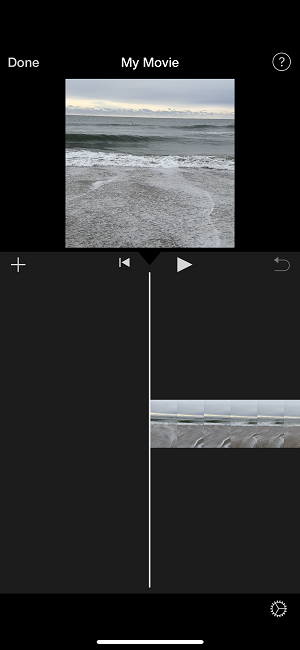


You can select soundtracks and theme songs from iMovie’s built-in music library. Additionally, you can pick songs synced to your iPhone from your computer in the Music app. If you’re comfortable with music production, iMovie lets you import songs from programs like Logic Pro and GarageBand using iCloud or the Music app. Ultimately, iMovie is one of the best apps you can use to create movies on iOS devices.
Third-party apps for adding music to your videos on iOS
While we recommend QuickTake and iMovie for adding music to videos on an iPhone for free, you’ll find several third-party video editor iOS apps. The best apps to add music to videos on your iPhone include Film Maker Pro, Adobe Premiere Rush, LumaFusion, and Filmr.
Best iPhone cameras
The best iPhones for photography and videography are the iPhone 16 series and iPhone 15 series. On a budget, the iPhone SE (2022) is an excellent choice that captures great pictures and videos without breaking the bank.
iPhone 16 128GB
- 6.1 inch display
- Rear Cameras: 48MP, 12MP
- Front Camera: 12MP
iPhone 18 Pro 256GB
- 6.3 inch display
- Rear Cameras: 48MP, 48MP, 48MP
- Front Camera: 18MP

iPhone 18 Pro Max 256GB
- 6.9 inch display
- Rear Cameras: 48MP, 48MP, 48MP
- Front Camera: 18MP

iPhone 18 Pro 512GB
- 6.3 inch display
- Rear Cameras: 48MP, 48MP, 48MP
- Front Camera: 18MP

iPhone 18 Pro Max 512GB
- 6.9 inch display
- Rear Cameras: 48MP, 48MP, 48MP
- Front Camera: 18MP


How to add music to a video on an iPhone: FAQs
Moe Long
Senior Writer

Thousands of cell phone plans unpacked. All the facts. No surprises.
Related Articles


Related Topics
iOSPopular Topics
Featured App Reviews iOS News Coverage Device Reviews Device Explainers Carrier Explainers App Roundups T-Mobile


Free iPhone 18 Pro, up to $1,200 off, with a trade-in in any condition or a line switch on Experience Beyond





.png?w=280&h=280&usm=20&usmrad=0.8&fit=crop "The Best Cheap Phone Plans for 2026: We Tested Them All to Help You Save")


