

Whether you want to hide gift orders to keep them secret or declutter your archive purchase history, managing your past Amazon orders is easy. Unfortunately, you can’t delete your Amazon purchase history entirely, but you can hide your past orders by archiving them.
Amazon allows non-business accounts to archive up to 500 Amazon orders and hide them from your main order history page. Sadly, Amazon business account customers are not able to archive their purchases.
The company makes it easy to delete your purchase history through the archive feature on your web account. We’ll walk you through how to do it below.
How to archive your Amazon orders
Follow these simple steps to archive your order history. First, log into your Amazon account via your desktop or web browser. Then you will:
- Find the dropdown in the top menu that says “Accounts & Lists.” You can either hover over it to open up all menu options, or click directly into your account.

- Under “Your Account,” select “Orders” or “Your Orders,” depending on which view you’re looking at.

- Use the dropdown menu to select the time period you wish to look at (last 30 days, past 3 months, or a specific year).

- Find the order you want to hide and select “Archive order” in the bottom left-hand corner.

- Click “Archive order” again to confirm.

This will remove your Amazon order from the default order history. However, you can still view your previous Amazon purchases on the Archived Orders page.
Note that you cannot archive more than one Amazon order at a time. You must make your way through your order history and hide your Amazon purchases one by one.
Can I do this on my Amazon app instead?
You can’t archive or hide Amazon orders through its mobile app—you have to do it through Amazon’s website. If you want to delete your Amazon order history on your phone, you’ll have to use a web browser like Google Chrome or Safari and log in that way.
Viewing your hidden Amazon orders
Want to take a stroll down memory lane (or double-check that charge on your bank statement)? Your archived orders are still viewable on the “Archived Orders” page of your Amazon account.
To view your archived Amazon purchases:
- Go back into your account orders using the same method outlined above (Account & Lists > Your Account > Orders/Your Orders).
- Click the dropdown menu to choose the time period of order history.
- Scroll down and select “Archived Orders.”

You’ll see a list of your hidden purchase history, with the option to unarchive any of the orders shown. Simply click “Unarchive Order” in the bottom left corner of the purchase.
Hiding your purchase history using Amazon Household
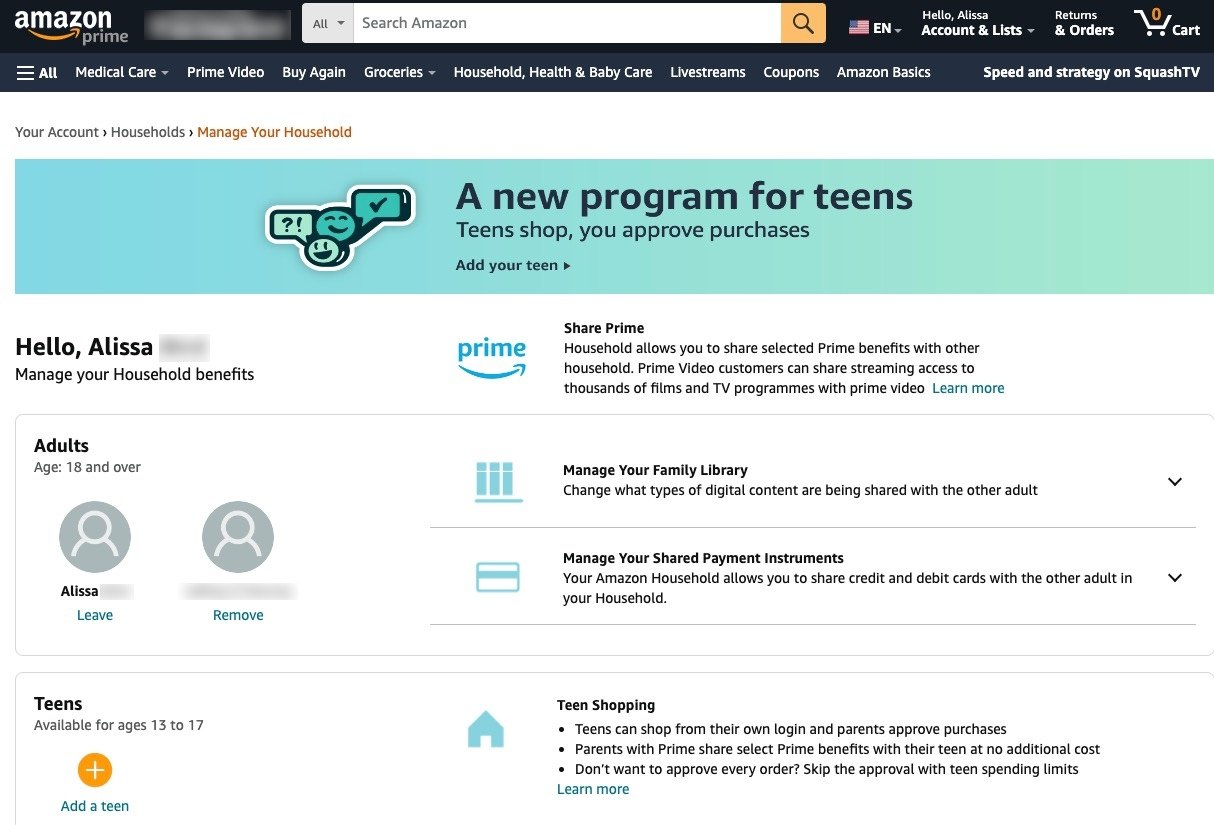
Anybody with your account login can still see your archived Amazon orders. You can prevent this by creating an Amazon Household account, which enables you to share Amazon Prime with family members. Amazon Household allows you to hide your purchase history from specific people, which can be helpful if you order a present for your partner or child and don’t want to ruin the surprise.
An Amazon Household account can consist of a maximum of:
- Two individual adult Prime accounts
-
Four teen users (13 to 17 years old) with individual log-ins
- Adult users can review and approve all purchases made from a teen’s profile
-
Four children with access to Amazon Kids only
- Children may not access Prime or shopping on Amazon
You don’t have to go out of your way to delete your Amazon order history on a Household account—the very nature of this benefit is that your purchase history, lists, and recommendations are all private and separate from your other family members. This only applies to the two adult Prime accounts, though—parents still get a text or email order confirmation for any purchase made on a teen Household account.
To create a Household account follow these steps:
- Go to Your Account.

- Scroll to the bottom of the page, and under Shopping programs and rentals, select Amazon Household.
.jpg "Select Amazon Household")
- Select Add Adult/Teen/Child.
.jpg "Add a household member")
-
Send an invite to your household member by inserting their name and email when prompted.

-
Agree to share your wallet.

-
Select your preferences for shared content.

7. Link any additional adult Prime accounts and/or add up to four teen or child profiles to your Household.
Marisa Crane
Staff Writer

Thousands of cell phone plans unpacked. All the facts. No surprises.

Related Articles
.jpg?w=160&h=160&usm=20&usmrad=0.8&fit=crop "Verizon Fios Internet vs. Optimum Internet")

.png?w=160&h=160&usm=20&usmrad=0.8&fit=crop "T-Mobile AWAY Plan: Mobile-friendly internet launches for travelers and nomads")
Related Topics
InternetPopular Topics
Featured App Reviews iOS News Coverage Device Reviews Device Explainers Carrier Explainers App Roundups T-Mobile


Free iPhone 18 Pro, up to $1,200 off, with a trade-in in any condition or a line switch on Experience Beyond





