
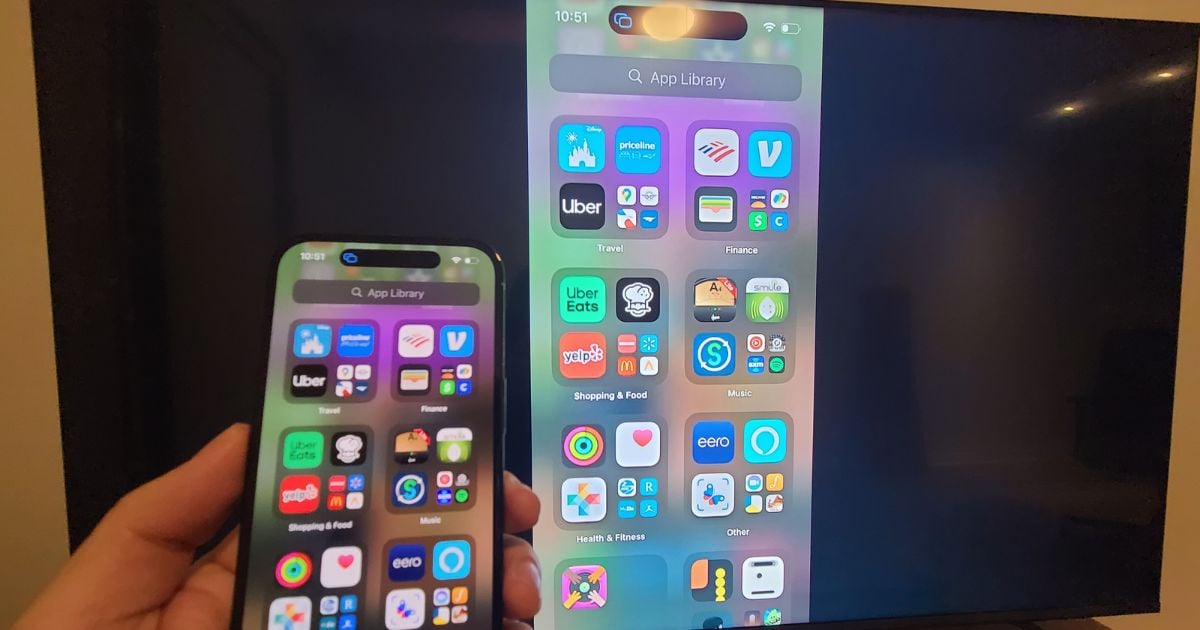
Your iPhone is great for viewing pictures and videos, but it isn’t the best option for sharing those pics and videos to multiple people. The screen can be a little too small for everyone to see, so you end up passing your phone from person to person. You can solve this by mirroring your iPhone to an Apple TV or a TV with AirPlay enabled.
Mirroring lets you cast your phone’s display on a TV’s larger screen. Keep reading to learn all the ways to mirror your iPhone on your TV.
Mirroring Your iPhone to a TV Using AirPlay
To mirror your iPhone display to a TV, you need a smart TV with AirPlay or an Apple TV device. You can take the following steps to start mirroring your phone on the TV:
- Open your iPhone’s control center by swiping down from the upper right corner of the screen.
- Tap
to open screen mirroring options.
- Select the TV or device you want to use.
- If a passcode pops up on the TV, enter it into your iPhone.
- Wait for the TV screen to display exactly what you see on your iPhone display. You are now mirroring your iPhone to your TV.
Mirroring your iPhone without Apple Tv
If you don't have an Apple TV, you can still mirror your iPhone to your TV using a Chromecast. First, install the Google Home app on your iPhone. Make sure both devices are connected to the same Wi-Fi network. Open the Google Home App, select your Chromecast device, and choose the "Cast Screen/Audio" option to start mirroring your iPhone screen to the TV.
Mirroring Your iPhone with an HDMI Cable
To connect your iPhone to a TV that isn't a smart TV, use a HDMI or VGA cable with an adapter. You need an AV adapter to connect the HDMI to your iPhone’s lightning port. Once you have the cable and adapter, simply plug them in to your iPhone and TV, and make sure the TV is set to the right HDMI input. Once connected, you should see your iPhone mirrored onto the TV screen.
Cast Videos from Your iPhone to a TV
Sometimes you aren’t interested in mirroring your entire phone screen to a TV, but you want to cast a video from your phone on the bigger screen. To do that, take the following steps:
- Play the video on an AirPlay-compatible app on your phone (most popular video streaming apps are compatible).
- Tap the cast button
.
- Select the TV or Apple TV+ you want to use.
- Your video should pop up on your TV screen for you to enjoy.
How to Show Your Photos on Your TV
You can share pictures directly from your iPhone to your TV by taking these steps:
- In the Photos app, select the picture you want to cast to your TV.
- Tap
.
- Select AirPlay or
.
- Choose the TV or Apple TV you want to use.
- The picture you selected should appear on your TV for you to share.
What Is AirPlay?
AirPlay is a great technology that allows you to stream audio and video from your Mac, iPhone, or iPad to any compatible device (like an Apple TV). You can use AirPlay to wirelessly stream music in your home, office, or anywhere else you have an Apple product. Wondering if iPhones have screen mirroring? The answer is yes. With Airplay you can mirror your iPhone screen to a compatible Mac or TV. Airplay allows you to stream video and audio from your iPhone to other Apple devices.
You can also use AirPlay to mirror the display of your iOS device to a larger TV screen, so you can show everyone what’s happening on your device. AirPlay is incredibly easy to use; all you need is a compatible Apple product and a device that supports AirPlay, like an Apple TV or smart TV.
Troubleshooting Airplay
Why is my TV not showing up on screen mirroring on my iPhone?
If your TV isn't showing up on screen mirroring, make sure your Airplay-compatible devices are turned on and close to each other. Check that they're updated to the latest software version and connected to the same Wi-fi network. Restarting your devices can also help resolve connectivity issues.
Angelo Ilumba
Senior Writer

Thousands of cell phone plans unpacked. All the facts. No surprises.





.png?w=280&h=280&usm=20&usmrad=0.8&fit=crop "The Best Cheap Phone Plans for 2026: We Tested Them All to Help You Save")


