
The release of iOS 17 has put some incredible new productivity features on your iPhone. Standby Mode turns your iPhone into a stationary screen when connected to a MagSafe charger. Updates to Siri and your device’s widgets can help you complete tasks quickly. Finally, improvements to password sharing and visual lookup make sharing information easier than ever.
Let your iPhone help you with your work instead of being a distraction by utilizing some of these productivity features.
Standby Mode
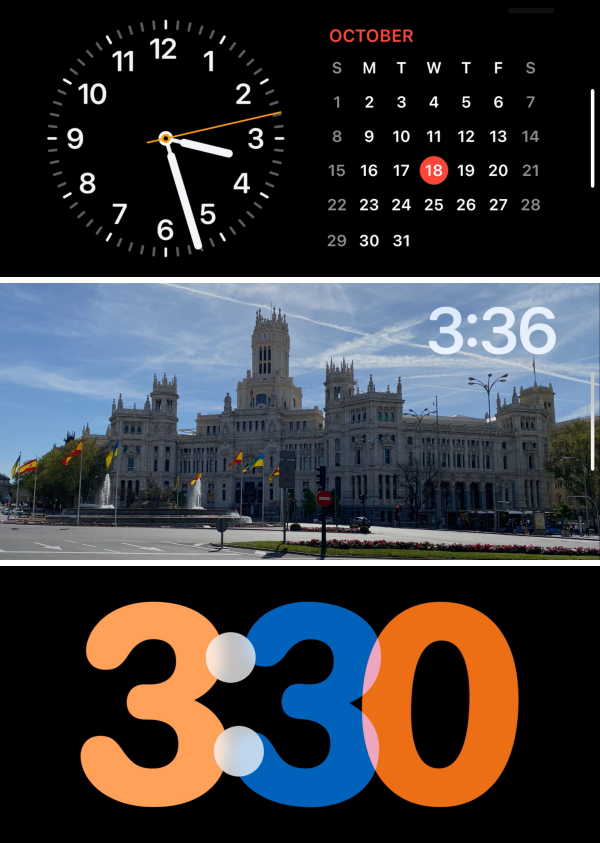
Standby Mode might be my favorite feature to come out of iOS 17. It essentially turns your iPhone into a smart clock when charging on a MagSafe charger.
There are three different Standby displays:
- Widget display with two columns of widgets that you can customize.
- Photo display with curated collections of your personal pictures.
- Digital clock with multiple customization options
I use Standby Mode during work to check the time, complete reminders, see my calendar, monitor the weather, and even get news updates. It’s basically a tiny screen next to my work computer. It’ll also show any notifications that come to your phone while it’s docked. You should note that these notifications will show up in large font on your screen, so it’s not great for privacy in an office setting. That said, you can disable Standby Mode notifications in your settings.
How to set up Standby Mode
Setting up Standby Mode is easy. It’s already enabled on your device if you’ve updated to iOS 17. All you have to do is position your iPhone correctly for the screen to automatically pop up. Setting up Standby Mode is also easy, but you must first enter the display to make edits and customize the features. You can’t edit it from your iPhone’s settings app.
To view Standby Mode:
- Lock your iPhone.
- Hold your phone sideways.
- Connect it to a MagSafe charger that can hold your phone vertically.
- Give your iPhone a moment to enter Standby Mode.
Now that you can see Standby Mode, you can set up your personal customization options.
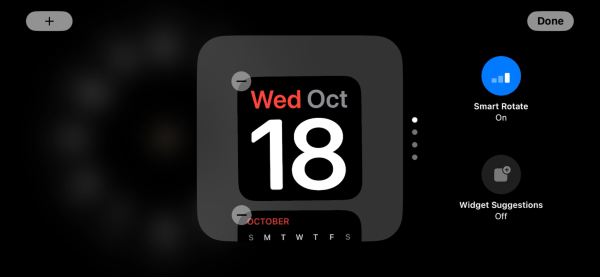
To set up Standby Mode:
- Long-press on the view you wish to customize.
- Let Face ID unlock your device or type in your passcode.
- Scroll through the available options and select the ones you want.
- Press done.
I’ve found the Standby feature works best with a heavy MagSafe charger and your iPhone out of its case. Heavier chargers will usually remain on your desk when you pick up your phone as opposed to magnetically sticking to the back. As for cases, unless you are purchasing one specifically designed for MagSafe, you may not get a great connection. This can lead to a slower charge or potentially your phone slipping off the magnet.
Personally, I use the Anker 3-in-1 MagSafe Cube. It’s small and portable, but also heavy enough that my phone easily releases from it. It also includes docks to charge my Apple Watch and AirPods at the same time as my phone, so it’s really convenient. It basically serves as my one-stop charging station on my work desk.
Interactive widgets
You’re probably already familiar with widgets for your iPhone. These helpful views live on your home and lock screen to show live data from your favorite apps. Previously, tapping on most of these widgets took you directly to the app. Now, iOS 17 has introduced interactive widgets.
Interactive widgets allow you to carry out functions directly in the widget without needing to go to the app. For example, you can check off completed tasks in your Reminders widget or pause your playlist from the Music widget. There’s no need to go into the actual apps anymore. Instead, it can all be done from the widget on your home screen or in Standby Mode, increasing your productivity and eliminating extra steps.
Siri updates
Siri received two updates during iOS 17 to improve the user experience. In the past, you needed to say “Hey Siri” to activate the Apple personal assistant. Now, you simply need to say “Siri” and it’ll automatically start listening. This update makes talking to Siri more natural and conversational.
The second update also flows into that new conversational tone. You can now make back-to-back Siri requests without having to enable a new chat every time. This is probably the most helpful feature for productivity. For example, you can now ask Siri how long you need to bake your chocolate chip cookies, and then ask it to set your timer in the same chat.
Password sharing
iPhones have long had the ability to share passwords. However, Apple has taken the sharing ability to a new level. You can now create password lists to share with trusted contacts from your device. You could have a password list for shared devices in the office and a list with your family for all your streaming services at home. Anytime a password is changed it’ll automatically update for the entire group. Group creators also have the ability to add and remove people from their password lists, so you can always keep things secure.
Visual lookup
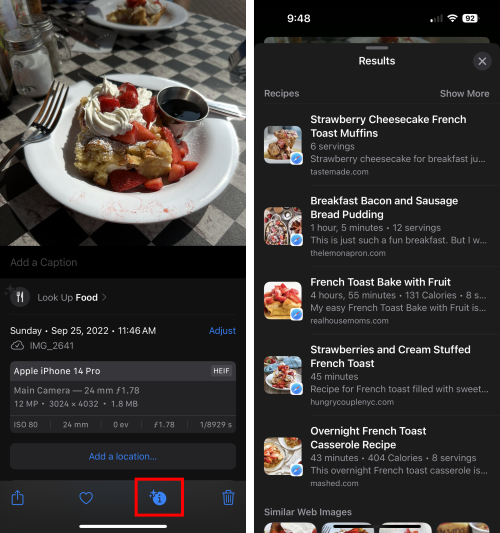
Visual lookup in iOS 17 supercharges information in your Photo app. You can now search for specific topics and your iPhone will find photos in your albums that match what you’re looking for. There’s also a powerful Safari search feature that can help with Maps, translate signs, and even look up recipes for food.
In the image below, you can see a photo of strawberry and cream cheese french toast I ate at a cafe while on vacation last year. By pressing the enhanced information button, Safari looked up recipes similar to the dish I was eating so I could prepare it at home. Now there’s no need to pour through dozens of recipe websites when you get home from a restaurant. Simply snap a photo and your phone can show you similar dishes.
What phones have iOS 17?
Most newer iPhones can download iOS 17. The full list includes:
iPhone data plans
You’ll need a solid data plan to get the most out of your iPhone. Not all of these new iOS 17 productivity features require data, but you’ll need it to have the best experience overall. If you’re unsure how much data you typically use, check out our data usage guide. Even if you discover you use a ton of data, there are plenty of great unlimited plans that won’t break the bank.
Smaller carriers called MVNOs offer service at discounted rates on the larger carrier’s networks. They typically don’t offer as many perks, but you can find solid plan options with plenty of priority data at lower prices than the major carriers like AT&T, T-Mobile, and Verizon. Most also offer access to high-speed 5G networks, so you can count on having fast speeds.
Mint Mobile offers service on T-Mobile’s network. You can snag an Unlimited Data plan with 50GB of premium data and a 20GB mobile hotspot for $30/month ($15/month for new customers). You’ll need to prepay for at least three months in advance for Mint, but the overall cost is typically cheaper than many other carriers.
Mint Mobile Unlimited Data Plan

| Carrier | Mint Mobile |
|---|---|
| Data | Unlimited Data |
| Type | No Contract |
| Current Deal | Get this unlimited plan for just $10/mo. for the first 6 months of service |
| Total Price |
$10 per month
$60 for 6 months of service
|
| View Plan |

You can get access to Verizon’s network Visible. Verizon offers incredibly fast 5G speeds and the largest 4G LTE network in the nation. Visible has competitive unlimited plans. The $30/month Visible+ plan and $40/month Visible+ Pro plan include unlimited premium 5G ultra-wideband data. Plus, it offers an unlimited mobile hotspot with speeds limited to 5-15Mbps. That’s plenty of speed for basic browsing tasks like social media and streaming.
Visible $30 Visible+ Plan

| Carrier | Visible |
|---|---|
| Data | Unlimited Data |
| Type | No Contract |
| Current Deal | Get $5/mo. off this Visible+ monthly plan for the first 60 months of service using promo code 5OFF5 with number port-in required |
| Total Price |
$30 per month
Taxes & Fees included
|
| View Plan |
Customers wanting AT&T service can look into Boost Mobile. It offers service on both the AT&T and T-Mobile networks. Boost’s top Unlimited Data plan includes 35GB of premium data and a 12GB mobile hotspot for $40/month.
Boost Mobile Unlimited+ Plan

| Carrier | Boost Mobile |
|---|---|
| Data | Unlimited Data |
| Type | No Contract |
| Total Price |
$50 per month
with AutoPay
|
| View Details |
Max McCaskill
Sr. Staff Writer

Thousands of cell phone plans unpacked. All the facts. No surprises.





.png?w=280&h=280&usm=20&usmrad=0.8&fit=crop "The Best Cheap Phone Plans for 2026: We Tested Them All to Help You Save")


