

As an iOS user, you’ve likely experienced the dreaded “this accessory may not be supported” error message. Simply put, this message means an iPhone, iPad, or iPod peripheral isn’t functioning properly. Luckily, several potential remedies provide easy fixes.
You can try restarting your device, updating iOS, or cleaning your charging port to resolve the error. You may even need to swap to an official attachment if the error keeps happening. Read on to learn more about these solutions to get your accessories working with your phone right now.
What does "This Accessory May Not Be Supported" mean?
When you plug in a supplemental hardware item—a charging cable, pair of headphones, or MFi gadget—it typically works flawlessly with iOS. However, an “accessory not supported” message sometimes appears. Common causes for this error message include:
- Your device doesn’t support a particular accessory.
- The accessory is damaged or defective.
- You’ve got a damaged or dirty connector port.
- The accessory isn’t Apple-compatible.
How to fix an "Accessory May Not Be Supported" error message
Now that you’ve identified possible causes for an unsupported accessory error message, let’s look at the top remedies for your Apple woes.
1. Reconnect with your iOS device
Like turning your device off and back on, occasionally reconnecting a device like a cable or pair of headphones resolves any iPhone problems. Try disconnecting any troublesome accessories (i.e., unplugging a charging cable), then plugging them back in.
2. Restart your iOS device
One of the simplest fixes for iPhones, tablets, and computers is a quick restart to help diagnose unsupported peripherals. On the iPhone X and later, long-press the side and volume buttons until the Slide to power off message appears. Then, slide to shut down, wait around 30 seconds, and turn your device back on. For the iPhone 8 and earlier, long-press the sleep/wake button, then drag the power icon from left to right on the screen.
Once your iOS gadget is back on, attempt to connect your accessory again. Instead of a full reboot, you could also try toggling Airplane mode on and back off. Notably, a soft or hard reset is a great option when you’ve got an unresponsive iPhone.
3. Check your charging port
iOS devices sometimes display a “this cable is not certified and may not work reliably with this iPhone” message. Check your iPhone's Lightning port if you're experiencing problems with iPhone cables or other add-ons. You can clean this area with an unused, soft toothbrush, Q-tip, static-free brush, or toothpick. A can of compressed air also works for blowing out sediment. Just be gentle.
You may also need to dry your lightning charging port if your device recently got wet. There may not be enough moisture to damage your device, but a drop of rain can prevent the charging connection from being made. A Q-tip or a blast of compressed air can help remove moisture.
For physical damage, you can snag an at-home restoration kit or bring your device to a certified phone repair store to let the pros fix your phone. Alternatively, if you’ve got phone insurance, just file a claim. A wireless charger is a solid workaround in the event of a broken Lightning port.
4. Test a different Apple accessory
Trying another accessory is an easy way to diagnose if your first option is malfunctioning. For instance, use a different charging cable if your Apple iPhone isn't charging and you suspect a Lightning cable is at fault. If you don't have a spare, borrow one from a friend or pick up an extra.
Similarly, test out different components. A power adapter instead of a cord could cause iPhone charging problems, for example. When in doubt, narrow down the source of trouble.
5. Update your iOS device
Generally, keeping your operating system (OS) updated is a best practice. Accordingly, updating to the latest version of iOS might resolve accessory issues. With the most recent iOS settings installed, you’ll enjoy recent security patches, bug fixes, and cutting-edge features. Here’s how to update iOS:
- Navigate to Settings > General > Software Update.
- Tap Download and Install.
To enable automatic iOS updates:
- Head to Settings > General > Software Update.
- Hit Automatic Updates.
- Select Download iOS Updates and Install iOS Updates.
Because iOS upgrades are usually large, we recommend using a Wi-Fi connection instead of mobile data.
6. Use compatible MFi accessories
MFi (or Made for iPhone, iPad Pro, or iPod Touch) add-ons from reputable sources sport a badge that indicates Apple recognition. Fake iPhone accessories often cause an "accessory not supported" error message. Therefore, we suggest sticking with MFi-certified cables, power bricks, and other extras. Apple support offers a robust breakdown of MFi accessories.
Our favorite MFi-certified accessories hail from the likes of Anker, Mophie, and Razer. However, it’s possible that a peripheral works with some iOS models but not others. Older iPhones, iPads, and iPods might not function correctly with recent hardware. Check compatibility with your specific iOS device.
Best iPhones
Whether you've got an aging iPhone or want to switch from Android, consider upgrading to a new iOS handset. Our favorite iPhone overall is the iPhone 14. It offers a crisp 12MP main camera and runs on the powerful A15 Bionic processor. If you're looking to save a little money, you could look into the iPhone 13. While is not the newest device, it still packs a punch and uses the same processor as the iPhone 14. We also recommend the iPhone Pro Max for amateur photographers, mobile gaming enthusiasts, or budding videographers.

iPhone SE (2022)
Best budget device from Apple.
The iPhone SE (2022) is the third generation of budget devices from Apple. It includes a 12MP main camera and the same A15 Bionic processor that powers the flagship iPhone 13 and iPhone 14 models. This devices represents the best way to join Apple's ecosystem on a budget. However, you can save even more money by purchasing this device renewed from Amazon. Renewed devices are used, but have typically been completely rebuilt to ensure the device is in pristine condition.

You can also check out the most popular iPhones on the market below. Carriers are always offering great iPhone deals. If you pick the right device and carrier you might get your next iPhone for free.
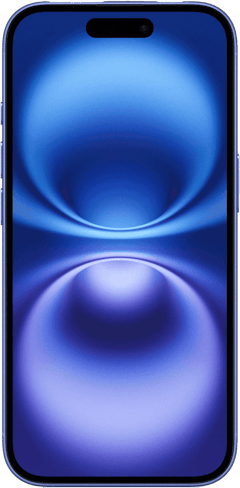
iPhone 16 128GB
- 6.1 inch display
- Rear Cameras: 48MP, 12MP
- Front Camera: 12MP
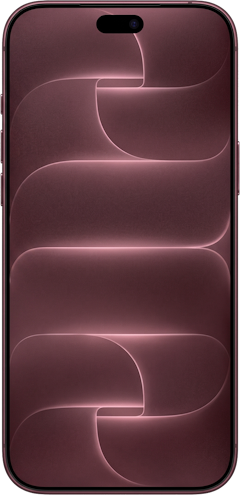
iPhone 18 Pro 256GB
- 6.3 inch display
- Rear Cameras: 48MP, 48MP, 48MP
- Front Camera: 18MP
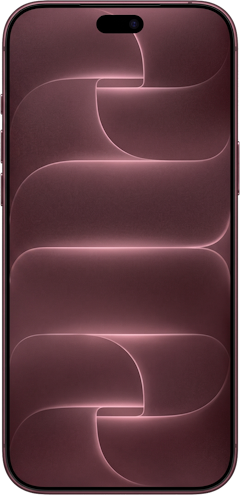
iPhone 18 Pro Max 256GB
- 6.9 inch display
- Rear Cameras: 48MP, 48MP, 48MP
- Front Camera: 18MP
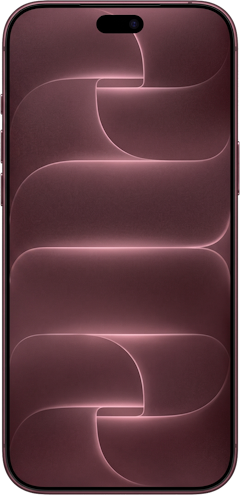
iPhone 18 Pro 512GB
- 6.3 inch display
- Rear Cameras: 48MP, 48MP, 48MP
- Front Camera: 18MP
iPhone 18 Pro Max 512GB
- 6.9 inch display
- Rear Cameras: 48MP, 48MP, 48MP
- Front Camera: 18MP

FAQs: "Accessory Not Supported" error message
What does the "This Accessory Not Supported" error message mean?
Apple’s “this accessory not supported” error message means that a connected peripheral such as a charging cable or pair of earbuds isn’t functioning properly.
Why does my iPhone keep saying, "This accessory is not supported by this iPhone"?
When your iOS device keeps saying, "This accessory is not supported by this iPhone," it means that a hardware add-on isn't working correctly, such as a cable that won’t allow charging.
How do I fix "This accessory is not supported by this device" messages?
The most common fixes for a “this iPhone accessory is not supported” error message include device reboots, updating iOS, reconnecting a peripheral, and using a different accessory.
What happens when an iPhone is no longer supported?
When an accessory or vice versa no longer supports an iPhone, you'll need to rely on compatible hardware. Depending on your situation, you could use an older iPhone to maintain support or upgrade your iPhone device.
How do I clean my charging port?
You can easily clean a dirty charging port using a toothpick, a new soft toothbrush, or a static-free brush. Additionally, compressed air successfully blows out bits of pocket fuzz. Gently root out any chunks of dirt in your charging port with your preferred tool.
How can I fix my iPhone charger?
You can fix iPhone charger issues by using an MFi-compatible USB cable and supported power brick. Sometimes simply disconnecting and reconnecting a charger will remedy a device that isn't juicing up.
Can I use my non-Apple cable to charge my iPhone?
Yes! You can use many non-Apple cables to charge your iPhone. Still, we recommend using MFi-certified chargers that are Apple-approved.
Moe Long
Senior Writer

Thousands of cell phone plans unpacked. All the facts. No surprises.





.png?w=280&h=280&usm=20&usmrad=0.8&fit=crop "The Best Cheap Phone Plans for 2026: We Tested Them All to Help You Save")


