

FaceTime is a great way to stay connected with your friends and family no matter where you are. However, if FaceTime is not working, you can be left feeling frustrated and sad (unless you're like me and will take any excuse to not be in front of the camera).
Fortunately, there are some easy fixes you can try out when FaceTime's not working. Sometimes, the solution is as simple as restarting your device or updating your software. Keep reading for our tips and tricks you can follow when you encounter FaceTime not working.
1. Restart your device
When FaceTime isn't working, the first thing you want to try is restarting your iPhone, Mac, or iPad.
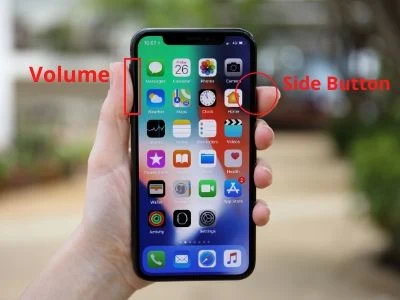
To restart your iPhone, simultaneously hold either of the volume buttons and the (opposite) side button until a slider appears on the screen. Drag the slider to power off the iPhone, wait a few seconds, and press the side button to turn the phone back on.
To restart your iPad, press and hold the Sleep/Wake button until the power off slider appears. Then, slide to turn off your device. Once your iPad is turned off, press and hold the Sleep/Wake button again until you see the Apple logo.
To restart your Mac, click on the Apple icon in the top left corner of your screen and select Restart. Alternatively, you can also use the keyboard shortcut Command + Control + Eject.
2. Update your software
If FaceTime is still not working, check that your iPhone is running the latest iOS version. To do this, go to Settings > General > Software Update and see if there are any updates available. If there are, install them and then try using FaceTime again. You can take the same steps to check and update your iPad.
To check for updates on your Mac, open the App Store application and click on the Updates tab. If any updates are available, they will be listed here, along with a brief description of what each update includes. To install the updates, simply click on the Update button next to each item. You could also just execute a full system update.
3. Check for network connection issues
FaceTime requires an internet connection through Wi-Fi or cellular data. Poor or no internet connection can result in bad audio and video quality or prevent FaceTime from connecting altogether.
If you're on Wi-Fi, try moving closer to your router. If your internet is down, you may want to try resetting your router.
If you're using cellular data, ensure you have enough data left for the month. You can check this through your carrier's website or app (like My Verizon, My T-Mobile, or myAT&T). And if you are simply not getting the best signal, you may have to wait until you are somewhere with better reception. You can also use our guide to troubleshoot why your cellular data isn't working.
Also, if you don't have access to Wi-Fi, make sure you have cellular data turned on. It is most likely on, but check these steps anyway:
- Go to Settings
- Tap Cellular
- Toggle Cellular Data on
Need better coverage?
You will need great coverage if you rely on cellular data to support your FaceTime calls. Check out our guides to the big three networks to see which has the best coverage in your area:
4. Reset FaceTime
Another step you can take when troubleshooting FaceTime is to reset FaceTime by toggling it off and on, or by logging in and out of your account with your Apple ID.
To reset FaceTime:
- Open the Settings app on your device.
- Scroll to Apps and open it, then tap FaceTime.
- Tap the toggle button next to FaceTime to turn it off (if it's already off, turn it on and then back off again).
- Wait a few seconds to turn it on again.
If this doesn't work, try signing out of your FaceTime account and then signing back in. To do that:
- Open the Settings app on your device and scroll to Apps.
- Enter the Apps menu and tap FaceTime.
- Tap your Apple ID.
- Select Sign Out.
- Wait a few seconds, then open FaceTime and sign in with your Apple ID.
5. Check FaceTime status
If FaceTime is not working on any of your devices, it might not be a problem on your end at all. Instead, FaceTime could simply be down. While this is rare, it is still a possibility. You can check the status of FaceTime on Apple's System Status page. If FaceTime is down, you'll have to wait until Apple gets the service back up.
6. Make sure FaceTime is available in your country
If you are traveling abroad, be aware that FaceTime is not available in every country. In fact, FaceTime is not available in the following countries:
- Saudi Arabia (iOS 11.2 or older)
- Pakistan (iOS 12.3 or older)
- United Arab Emirates (including Dubai)
If you are in Saudi Arabia or Pakistan, update your phone to the latest iOS to get FaceTime working.
7. Enable your phone's time and date to set automatically
Most users will have their phone's time and date to set automatically, but if you turned this off for some reason, it might be causing your issues with FaceTime. To set date and time automatically:
- Go to Settings
- Tap on General
- Select Date and Time
- Toggle on Set Automatically
8. Check your mic and camera
If FaceTime isn't working, the issue might actually be with your device's camera or mic.
To check your microphone and camera when FaceTime isn't working, you can follow these steps:
For iOS Devices (iPhone, iPad):
Checking Your Camera:
- Open the Camera app from the home screen of your iOS device. You should be able to see a live feed of what your camera is capturing.
- Switch between the front and rear cameras by tapping the camera swap button, typically found in the top right corner of the screen (or bottom right, when held horizontally).
- If you can't see anything from one or both of your cameras, there might be a hardware issue. However, if the camera works here but not in FaceTime, it could be a problem specific to FaceTime.
Checking Your Microphone:
- Open the Voice Memos app from the home screen of your iOS device.
- Tap the red record button and speak into the microphone.
- Tap the red button again to stop the recording, then play the recording back.
- If you can hear your voice clearly, your microphone is working. If not, there might be a hardware issue. However, if the microphone works here but not in FaceTime, it could be a software problem related to FaceTime.
For macOS:
Checking Your Camera:
- Open the Photo Booth app, which is typically found in the Applications folder.
- If your camera is working, you should see a live feed from your camera.
- If you don't see anything, there might be a hardware issue with your camera. But if it works here but not in FaceTime, there might be a software problem specific to FaceTime.
Checking Your Microphone:
- Open Settings from the Apple menu.
- Click on Sound, then the Input tab.
- Speak into your microphone. The "Input level" meter should move as you speak, indicating that your microphone is picking up sound.
- If the input level doesn't move, there might be a hardware issue. If it works here but not in FaceTime, there might be a problem specific to FaceTime.
If your camera and microphone seem to be working fine with other apps, you should try troubleshooting FaceTime specifically. If you find that there's a hardware issue with either your camera or your microphone, you might need to take your device to an Apple Store or a certified repair center.
The best phone plan for FaceTime
If you use FaceTime as a primary avenue for communication when you are out and about, you're going to need a phone plan that can support you. Since FaceTime uses cellular data, you must ensure you have enough. Check out these popular unlimited phone plans that should meet your FaceTime needs.
|
#1
|
 100%
|
Plans from $25/mo
|
|
#2
|
 97%
|
Plans from $45+ $10 Upfront
|
|
#3
|
 81%
|
Plans from $30/mo
|
|
#4
|
 62%
|
Plans from $25+ $4.99 Upfront
|
|
#5
|
 43%
|
Plans from $25/mo
|
|
#6
|
 35%
|
Plans from $10/mo
|
|
#7
|
 34%
|
Plans from $30/mo+ $20 Upfront
|
|
#8
|
 24%
|
Plans from $15/mo+ $9.99 Upfront
|
|
#9
|
 17%
|
Plans from $10/mo
|
|
#10
|
 13%
|
Plans from $25/mo+ $4.88 Upfront
|
Angelo Ilumba
Senior Writer

Thousands of cell phone plans unpacked. All the facts. No surprises.





.png?w=280&h=280&usm=20&usmrad=0.8&fit=crop "The Best Cheap Phone Plans for 2026: We Tested Them All to Help You Save")


