

The T-Life app (formerly known as My T-Mobile) is your digital control panel for everything T-Mobile. It puts everything you need in one place, letting you handle your entire account without calls or store visits. You can manage your plan, shop for devices, pay your bill, add lines, and control connected services like home internet—all in just a few taps.
- Download the T-Life app for free from the App Store for iPhone or Google Play Store for Android.
Not only does the T-Life app help keep your T-Mobile services organized, but it also delivers exclusive benefits through T-Mobile Tuesdays.
Read on for step-by-step instructions on how to install, use, and troubleshoot the T-Life app.
Mint Mobile's 10-year anniversary deal: Any 6-month plan for $10/month

Mint Mobile is turning 10, and it's celebrating with what it calls its best deal ever. From October 8 through October 22, 2026, every 6-month Mint plan costs $10/month, which comes to $60 paid upfront.
The offer covers the 6GB, 17GB, 23GB, and Unlimited plans, so Mint's Unlimited plan costs the same as its smallest plan for the first six months.
Deal ends October 22, 2026.
$60 upfront payment for 6-mo. plan ($10/month equiv.) req'd. Taxes & fees extra. First 6 mos. only. Over 50GB may slow when network is busy.
What you need to use the T-Mobile app
Before you dive in, ensure you meet the basic requirements:
- A T-Mobile account (unless you want to switch to T-Mobile via the app).
- For Android users: A T-Mobile compatible phone with Android 11 or newer.
- For iPhone users: A T-Mobile compatible phone with iOS 16 or newer.
- If your device doesn’t meet these requirements, you can always manage your account online via T-Mobile.com.
Switch to T-Mobile with the T-Life app
Not a T-Mobile customer yet? Switching is fast and easy, especially for Verizon and AT&T users. You can complete the entire process in about 15 minutes using the T-Life app:
- Download the T-Life app.
- Open it and tap the switching banner.
- Select Easy Switch and choose your current carrier.
- Upload a recent bill. The AI then recommends the best T-Mobile plan for your budget and automatically ports your number.
T-Mobile offers plans for seniors, families, and anyone looking for an affordable prepaid option. No matter which you choose, you'll get access to the largest and fastest 5G network in the country.
Check out T-Mobile's most popular plans below:
|
#1
|
T-Mobile

Experience Beyond 2.0
$100.00/mo
with Auto-Pay + Taxes and fees
|
|
#2
|
T-Mobile
Essentials Saver 2.0
$50.00/mo
with Auto-Pay - Taxes & Fees NOT included
|
|
#3
|
T-Mobile
Experience More 2.0
$85.00/mo
with Auto-Pay + Taxes and fees
|
How to log in to your T-Mobile app
Logging into the T-Life app is straightforward, but the steps will differ depending on whether you're a first-time user setting up your T-Mobile ID, a returning user with saved credentials, or someone using biometric authentication like Face ID or fingerprint recognition.
Follow the steps that match your situation below:
First time logging in with a T-Mobile ID
If you don't have a T-Mobile ID, you can easily use the T-Life app to help get one. Just follow these steps:
- Open the T-Life app and tap Manage in the bottom bar.
- Tap Log in.
- Find and tap Don't have a T-Mobile ID?
- Type in your T-Mobile phone number, where you'll receive a verification code.
- Enter the code and tap Next.
- If you have a dual-SIM phone, make sure your T-Mobile line is on.
- Decide your password for future log-ins and tap Next.
- Once verified, you'll automatically be logged in to start managing your account.
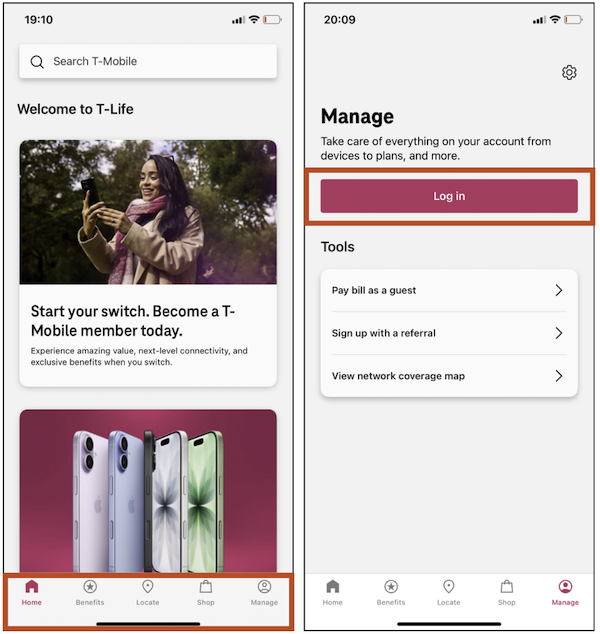
Image: Jessica Santero | WhistleOut
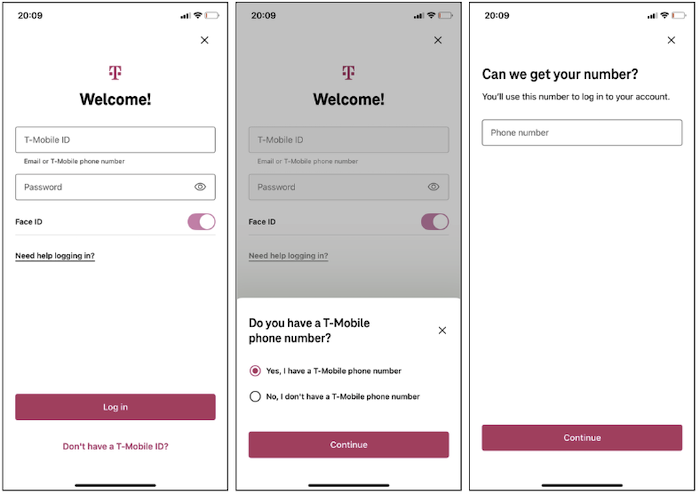
Image: Jessica Santero | WhistleOut
Returning user login
If you're a returning user, it's even simpler to log in to the T-Life app:
- Open the T-Life app.
- Under Manage, enter your username and password.
- Select Log in.
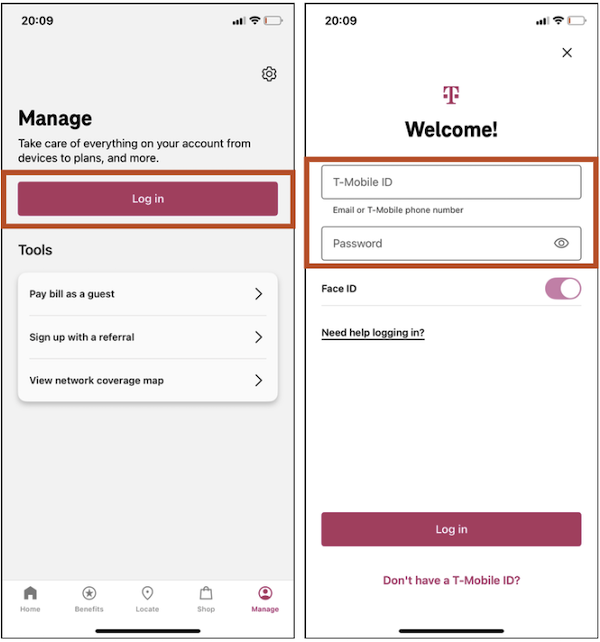
Image: Jessica Santero | WhistleOut
If you want an even faster login experience in the future, you can use Apple Passkeys or Samsung Pass to store everything and sign in for you.
Log in with face or fingerprint ID
Skip the password hassle by enabling biometric login:
- Open the T-Life app and tap Manage in the bottom bar.
- Enter your T-Mobile ID and password.
- Toggle Face ID or Use Fingerprint on (you can find it below the password input box).
- Tap Allow to grant permission for the app to use your face or fingerprint ID when prompted.
- Complete the face or fingerprint scan.
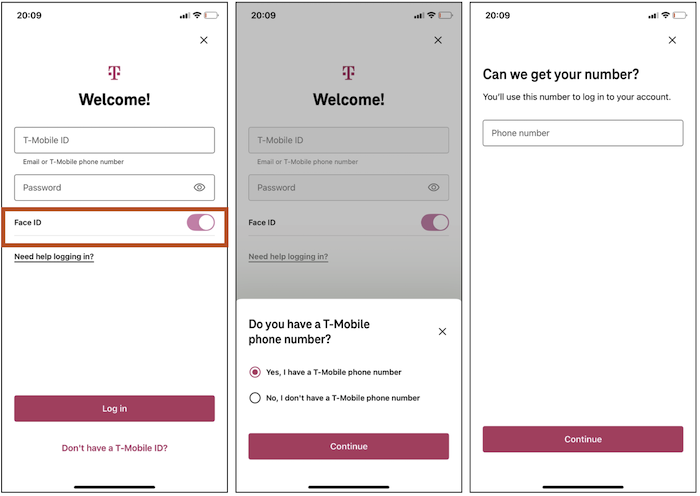
Image: Jessica Santero | WhistleOut
If you already regularly use Face ID or Fingerprint recognition on your phone, you can allow the T-Life app to also use both under Settings > App settings > Manage Face ID or Manage Fingerprint ID and enable use.
Logging in while traveling internationally?
If you're on vacation abroad and want to check your T-Mobile bill while away, make sure you're connected to Wi-Fi before attempting to log in:
- Open the T-Life app and tap Manage in the bottom bar.
- Enter your T-Mobile ID and password and select Log in.
- You’ll be prompted for verification. You can choose:
- Text message, or
- More options to reveal your security questions.
- Select Next, and a verification code will be sent to your phone.
- Enter the code and select Next to log in.
Check your T-Mobile data usage and plan details
Running out of high-speed data is frustrating, and even unlimited plans can slow down after a certain point. If your internet feels sluggish, it's usually because of network congestion (also known as deprioritization) or because you've hit your plan's high-speed data cap for the month.
The T-Life app lets you track your data, text, and call usage in real time. This helps you decide whether to upgrade for more high-speed data or downgrade to save money if you're not using your full allowance.
How to check your data usage on the T-Life app:
- Open the T-Life app.
- From the Home tab, tap Usage across the top menu.
- From the Manage tab, scroll down to People.
- Select your line and tap Data usage to see your full history.
- You can also see data usage by line when you choose the other lines under People.
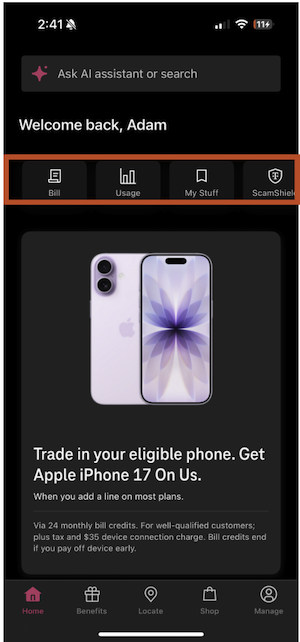
Image: Adam Roach | WhistleOut
OR
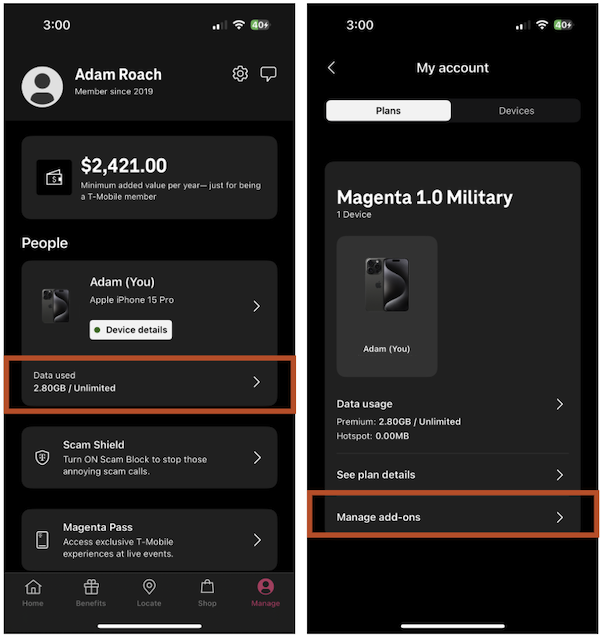
Image: Adam Roach | WhistleOut
Get the same coverage for half the price
Tired of sky-high cell bills? You can get the same reliable T-Mobile coverage for a fraction of the price by switching to an MVNO (mobile virtual network operator) like Mint Mobile. These smaller carriers use T-Mobile's network but operate at a lower cost, passing the savings to you.
You can bring your current phone and get unlimited talk, text, and data for as low as $30/month. The switch is just as easy as changing your T-Mobile plan, making it a smart way to keep great service while lowering your monthly payment.
|
#1
|
Mint Mobile
Unlimited Data Plan
$10.00/mo
$60 for 6 months of service
|
|
#2
|
Mint Mobile
17GB Data Plan
$10.00/mo
$60 for 6 months of service
|
|
#3
|
Mint Mobile
6GB Data Plan
$10.00/mo
$60 for 6 months of service
|
Add a line to your T-Mobile account
Adding a new line through the T-Life app is simple and can save you a trip to the store. Whether you're expanding to a family plan, setting up a kids line with parental controls, or adding a connected device like a smartwatch or tablet, you can handle it all from your phone.
Plus, you have the flexibility to either purchase a new device through T-Mobile or bring your own compatible device to save money.
Here’s how to add a line to your T-Mobile account in the app:
- Open the T-Life app, and you can either:
- Tap the Shop tab and add a plan to your cart; or
- Tap the Manage tab in the bottom bar and select Add a person or device.
- Select the type of device you want to add (phone, tablet, smartwatch, or connected device).
- For a new phone line, tap Phone and choose to either Buy a new phone or Bring your own.
- Review your current plan options and select the number porting option (Keep your number or Get a new number).
- Enter your payment details and tap Submit order to activate the new line.
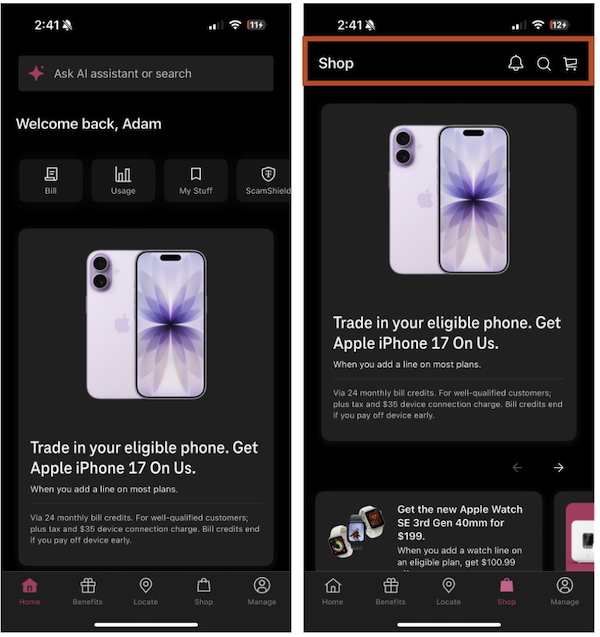
Image: Adam Roach | WhistleOut
You’ll be able to activate your service immediately if you choose an eSIM, or you’ll have to wait for your physical SIM to arrive. Once your new line is activated, you can manage it directly from the app, including monitoring data usage, setting up parental controls for kids' lines, and adjusting plan features as needed.
Need a new phone that doesn’t break the bank?
T-Mobile offers deals on popular models like the latest iPhone, Samsung Galaxy, and Google Pixel to make them more affordable. Carrier promotions often include trade-in credits for your old device, installment plans with low upfront costs, or discounts when you add a line. This makes it easier to get a premium phone while keeping your monthly payment low.
Galaxy A37 5G 128GB
- 6.7 inch display
- Rear Cameras: 50MP, 8MP, 5MP
- Front Camera: 12MP
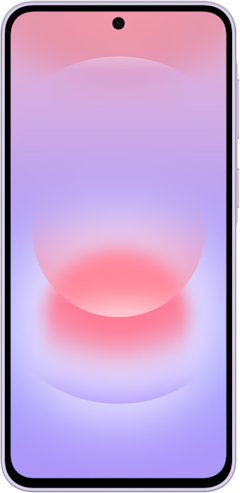
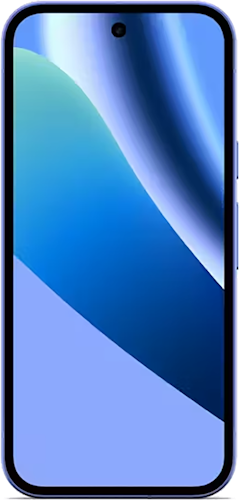
Pixel 10a 128GB
- 6.3 inch display
- Rear Cameras: 48MP, 13MP
- Front Camera: 13MP
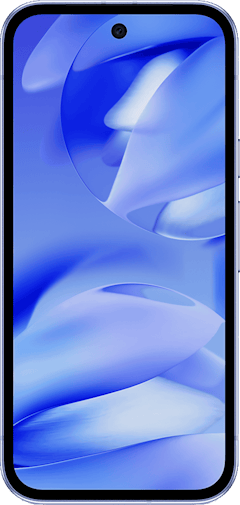
Pixel 9a 128GB
- 6.3 inch display
- Rear Cameras: 48MP, 13MP
- Front Camera: 13MP

Upgrade your phone plan in the T-Mobile app
If your current T-Mobile plan isn't quite right, you can easily upgrade it directly in the T-Life app. Whether you need more high-speed data, want to add international features, or are looking for better family pricing, the app lets you review available plans and make the switch in just a few taps without calling customer service:
- Open the T-Life app.
- Tap the Manage tab in the bottom bar.
- Choose the specific phone line you want to upgrade.
- Tap See plan details.
- Select Explore plans to see options.
- Tap the plan you want, agree to the terms, and submit to finalize the change.
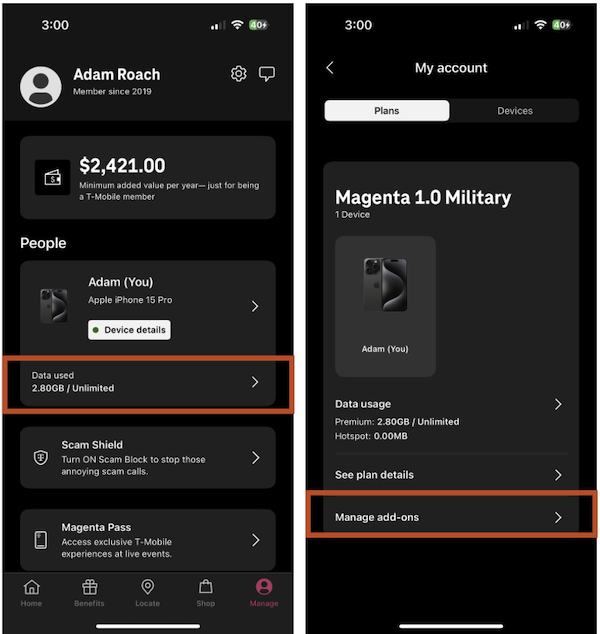
Image: Adam Roach | WhistleOut
Customize your plan with T-Mobile Add-ons
You can customize your T-Mobile plan with various add-ons directly in the T-Life app. Whether you’re planning a trip abroad and need international data, or want phone insurance for your new iPhone, you can do it all in the app.
Here’s how to add a T-Mobile Add-on to your plan:
- Open the T-Life app and go to the Manage tab in the bottom bar.
- Select the line you want to modify.
- Tap Manage add-ons.
- Browse the available options and add the feature you want.
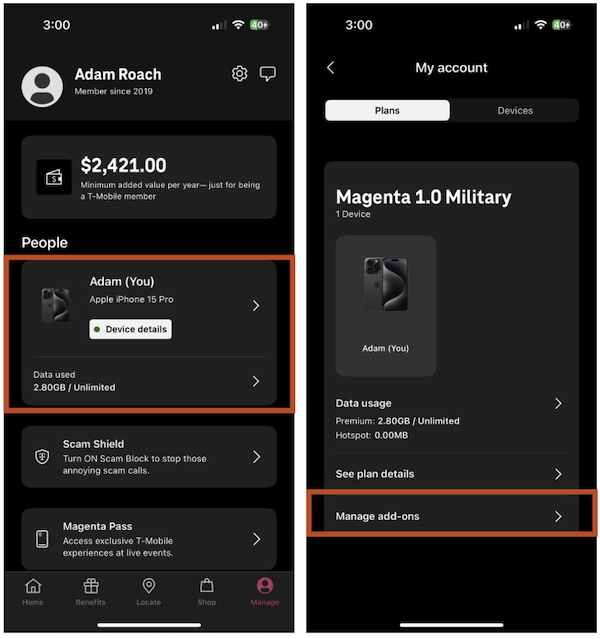
Image: Adam Roach | WhistleOut
You’ll need to confirm billing information and payment to activate the service, too.
What Add-ons does T-Mobile offer?
T-Mobile provides a range of extras, ranging from cybersecurity to global data.
- One-time data passes
- Phone insurance
- Handset upgrade program
- International calling
Robocalls and scams are an epidemic these days, so there are also a number of free add-ons you can activate to protect yourself, such as:
- Scam blocking
- Message blocking
- Download blocking
Managing your T-Mobile bill and payments
Follow these steps to find your T-Mobile bill in the T-Life app:
- Tap Bill on the Home tab; or
- Tap on the Manage tab in the bottom bar.
- Here you can tap:
- View bill
- Make a payment
- Set up a payment arrangement.
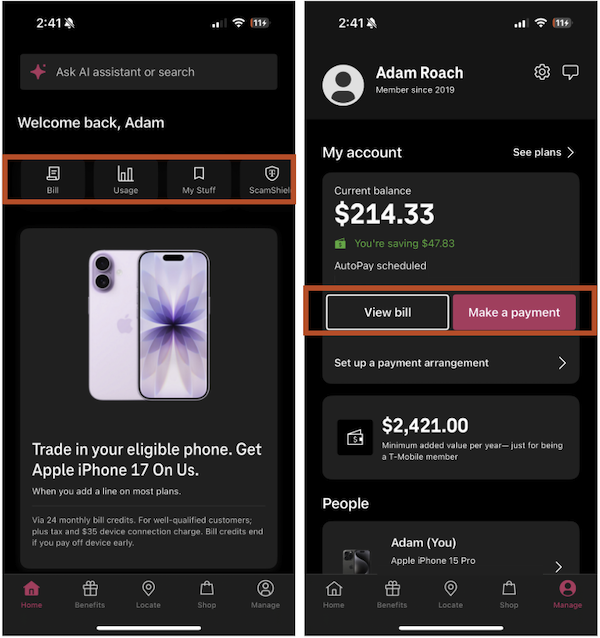
Image: Adam Roach | WhistleOut
You can handle your entire T-Mobile bill directly in the T-Life app, without the hassle of calling customer service or visiting a store. It shows your current balance, due date, and a full breakdown of charges for your plan and any financed devices.
The T-Life app lets you:
- See past payments
- Make a payment
- Set up auto-pay
- Arrange a payment plan
You can also review your complete call, text, and data history for the month. If you have multiple lines, you can check this detailed usage and billing information for each one individually.
Managing your T-Mobile perks and benefits
One of the best parts of being a T-Mobile customer is access to exclusive benefits, deals, and weekly perks through the T-Life app. From free food and movie tickets, to travel discounts and special offers, T-Mobile rewards its customers just for sticking around.
Find your perks and benefits in three simple steps:
- Tap on the Benefits tab in the bottom bar of the T-Life app.
- Browse through your available offers and exclusive deals.
- Tap on any offer to view details and select Redeem to receive your unique code or link.
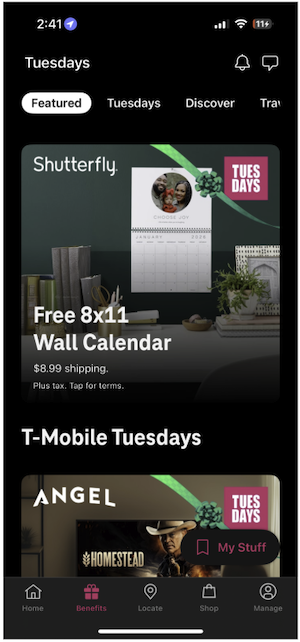
Image: Adam Roach | WhistleOut
Get free stuff every Tuesday with T-Mobile
T-Mobile Tuesdays is a free weekly rewards program for T-Mobile customers. Every Tuesday, the T-Life app offers a rotating selection of giveaways and discounts. These can include:
- Gift cards for food
- Streaming services
- Discounts on products
- Exclusive access to events
- And even free items
Other benefits T-Mobile customers can manage through the T-Life app include:
- T-Mobile Tuesdays: Claim free weekly rewards like food credits, streaming deals, and discounts.
- SyncUP KIDS Watch: A wearable to help keep your family safe with location tracking and calling.
- SyncUP DRIVE: A device that turns your car into a Wi-Fi hotspot and provides vehicle location and diagnostics.
- SyncUP TRACKER: A small tag to help locate your keys, bag, or other belongings.
- Scam Shield: A free suite of features to block spam calls and protect your number.
- T-Mobile MONEY: A mobile banking service with a checking account and no monthly fees.
- T-Satellite: Provides emergency connectivity via satellite in remote areas without cell service.
Chat with T-Mobile customer support in the app
No one likes waiting on hold, so why do it? The T-Life app allows you to get help and support directly within the app itself. With the in-app chat option, you can message a customer service agent directly from your phone—it's just like text messaging. Or if you prefer to speak to a representative, you can schedule a phone call at a time that suits you.
Plus, by using the T-Life app's chat system, you'll be connected with a highly-trained expert assigned to your account (if you're on a postpaid plan). This Team of Experts (TEX) is available 7 a.m. to 9 p.m. your local time, while regular Customer Care experts are available 24/7.
You can find T-Mobile’s T-Life chat by following these steps:
- Tap the Manage tab.
- Select the chat icon in the top right corner.
- Use the two-way messaging feature to start a chat with your Team of Experts.
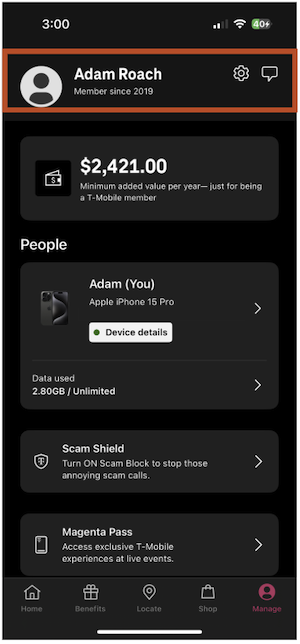
Image: Adam Roach | WhistleOut
You can also access the chat icon you’ll see on all tabs in the T-Life app to quickly connect with a T-Mobile support specialist.
T-Life T-Mobile app: FAQs
What can you do on the T-Mobile app?
You can manage your T-Mobile account, pay your bill, check your data usage, upgrade your device, contact customer support, and view your plan details through the T-Life app.
Can I see text messages on T-Mobile?
No, you cannot view the actual content of text messages, but you can see usage details like the date, time, and phone numbers through your account activity logs.
How do I set up my T-Mobile app?
You need to download the T-Life app from your device's app store, open it, and then sign in with your T-Mobile ID or create a new account if you're a new customer.
How do I access my T-Mobile account?
You can access your T-Mobile account by signing in through the T-Life app on your phone or by visiting T-Mobile.com and logging in with your T-Mobile ID and password.
Jessica Santero
Staff Writer

Thousands of cell phone plans unpacked. All the facts. No surprises.





.png?w=280&h=280&usm=20&usmrad=0.8&fit=crop "The Best Cheap Phone Plans for 2026: We Tested Them All to Help You Save")


