
If you're wondering where your hard-earned paycheck is disappearing to each month, you might want to check all of your online subscriptions. With everything from TV to music to books now being offered as a la carte services, it's easy to get sucked into paying for things you actually aren't using anymore.
The quickest and easiest way to manage and cancel subscriptions on an iPhone is through the phone's Settings or the Apple App Store. Moreover, third-party apps like Rocket Money and Bobby can also help you view and manage all the Apple subscriptions you currently have. Regardless of which route you go, you need to actively cancel your subscriptions—actions like resetting your iPhone won’t cancel or delete your subscriptions since they’re tied to your Apple ID.
We’ll walk you through how to unsubscribe from subscriptions you don’t need or use.
Steps to cancel subscriptions through your iPhone
Firstly, it's important to understand that you can only manage subscriptions through your iPhone if they're associated with your Apple ID. These are likely services that you signed up for through your iPhone itself, like various apps or Apple-specific products like Apple Arcade.
Simply deleting a subscription service's app won't actually cancel that subscription for you. There are two main ways to manage subscriptions on your iPhone: through your device Settings, or through the App Store.
Canceling subscriptions through your Settings app
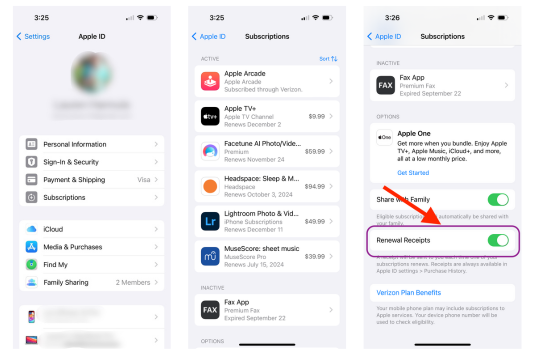
Image: Lauren Hannula | WhistleOut
To cancel Apple subscriptions in the Settings app:
- Open the Settings app from your home screen.
- Select your name to access your Apple ID. Depending on your version of iOS, this should be at the very top.
- Tap the Subscriptions menu. You’ll be able to view the full list of active and inactive subscriptions associated with your Apple ID.
- Select the subscription you want to cancel, then tap Cancel Subscription.
- Click Confirm when prompted to confirm the cancellation.
When you are viewing the full list of active and inactive Apple subscriptions, you’ll be able to see how much you are paying and when the subscription renews. You’ll also see other options on this screen such as “Renewal Receipts” which, when turned on, will send you an automatic notification when your subscriptions are renewed. You���ll likely want to keep this toggled on so you don’t forget about recurring charges.
Canceling subscriptions through the App Store
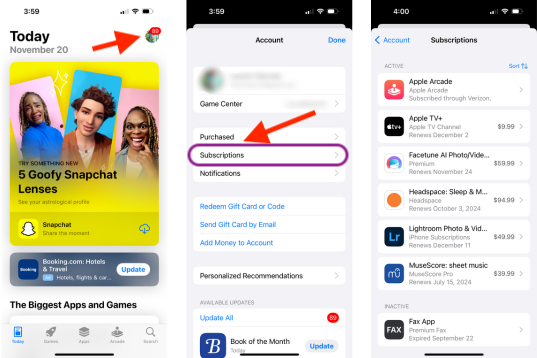
Image: Lauren Hannula | WhistleOut
Another way to find and cancel app subscriptions on an iPhone is to do it through the App Store by accessing your Apple account directly.
To cancel iPhone subscriptions through the App Store:
- Open the App Store app.
- Tap your photo in the top right-hand corner to access your Apple account.
- Select Subscriptions. You’ll see a list of your active and inactive subscriptions connected to your Apple ID.
- Choose the one you want to cancel then tap Cancel Subscription.
- Tap Confirm.
iPhone apps to manage your subscriptions
There are some iPhone apps that will do the work of keeping track of your subscriptions for you. A couple that we have tried and like include Rocket Money and Bobby.

Rocket Money
Rocket Money doesn't just handle your iOS-specific subscriptions. It tracks down all of your subscribed services, including streaming subscriptions like Netflix and Spotify, product delivery services like Hello Fresh or Book of the Month Club, and even news and publishing services like The New York Times.
Rocket Money works by linking all of your financial accounts and identifying recurring charges. You'll get a single list of everything you're currently paying for for a quick, easy view of your monthly finances. When you find a subscription you don't use or want anymore, Rocket will handle the cancellation process for you.

Bobby
If you don't love the idea of offering up your banking info to find your subscriptions, Bobby is a great choice for you. Download the app then select from hundreds of preloaded options, or add your own custom subscription if you don't find it already populated for you. You can also add in other recurring charges, like your credit card bills, rent, or gym membership, to keep everything organized in one place.
Bobby will also notify you when bills are upcoming and gives you insight into how much you're spending during certain times of the month and year. This could help you spread out your expenses more evenly if you discover that, for example, you have a ton of bills due at the beginning of the month.
Additionally, Bobby's design and interface make it easy to quickly identify specific services based on their brand colors—for example, if you quickly want to find your Spotify subscription, you can easily just scan for any green menu items and bypass the rest.
Why can’t I cancel a subscription on my iPhone?
If you aren’t able to find and cancel a subscription on your iPhone, you likely didn’t purchase it through Apple’s app store. The other option is that you may have bought it with a different Apple ID than the one you are currently logged in with.
If neither of these is the issue, try:
- Resetting your iPhone. Resetting your iPhone won't delete your subscriptions, but it will give your device a moment to reset its brain and possibly pull in additional subscriptions that you expect to see. (This also works for fixing an unresponsive iPhone.)
- Logging out of your Apple ID and logging back in. Again, sometimes technology just needs a little refresher (just like humans).
If you see your subscription but don’t see a cancel or unsubscribe button, contact the company you are purchasing the subscription through. You can also try to cancel your subscription through the Settings or App Store on your Mac or iPad computer, following similar steps as you would on your iPhone.
If all else fails and a company won’t stop charging you after you’ve attempted to cancel the subscription, you can file a dispute with your bank. You can do this online, usually through a desktop login or a phone app. But hopefully, it won’t come to that.
Marisa Crane
Staff Writer

Thousands of cell phone plans unpacked. All the facts. No surprises.





.png?w=280&h=280&usm=20&usmrad=0.8&fit=crop "The Best Cheap Phone Plans for 2026: We Tested Them All to Help You Save")


