

Recording a phone call is a crucial tool for many cell phone users. You might need to record an interview for work or maybe you just want to remember an important conversation. Whatever the purpose, your iPhone makes it easy to record phone calls.
Recording calls on an iPhone requires one of the following: using the built-in Phone app recording tool, a third-party app, an external recording device, voicemail, or Google Voice. You'll also want to ensure that you live in a state where it is legal to record phone calls before you begin saving your conversations.
Let's look at all the ways you can record a call using an iPhone.
How to record a call on an iPhone
There are several methods for saving calls on an iPhone:
- iPhone's built-in call recorder
- Phone call recording apps
- Speakerphone plus external recording devices
- Google Voice
- Voicemail
Generally, a dedicated call recording app or a three-way call using your voicemail as the third line can provide the best audio quality. Enabling speakerphone and recording with a separate device like a laptop, desktop, or tablet also works well.
A note on iOS call recording
Apple is renowned for its privacy focus. While this generally provides peace of mind, it does complicate iPhone call recording. Since iOS restricts third-party apps from accessing your iPhone's microphone and phone app, there's no way to record audio directly on the device. Before you record incoming calls, it's important to get permission from the other call participant. Privacy laws vary by state; in some, such as New York, only one person must agree to a recorded call. In others, both parties must consent, including California.
iPhone's built-in call recorder
If your iPhone is running iOS 18 or later, you may not need any of the methods below. Apple added a native call recording feature directly into the Phone app, and it's completely free to use.
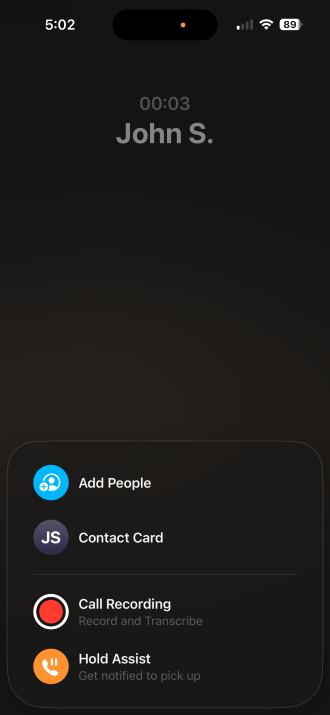
Image: Max McCaskill
To use the iPhone's built-in call recorder:
- Start or answer a call, then tap the More button on the call screen.
- Tap Record.
- Your iPhone will automatically play an announcement notifying both parties that the call is being recorded.
- Tap Stop Recording when you're done, or it will stop automatically when the call ends.
Recordings are saved automatically to the Notes app in a folder called Call Recordings, along with an auto-generated transcription. For a full walkthrough and more details, see our complete guide to the iPhone's built-in call recorder.
Record calls on an iPhone with a recorder app

An app is one of the best methods to obtain high-quality call recordings on iOS. You've got several choices of call recording apps such as Call Recorder Pro, Phone Call Recorder, TapeACall Pro, and Rev Call Recorder.
Since iOS prevents native access to your iPhone's mic or dialer app, applications such as Rev Call Recorder instead use conference calls to circumvent restrictions. In this instance, the third line is a recording program. So while it looks like a three-way conference call, you're connecting to another line that captures in-call audio.
We recommend Rev Call Recorder because it's free to use while boasting unlimited recording and unlimited storage. Transcriptions do cost $1 per minute, however. Here's how to save phone conversations on iPhones with Rev Call Recorder:
- Find and download Rev Call Recorder in the Apple App Store.
- Run the Rev app and follow the on-screen setup prompts.
- Fire up the Rev app and tap Start Recorded Call when you want to record a call.
- Select either Outgoing Call or Incoming Call.
- Press Start Call after entering the phone number you want to call. When recording an incoming call, accept Rev's call-merge request.
- Open the conversation that appears in your Recordings list inside the Rev app. From here, you can playback phone conversations, share files, and transcribe audio.
While we suggest Rev Call Recorder, you've got several other options for iOS:
- Phone Call Recorder—ACR can save virtually any incoming or outgoing iPhone calls to FaceTime conversations. However, its advanced recording capabilities like video calls require a paid in-app purchase.
- TapeACall is a great choice that retails for $11/year and includes unlimited recordings.
Record calls on iOS with the speakerphone
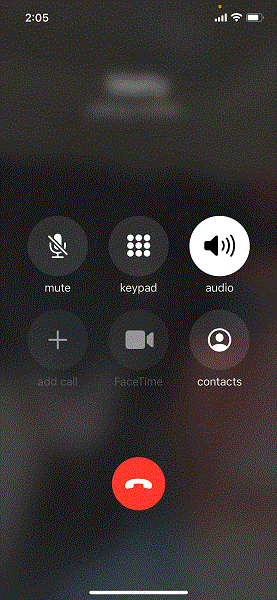
A simple hack for recording phone conversations utilizes your iPhone's onboard speakers. For this, you'll need an external recording device such as a laptop or desktop with a USB microphone, digital voice recorder, or even another mobile device.
Here are a few example configurations:
- Laptop or desktop with a USB mic plugged in (we recommend the Blue Yeti) and Audacity running as recording software.
- A digital voice recorder such as the Sony PX370.
- Another mobile device like an iPhone, iPad, Android phone, or Android tablet with a voice recorder app.
To record a call on an iPhone with speakerphone:
- Initiate the call and enable speakerphone.
- Begin recording with your external voice recorder (computer, mobile device, or digital voice recorder).
- Stop recording when your call completes.
This simple method doesn't require any iOS app downloads or call merging, but recording quality may be poor. Still, this is a great solution if you want a quick and easy way to capture phone call audio.
Using Google Voice for iPhone call recording
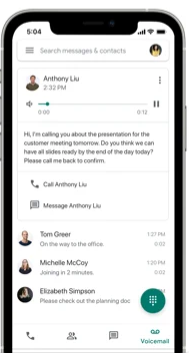
Free and simple to set up, Google Voice lets you enable call recording.
- Install the Google Voice mobile app for iOS.
- Sign in or register for an account.
- Head to Settings > Calls > Incoming call options.
- Choose whether calls are answered by the Google Voice app or forwarded to your phone number. Google's Voice over IP (VoIP) servers then handle call recording.
- Press 4 on the keypad upon answering a phone call to your Google Voice number. A robotic voice announces that the recording started, for legal compliance.
- Hit 4 again to cease recording.
- Check your email or Google Voice's voicemail list for completed recordings.
Voicemail call recording for iPhones

Did you know that you can capture audio with your voicemail, not just playback messages? Depending on your mobile carrier, you may be able to download voicemail messages. Here's how to record with your voicemail:
- Fire up the Phone app on your iPhone.
- Select the Voicemail tab in the bottom right-hand corner of the screen. If there's a list of voicemail messages, you can download messages. However, if there's merely a Call Voicemail option, you're out of luck.
- Place the call if you see the option to download voicemails, and ask the person on the other end of the line to hold.
- Select Add Call to initiate a three-way phone conversation.
- Dial your phone number to access your voicemail inbox.
- Select Merge Calls once the voicemail greeting completes and begins a conference call with yourself, the person on the other line, and your voicemail.
- End the call and you should have an audio recording as a voicemail message in your inbox.
If you're curious about how to perform other functions on your iPhone, like taking a screenshot, make sure to stick with WhistleOut.
Is it legal to record iPhone calls?
In most cases it's legal to record phone calls on your iPhone. Many states don't even require you to tell other members of the call you are recording. That said, there are some states where you must get permission from everyone on the call before recording or you'll risk breaking the law. In any case, it's always a nice gesture to inform everyone you're going to record the call, even in states where you aren't legally required to do so.
According to Justia, states fall into one of two categories for recording phone calls. Most states fall into the One-Party Consent category. For these states, only one person on the call is required to know the call is being recorded. That means in most cases you don't have to inform the other person that you are recording the call if you don't want to. Here are the 36 One-Party Consent states and districts:
- Alabama
- Alaska
- Arizona
- Arkansas
- Colorado
- Washington D.C. (District of Columbia)
- Georgia
- Hawaii
- Idaho
- Indiana
- Iowa
- Kansas
- Kentucky
- Louisiana
- Maine
- Minnesota
- Mississippi
- Missouri
- Nebraska
- New Jersey
- New Mexico
- New York
- North Carolina
- North Dakota
- Ohio
- Oklahoma
- Rhode Island
- South Carolina
- South Dakota
- Tennessee
- Texas
- Utah
- Virginia
- West Virginia
- Wisconsin
- Wyoming
All other states fall into the All-Party Consent category. For these states, legally you must inform everyone on the phone call that you are recording it. Failure to do so could result in criminal or civil charges. Here is the list of All-Party Consent states:
- California
- Connecticut
- Delaware
- Florida
- Illinois
- Maryland
- Massachusetts
- Michigan
- Montana
- Nevada
- New Hampshire
- Oregon
- Pennsylvania
- Vermont
- Washington
While these lists are a good basic guide, make sure to check the actual regulations of your state. State laws are weird and some consent requirements only apply to phone calls made in private places. Additionally, violating these laws in some states is considered a felony while it may only be a misdemeanor in others.
Best iPhones
Need an iPhone to record calls on? Whether you're upgrading from an older iOS handset or switching from Android, we've got you covered with the best iPhones and iPhone deals. We recommend the iPhone 16 series.
iPhone 16 128GB
- 6.1 inch display
- Rear Cameras: 48MP, 12MP
- Front Camera: 12MP
iPhone 18 Pro 256GB
- 6.3 inch display
- Rear Cameras: 48MP, 48MP, 48MP
- Front Camera: 18MP

iPhone 18 Pro Max 256GB
- 6.9 inch display
- Rear Cameras: 48MP, 48MP, 48MP
- Front Camera: 18MP

iPhone 18 Pro 512GB
- 6.3 inch display
- Rear Cameras: 48MP, 48MP, 48MP
- Front Camera: 18MP

iPhone 18 Pro Max 512GB
- 6.9 inch display
- Rear Cameras: 48MP, 48MP, 48MP
- Front Camera: 18MP


iPhone call recording: FAQs
Can I record phone calls on an iPhone?
You can record a call on an iPhone—it just isn't as straightforward as on Android. You'll need either a 3-way call merge app, Google Voice, voicemail recording, or an external digital recorder. Because iOS doesn't allow a third-party app access to your iPhone's mic or dialer app, you'll need to use one of these methods to circumvent that restriction.
Can I record iPhone calls automatically?
Although you can capture audio conversations on iOS with the help of an app, you can't record iPhone calls automatically. Instead, you'll need to start recording manually.
Is recording calls on the iPhone free?
Yes, it is free to record calls on an iPhone. You'll find there is a selection of free or freemium apps to handle recording, including Rev Call Recorder or Phone Call Recorder - ACR. However, some apps or advanced features such as call transcription may require payment.
Can I record an iPhone call on a Mac?
You can record iPhone calls on a Mac. The easiest way to accomplish this is using Call Recorder for Facetime. This macOS software lets you screen capture your FaceTime conversations. Alternatively, capturing audio using speakerphone, recording software such as Audacity, and a microphone works too.
Moe Long
Senior Writer

Thousands of cell phone plans unpacked. All the facts. No surprises.
Related Articles


Related Topics
iOSPopular Topics
Featured App Reviews iOS News Coverage Device Reviews Device Explainers Carrier Explainers App Roundups T-Mobile


Free iPhone 18 Pro, up to $1,200 off, with a trade-in in any condition or a line switch on Experience Beyond





