

Google Assistant is one of the most helpful features on any Android device. It’s a voice-activated virtual assistant and a standard feature on all Google Pixel phones. Google Assistant is capable of doing a lot of things, from completing tasks on your phone to answering questions, but there are also times when it unexpectedly stops working.
Some of the easiest ways to fix Google Assistant when it stops working are to ensure Google Assistant is enabled on your device, reset your voice match, and restart your phone.
Read on to learn more about these methods and additional steps you can take if Google Assistant still isn’t working.
How to Fix Google Assistant
Google Assistant is available on most smartphones, including ones from Google, Samsung, Apple, and Motorola. It’s also available on many smart home devices. The methods below are geared toward cell phones, but many can be used on any device that uses Google Assistant.
Here are seven easy methods to fix Google Assistant when it’s not working.
- Enable Google Assistant
- Reset voice match
- Check your internet connection
- Restart your phone
- Update your device
- Disable other assistants
- Check if Google’s service is down
1. Enable Google Assistant
While Google Assistant is available on all Android devices, it only comes as the standard assistant on the Google Pixel. For example, Samsung Galaxy devices have their own virtual assistant named Bixby that is automatically used instead of Google Assistant.
If you are not using a Google Pixel, you may need to go into the settings of your device and enable Google Assistant. On Android devices, it’s typically under a section called Device Assistance or Virtual Assistance. From there you can select Google as the virtual assistant you want your device to use.
2. Reset voice match
Google Assistant operates on voice commands. It’s why you can simply say “Hey Google” or “OK Google” and your phone immediately starts listening. But, if Google Assistant stops responding, it may no longer recognize your voice. Maybe you’re sick or you might be hoarse after a long night of screaming at a concert. Whatever the case, resetting voice match might be all it takes to fix Google Assistant.
To reset your voice match for Android devices:
- Go into your Settings App.
- Tap Google.
- Select Settings for Google Apps.
- Select Search, Assistant & Voice.
- Tap the Google Assistant option.
- Select Hey Google & Voice Match.
- Tap Voice Model.
- Tap Retrain Voice Model.
- Follow the directions and read the prompts out loud to retrain voice control.
For iOS devices, you’ll need to go into the Google Assistant app and select Retrain Voice Model in the app settings.
3. Check your internet connection
You need an internet connection to make the most of Google Assistant. While it can perform device-specific tasks (like setting a timer) without the internet, it can’t look anything up or send messages that require an internet connection. Make sure your device is either connected to a Wi-Fi source or can access the mobile data from your phone plan.
4. Restart your phone
Sometimes all Google Assistant needs to start working again is a fresh start. Restarting your device will reestablish all your phone’s files and can get everything working again.
5. Update your device
Another potential issue that could be impacting your phone and Google Assistant is outdated software. Google periodically releases software updates to keep Google Assistant working well. If you have automatic updates disabled on your phone, you could have missed an update.
You can see if Google Assistant needs an update in the Google section of your phone’s settings or by using the Google Assistant app.
6. Disable other assistants
As you probably know, Google Assistant is not the only voice assistant. Depending on the apps you’ve downloaded or the brand of your device, your phone might attempt to default to assistants like Alexa, Bixby, Cortana, and Siri instead of using Google.
The easiest way to fix this is to disable the other assistants if you can. If it’s an app-driven assistant like Amazon’s Alexa, you should be able to disable it from the apps on your device. As for device-specific assistants, you may not be able to completely disable them. For example, Samsung’s Bixby will stay alive in the background even if you choose Google Assistant to be your default assistant. Google will open first, but if you ask for Bixby, the feature will still pop up.
Can you get Google Assistant on an iPhone?
Yes, you can get Google Assistant on an iPhone by downloading the Google Assistant app. You can also use the Google Home app to get some Google Assistant features. However, Siri will always be the default assistant outside of the app.
It is possible to use the voice controls for Google Assistant outside of the app. However, it’s complicated to do. You must set up a shortcut that tells Siri to open the Google Assistant app so you can talk to Google.
7. Check if Google’s service is down
I know it’s unthinkable, but sometimes Google goes down. If your Google Assistant isn’t working and none of these other steps have made a difference, you should check on the status of Google and its services. If Google is down, your assistant will struggle to accomplish much of anything. Luckily, it’s very rare for Google to be down for long periods, so you should get your Google Assistant back fairly quickly.
Need a new Google Pixel?
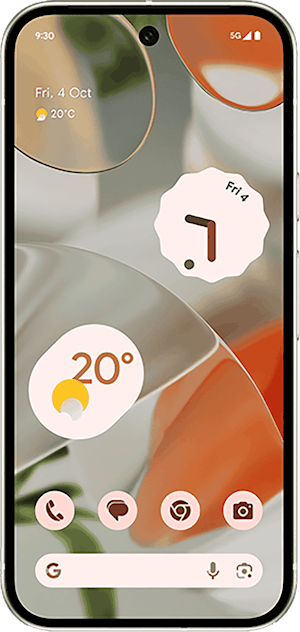
While most devices can use Google Assistant, it’s specifically designed for the Google Pixel series. The Google Pixel 9 is one of the newest mobile devices from Google. It’s powered by the new Google Tensor G4 processor and has some of the top camera capabilities of any smartphone. Check it out below:
Google Pixel 9 128GB

| Description | |
|---|---|
| Screen Size | 6.3" |
| Available On | 70 Plans from 5 carriers |
| Available From |


|
| Priced From | $8 per month + $524 upfront |
| View Full Details |
 Google's 2024 model featuring the most advanced Pixel camera and Google AI powered by Tensor G4, with Gemini, 50MP + 48MP dual rear camera system, 6.3" OLED display with 120Hz and Android 14
If you're looking to save on your next phone, you can typically find it for even cheaper on our Pixel deals page.
Google Assistant not working: FAQs
Is Google Assistant free to use?
Yes, Google Assistant is free to use.
What devices support Google Assistant?
Most cell phones can support Google Assistant. It’s either a standard feature or you can download the Google Assistant app. Google Home smart devices like smart speakers, Nest hubs, and headphones also support Google Assistant.
Can you change the Google Assistant voice?
Yes, you can change the Google Assistant voice in the settings of your Google Assistant app. However, not all voices are available in all languages.
Max McCaskill
Sr. Staff Writer

Thousands of cell phone plans unpacked. All the facts. No surprises.





.png?w=280&h=280&usm=20&usmrad=0.8&fit=crop "The Best Cheap Phone Plans for 2026: We Tested Them All to Help You Save")


