
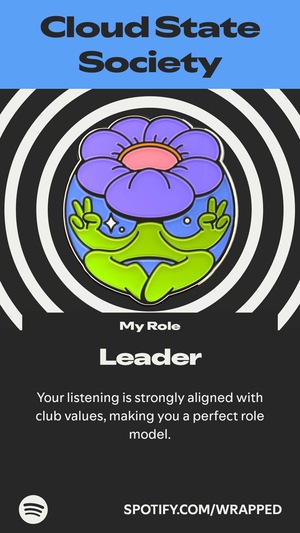
Spotify Wrapped is a fun and engaging way to see and share what artists, songs, and podcasts you listened to the most this year. But it’s not just a year-end wrap-up of your favorite earworms—it’s a completely personalized recap, complete with cool features like exclusive video messages from your top artists and a look at your journey through your music Role. (Currently trying to convince my team that my music Leader Role means I deserve a raise.)
Never played around with Spotify Wrapped before? We'll show you how to see your Spotify listening stats and share them with your friends on social media.
What is Spotify Wrapped?
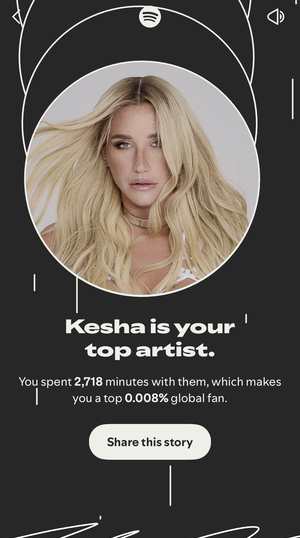
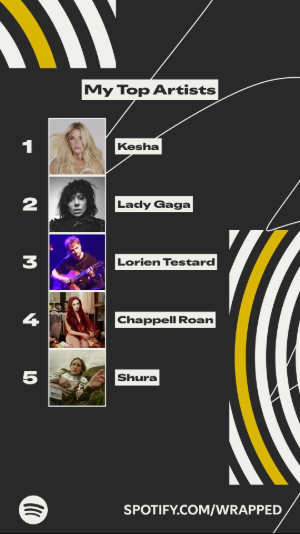
First released in 2016, Wrapped is Spotify’s yearly recap that allows you to view and share your Spotify stats, such as your most played songs, top Spotify artists, favorite genres, and how many minutes you spent listening all year. You'll even get stats like which months of the year you listened to specific artists the most.
Wrapped also creates a custom playlist just for you that includes your top songs. You can save this playlist to your Spotify library with the tap of a button from your Wrapped tab in the Spotify app.
Each year, Spotify adds fun new features to its Wrapped stories. In 2025, Spotify added badges for music Roles according to your tastes. It also added a short video story showing your top listening trends in a race during the year.
Wrapped is linked to each individual Spotify account, so if you share this streaming service with loved ones, their habits will appear on your yearly wrap-up as well (unless, of course, you're connecting separate accounts using a family sharing feature). What this shared setup means is that if you have children, you'll probably end up with "Baby Shark" breaking into your top songs and listening habits. Whoops.
To encourage you to share your Spotify Wrapped details on your social media profiles, Spotify creates a meme-style recap that’s in the form of a video or slideshow that you can share with one click. You can also download individual stories as images to your phone.
Although Free and Premium users alike can access their Wrapped, Spotify Wrapped Premium consists of more personalized data than the free version.
When will Spotify Wrapped 2025 come out?
It's here! Spotify Wrapped 2025 released on Wednesday, December 3, 2025. You can find your 2025 Wrapped in the Spotify app through the Wrapped banner.
Typically, Spotify Wrapped comes a week or two after Thanksgiving and is available until December 31st of that same year. In past years, Spotify wrapped released on these dates:
- Spotify Wrapped 2024
- Wednesday, December 4.
- Spotify Wrapped 2023:
- Wednesday, November 29.
- Spotify Wrapped 2022:
- Wednesday, November 30.
- Spotify Wrapped 2021:
- Wednesday, December 1.
In case you forget to mark your calendar, don’t worry—Spotify adds an entire Wrapped section to your app to easily find all the content related to your year in music. Just keep an eye out once Thanksgiving rolls on by.
Where to find your Spotify Wrapped
You can find your Spotify Wrapped easily, whether you have an iPhone or Android device. Let's walk through the different ways to find your 2025 Wrapped across devices.
Hint: Save data by using Wi-Fi
Though Spotify doesn’t use an unreasonable amount of data, it can still add up if you are on a limited data plan or have a low data deprioritization threshold. Connect your phone to your Wi-Fi network to stream the day away without using any of your GBs.
Find on the Spotify app: iOS and Android
Whether you are an iPhone or Android user, viewing your Spotify Wrapped playlists and customized stories is fairly simple.
From the Spotify Wrapped banner
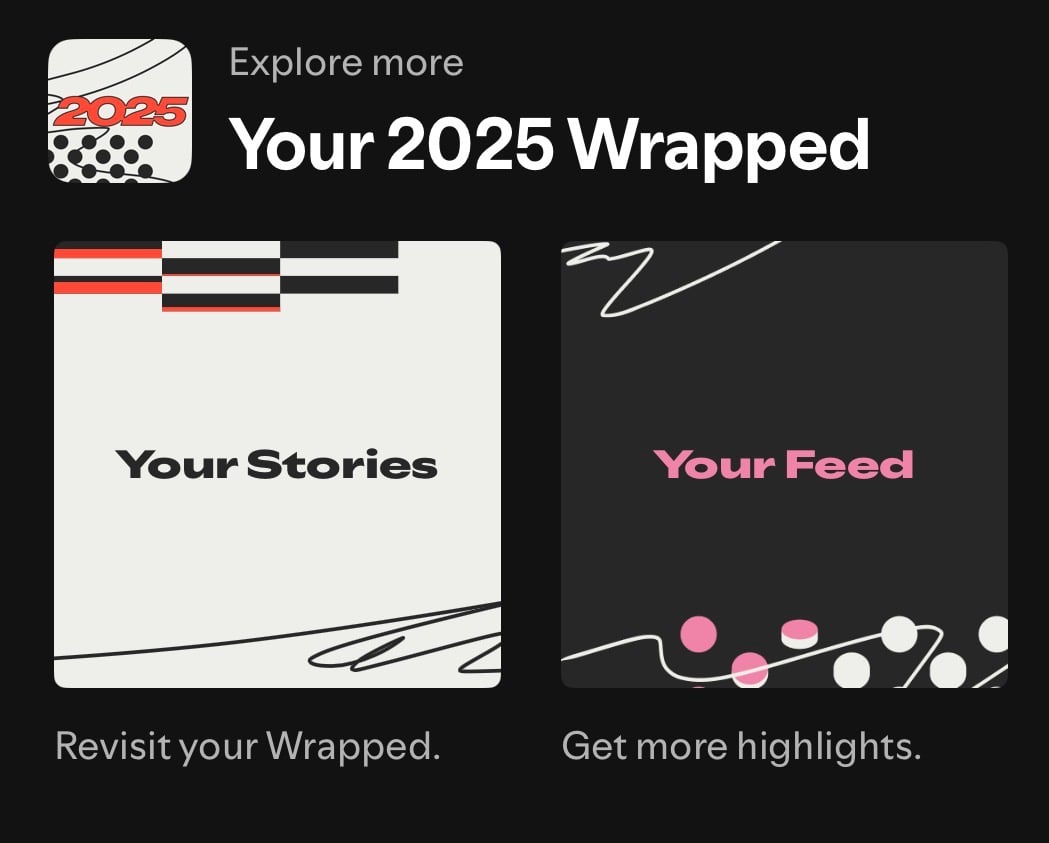
Image: Aaron Gates | WhistleOut
- Open the Spotify app on your tablet or phone.
- You’ll see a banner announcing that Spotify Wrapped is available.
- Click on the banner.
- You should see a collection of your Wrapped story and your own custom Wrapped playlists.
From the playlist tiles
- Open the Spotify app on your tablet or phone.
- Go to your Library and look for a tile or playlist labeled “Your Wrapped”.
- Underneath the heading, you’ll see your personalized playlist and Spotify Wrapped slideshow.
Using Spotify's in-app search
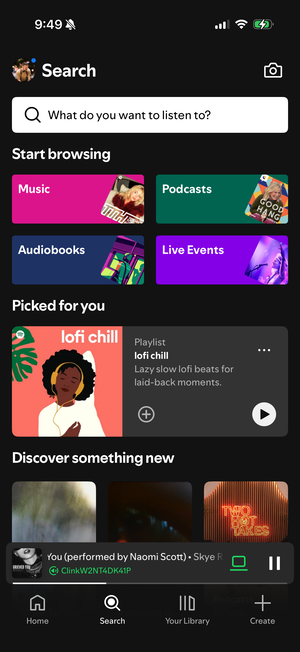
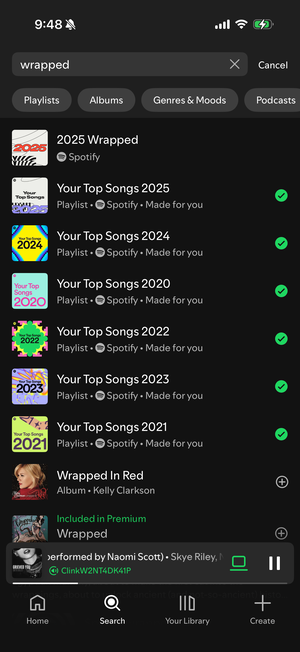
Image: Aaron Gates | WhistleOut
- Open the Spotify app.
- Click the search button (magnifying glass) at the bottom of the screen.
- Beneath the search bar, you’ll see “Wrapped.” Click that tile to see your list of Wrapped content.
Alternatively, type “wrapped” into the search bar, then tap the genre or playlist results according to 2025 or any year you've had a Wrapped before.
How to share Spotify Wrapped
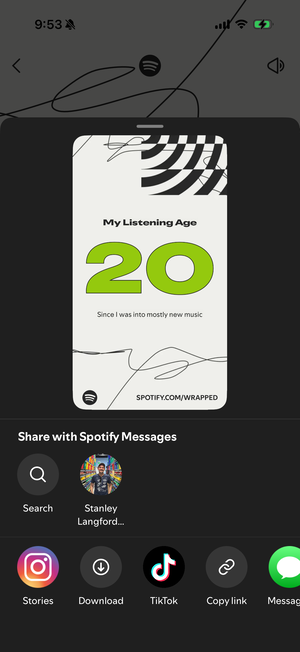
Image: Aaron Gates | WhistleOut
Sharing your Spotify Wrapped with your friends and family makes a fun and engaging way to start conversations and show off your listening stats.
Sharing your Wrapped story to social media
If you are watching your personalized video on the Spotify app, you’ll see a button at the bottom of each screen that says “Share This Story.” Click that and you can choose which platform you’d like to share it on: Facebook, Messenger, Instagram, Snapchat, TikTok, or WhatsApp.
Sharing your Wrapped stats with friends
If you’d rather share your Spotify Wrapped story directly with friends and family without using social media, you can do that too:
- Go to the Spotify homepage and select “Wrapped.”
- Choose the slide you want to share with someone.
- Click “Share” and tap your Messages option, or choose “Download” and send the image to your contact once you exit the Spotify app.
You can also add your Wrapped playlist right to your library. But if you share that exact playlist, your friend will see their own customized playlist when they view it. To share your personal playlist:
- First make a copy of your Wrapped playlist.
- Then share the new playlist either to an app or choose the "Copy link" option, and paste the link into a messaging app.
How to save Spotify Wrapped
To save your Spotify Wrapped playlists, both new and old, click the “add” button (plus sign) on any given playlist and it will add it to your library. You will see a green checkmark replace the plus sign when it’s been added. Now you can find it in your personal library.
Depending on the year or platform, instead of a plus sign, you may see a heart. Click the heart to add your Spotify Wrapped playlist to your library. That way, you can enjoy your top-played songs year in and year out.
Lauren Hannula
Managing Editor

Thousands of cell phone plans unpacked. All the facts. No surprises.





.png?w=280&h=280&usm=20&usmrad=0.8&fit=crop "The Best Cheap Phone Plans for 2026: We Tested Them All to Help You Save")


