
The days of sending embarrassing text messages are over. Well, at least they are if you have an iPhone. Apple’s iOS 16 update introduced a new feature that lets you edit or unsend iMessages for the first time. Now, accidental messages can be erased and errors corrected as long as you act fast.
To edit an iMessage, press and hold on your recent message until the edit option comes up. Simply type your new message and resend. To unsend an iMessage, press and hold the iMessage until the Undo Send option appears. Press it and your message will be deleted. The recipient of your messages will be notified if you unsend or edit a message. These methods also only work with iMessages, so you can’t do it with SMS messages. Read on to learn how to edit and unsend messages on your iPhone in greater detail.
How to Edit Messages on an iPhone

If you’re like me, there are times when your fingers work faster than your brain. The result is messages with misspelled words or incorrect information. Editing iMessages on an iPhone is the best way to correct these errors without completely deleting them.
After an iMessage is sent, you have a 15-minute window to edit your message. You can also edit that message up to five times during that window before Apple cuts you off.
To edit messages on an iPhone:
- Press and hold the iMessage until the message menu opens.
- Press the Edit option.
- Make any changes or corrections to your message.
- Press Send to resend your edited message.

The person you are texting will get the updated message. However, they’ll also get a notification that you edited the message and the option to view the original message in the Messages app. In the example photos to the right, you can see where I edited the time in the messages. You can also see the blue Edited link at the bottom right of the second photo that will show the recipient the edits I made.
This method does not work if you are texting someone with an android device or who is using a previous version of iOS. Instead, they’ll get a new text message for every edit you make.
How to Unsend Messages on an iPhone
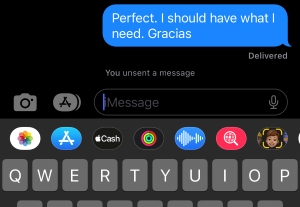
For those times when you send something really embarrassing or message the wrong person, unsending an iMessage is the best course of action.
There is a two-minute window after sending an iMessage when you can unsend the message and delete it.
To unsend an iMessage, open the messages app. iMessages from your iPhone:
- Find the message (blue text only), you want to delete.
- Press and hold.
- Press Undo Send.
This will remove the message from both your and the recipient's view. However, your recipient will still get a notification that you deleted the message. As you can see in the picture above, iMessage puts an alert in your message chain saying “You unsent a message.”
If you are texting an Android user or iPhone user running on an old version of iOS, the message is not deleted. Instead, you’ll get an alert from iMessage saying the person you’re texting can still see your original message transcript. Edit or Unsend a Message may not work if you or the recipient hasn’t updated to the latest iOS version.
Remember, you have a two-minute window to unsend and up to 15 minutes to edit messages. Note: These features are unavailable for messages sent to Android devices. You can’t unsend text messages sent from an Android device. Once you send a message from the Android’s default texting app, it cannot be unsent.
Can the person I’m texting still see iMessages after I edit or unsend?
Yes, they can in some circumstances! It’s possible for the recipient to read your iMessage before you unsend it. If you unsend a message after they’ve read it, it will be removed from the conversation, but they will receive a notification stating you unsent the message. However, the message will be on their device until you actually unsend it. If they are actively looking at their messages when you send your text, they may be able to read or even screenshot your message before you can press unsend. But once you unsend a message, the recipient can't see or read the message at all. Even you yourself can't see an unsent message and you can't recover an unsent text from your Recently Deleted folder either.
For edited iMessages, they include a record of all edits that can be accessed by you and the person you’re texting.
Time for a New iPhone?
The edit and unsend message options are only available with iOS 16 and later. The newest iPhones, like the iPhone 16, automatically install the latest iOS. However, if you have an older device, you might need a software update to iOS 18 for these features to work. Older iPhones, like the iPhone 7 series and iPhone SE (1st Gen) can’t use newer iOS versions. So, if you have one of those devices or want the newest features Apple has to offer, it might be time for an upgrade.
The Apple iPhone 16 Series is Apple's newest smartphone lineup. Starting at $799, it features edit and unsend message capabilities and other new features, such as Apple Intelligence and a slightly larger battery. Plus, it runs on the powerful A18 Bionic processor and features a dual-lens camera perfect for capturing stunning photos.
iPhone 16 128GB

| Description | |
|---|---|
| Screen Size | 6.1" |
| Available On | 160 Plans from 17 carriers |
| Available From |


|
| Priced From | $829.99 upfront |
| View Full Details |
 Apple's 2024 model featuring their new Apple Intelligence with the custom-built A18 Bionic chip and the new iPhone 16 camera system.
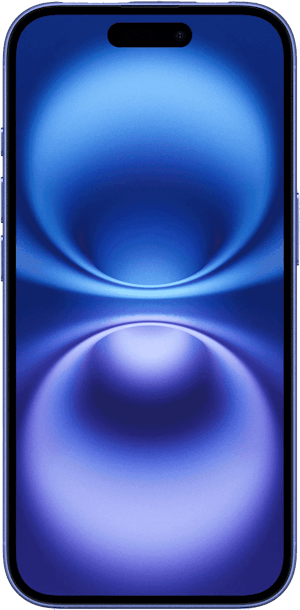
With the release of the iPhone 16, Apple’s previous flagship phone–the iPhone 15–got a $100 discount. The iPhone 15 costs $699, and while it doesn’t have all the newest bells and whistles, it does include the updates from iOS 18 and can send and unsend iMessages.
iPhone 15 128GB
| Description | |
|---|---|
| Screen Size | 6.1" |
| Available On | 123 Plans from 15 carriers |
| Available From |


|
| Priced From | $629.99 upfront |
| View Full Details |
 Apple's 2023 model featuring their best camera system yet, new A16 Bionic chip, all-day battery life, Dynamic Island, and a sleek design using recycled materials

How to Edit and Unsend Messages on an iPhone: FAQs
Does deleting an iMessage unsend it?
No, deleting an iMessage does not unsend the message. It simply deletes the message from your device. The deleted message still exists on the recipient's phone. To unsend and delete a message, you must select the Undo Send option from the iMessage menu right after you send the message.
How do I enable Unsend on iMessage?
The unsend option is automatically enabled on iMessage for devices running iOS 16. To unsend a message, select the Undo Send option from the iMessage menu within two minutes of sending the message.
Can you unsend texts on an Android?
Android phones using SMS can't unsend texts. However, if your Android is using a direct messaging service or emulating iMessage, you may have the chance to unsend the text.
Can others see when I unsend or edit messages?
Yes, the person you are messaging will get notifications anytime you unsend or edit messages. When unsending messages, they receive a notification but have no record of the text. Edited messages contain a log of all edits that others can view.
How long do you have to unsend an iMessage?
You have two minutes to unsend an iMessage after you've sent it.
How long do you have to edit an iMessage?
You have a 15-minute window to edit an iMessage. During that time limit, you can do five changes before Apple won't let you edit the message anymore.
Max McCaskill
Sr. Staff Writer

Thousands of cell phone plans unpacked. All the facts. No surprises.





.png?w=280&h=280&usm=20&usmrad=0.8&fit=crop "The Best Cheap Phone Plans for 2026: We Tested Them All to Help You Save")


