
Traveling is all fun and games until something goes wrong. Mishaps happen, and when you're solo traveling in an unfamiliar place, nobody automatically knows where you are. To make matters worse, WhistleOut polled 1,000 people and found that 31% (nearly 1 in 3) don't have a single emergency contact number memorized.
Luckily, there's an app for everything, including staying safe while traveling. I tested eight different apps for location sharing, but only five were worth using. So before you head out on your next trip, make sure you have one of these travel safety apps downloaded. And heads-up, ladies, before your next solo trip, check out these additional safety apps for women. That way, if things do go sideways, the people who care about you can keep tabs on your location and safety.
Why you can trust WhistleOut
.svg)
15+
years of mobile industry experience

900+
published wireless guides

35+
firsthand carrier reviews
We've been around since the birth of the iPhone. Along the way, we've learned how to spot the best deals for your wallet (and your sanity). We spend our days researching informative guides and writing insightful reviews on every kind of wireless plan, distinguishing what matters from what doesn't. We played around with these plans before recommending them, ensuring they're worth your hard-earned money.
Want to know more? Check out how we review every cell phone plan we rank.

How I tested these location-sharing apps
I put eight different apps to the test on both iPhone and Android to see which were the most useful. Among my testing scenarios, I looked at:
- Set up and location sharing with contacts
- Real-time live location accuracy
- Whether data is required to share your location
- Cross-platform compatibility (iOS and Android)
- Safety features beyond basic GPS (SOS alerts, crash detection, history)
- Free and paid features
Google Maps is, without a doubt, the best app to use for location sharing while traveling. It's easy to use, very accurate, and works on both iPhone and Android. For more family-specific safety, Life360 impressed me with its accident alerts and extra perks.
Location sharing apps for travel compared
| App | Available for | Best for |
|---|---|---|
| Google Maps Free |
iOS and Android | Cross-platform sharing |
| Apple Find My Free |
Built-in on iPhone | iPhone users |
| Life360 Free and premium available |
iOS and Android | Families and accident alerts |
| WhatsApp Free |
iOS and Android | International trips |
| Polarsteps Free and premium avaliable |
iOS and Android | Route sharing and tracking |
Best overall: Google Maps
If you already use Google Maps for navigation, you're a few taps away from one of the most practical location-sharing setups available.
All you have to do is open Google Maps, tap your profile picture, and select "Location sharing." From there, you choose a contact, decide how long you want to share for (a set time, or indefinitely until you turn it off), and pick how you want to send the link through.
With Google Maps, you can share your location and request locations from other people. Better yet, the person you're sharing with doesn't even need to have Google Maps installed. They just need a Google account. If they don't have the app, they can still see your live location through the web link you send them.
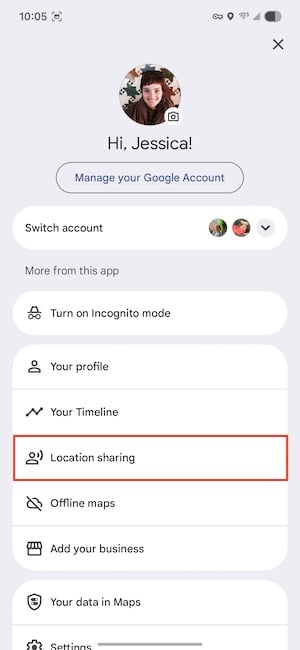
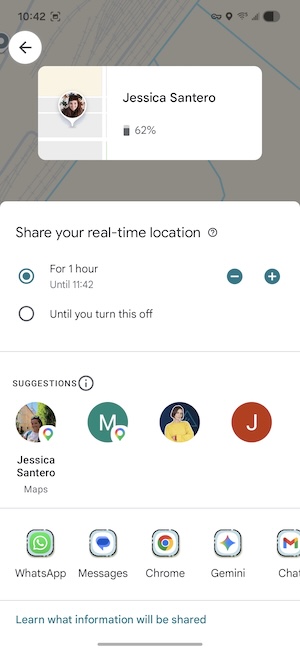
Image: Jessica Santero | WhistleOut
Since Google Maps runs on GPS, it works without cellular data. That means you don't need to have service to see your friend's location, and neither does your family if they want to see where you are. I tested location sharing and periodic location checking on Google Maps in Airplane Mode, and it worked flawlessly.
That said, if you're planning on travelling alone or aren't sure whether you'll have a cell connection, make sure to send your live location (indefinitely) before you land. In case you can't get service, your family and friends will already have the link, which will work for free until you turn sharing off.
If you are traveling with the fam, keep in mind that Google Maps does have some age restrictions. Children 13 or younger can't share their live location, and their account is managed through Google Family Link. So if your pre-teen wants extra vacation independence, make sure you set up proper location sharing.
Top travel tip: Google Maps hack
If you're traveling internationally, one of the best things you can do before you leave is download your offline maps.
Open Google Maps, search your destination, tap the three dots in the top right corner, and hit Download offline map. The entire area (streets, businesses, transit routes, walking directions) gets saved to your phone. So it works without data or Wi-Fi.
Stay connected while you travel with affordable international data
Location sharing only works as well as your connection does. Before your trip, make sure you have a plan that already includes international data, or consider an eSIM to stay connected the moment you land without needing to swap physical SIMs.
|
Visible

$25 Visible Plan
$25.00/mo
Taxes & Fees included
|
|
Mint Mobile

Unlimited Data Plan
$25.00/mo
$75.00 upfront payment for 3 months (equals to $25.00/month). Intro pricing for new customers only.
|
|
XFINITY Mobile

Mobile Select Plan
$0.00/mo
(for the first year of service) <br>Regular rate of $30/mo. thereafter
|
Best for iPhone users: Apple Find My
If everyone in your travel group uses an iPhone, Find My is a no-brainer. It's already on your phone, there's nothing to download, and setup takes about two minutes.
To use Find My, start by opening the app and going to the People tab. Then select "Share My Location" and choose your contact.
Find My not only shows your location (and your phone's), but you can also connect other objects as well. If you have AirTags in your luggage, wallet, or on your keys, they all appear in the same app. I recently upgraded my wallet and added an AirTag, which I know I will be thankful for the next time I travel.
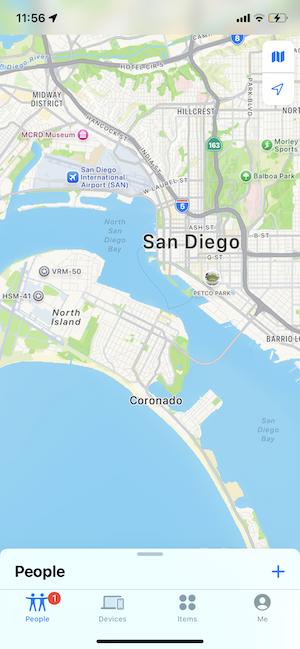
Image: Jessica Santero | WhistleOut
The only downside is that Find My only works if everyone is on iPhone. One Android user in your group breaks the whole system. If your travel party is mixed, Google Maps or Life360 are your better options.
For more on how to use iPhone's location sharing features, see our full guide on how to share your location on iPhone.
More iPhone safety features worth knowing about
Find My is just one of the safety tools built into your iPhone. From Emergency SOS to Crash Detection, your phone has more travel safety features than most people realize.
Check out our guide to iPhone safety features for the full rundown.
Best safety features: Life360

Life360 is well-known as a parenting app to keep tabs on growing pre-teens, but it doubles as a perfect app for travel safety. For a spring break trip, especially an international one, Life360 offers the most safety tools you can have on your phone. It is a paid subscription app, but you can use the 7-day free trial for Spring Break.
With Life360, you don't just send a location link like you do with Google Maps. You can create a Life360 circle, where all of your invited friends and family members show up in real time. It even displays the battery life left on each person's phone. Seeing how much battery is left on your friend's phone sounds unnecessary—until it's 2 a.m. and someone in your group has gone quiet because their phone is at 3%.
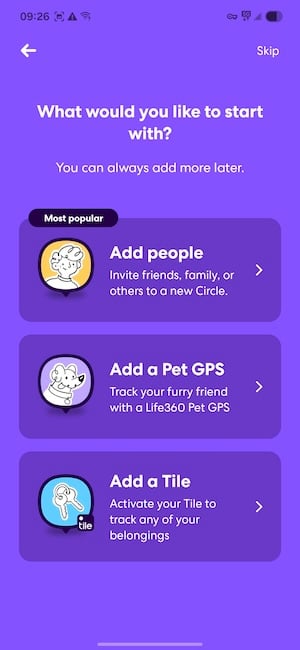
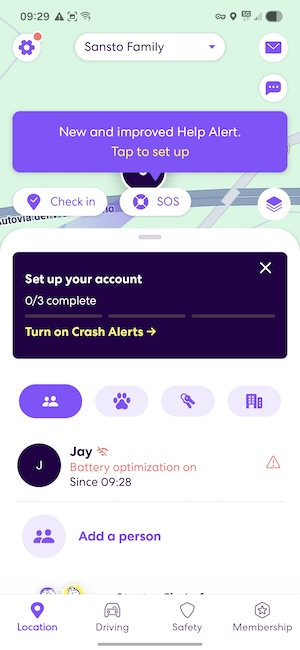
Image: Jessica Santero | WhistleOut
One of the most interesting features of Life360 is its location history. Not only can you see where everyone is currently, but also where they were, how long they stayed, and when they left. How long of a history you can see depends on your subscription, and it ranges from 2–30 days.
When I was testing it as a passenger in a car, I loved watching my icon move along the map in real time. And it updates your location very frequently, so much so that it looked like I was moving in a smooth trajectory instead of glitchy jumps along the highway.
Beyond basic tracking, Life360 includes built-in SOS buttons, crash detection, and roadside assistance. The app also supports AirTag and item tracking, which I hadn't thought much about until I lost my house keys. Now it doesn't seem like such a stretch to have everything (people, pets, and valuables) all in one place.
The 7-day free trial is perfect for a spring break week-long trip. Use it for the trip, and decide if you want to keep it after.
Not sure how to update your apps?
Keeping your apps up to date ensures you're always getting the latest features, bug fixes, and security improvements. Learn how to update the apps on your iPhone and your Android. It takes less time than you think.
Best for international travel: WhatsApp
If you're heading to Europe, Latin America, or anywhere outside the United States, chances are you'll encounter WhatsApp. It's the default messaging app for most of the world, which makes it the easiest option for location sharing when you're abroad.
Sharing your location on WhatsApp is very easy. Open any chat or group, tap the attachment icon, and choose "Location." You can send a current pin of where you are right now, or share your live location for 15 minutes, 1 hour, or 8 hours. Once someone has the link, they can follow your movement in real time for the duration you chose.
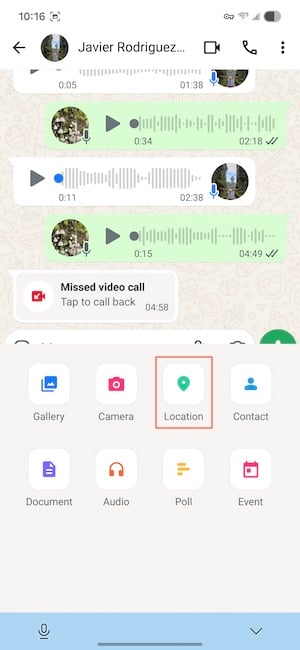
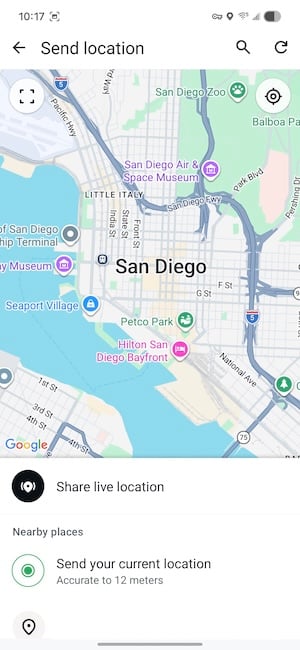
Image: Jessica Santero | WhistleOut
Just like all location sharing methods that use links, WhatsApp location sharing works in airplane mode and without data or Wi-Fi—but only once the link has already been sent. You need a connection to send the initial message. After that, your location updates without any additional data usage. Don't forget to share your location before you leave the hotel Wi-Fi, and it'll keep updating from there.
WhatsApp doesn't offer any other features, but it works really well considering you're probably going to use it for messaging anyway. It's already on most people's phones, it's free, and it works internationally without any extra setup. If your group is already using WhatsApp to coordinate, just add location sharing to that same thread.
Traveling internationally? Get a plan you can take with you
WhatsApp works over Wi-Fi, but if you don't trust connecting to sketchy restaurant or café networks, data is your safer bet. Check out the best international plans to stay connected while travelling.
|
T-Mobile

Essentials Saver
$50.00/mo
with Auto-Pay - Taxes & Fees NOT included
|
|
Verizon

Unlimited Plus
$70.00/mo
+ Taxes & Fees. Price includes AutoPay & Paperless discount.
+ $40 Upfront
|
|
AT&T

Value 2.0℠
$50.00/mo
+ $35 Upfront
|
Polarsteps: The best location sharing app for sharing your whole journey
Polarsteps isn't a traditional safety app, but more of a live travel journal that shares your location as you go. It reminds me a lot of PinPlanet, but smarter, because it automatically marks your stops for you. You don't have to remember to log anything since it tracks where you went and creates a visual route map that your family and friends can follow in real time.
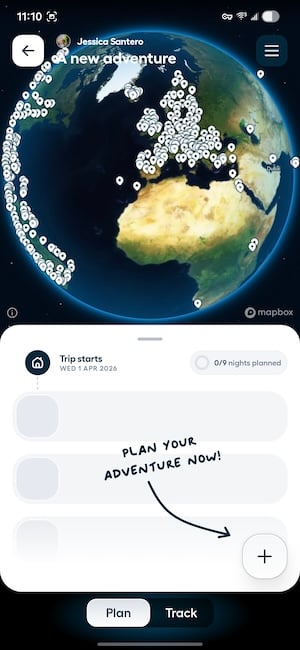
Image: Jessica Santero | WhistleOut
You can add photos, captions, and descriptions to each stop to keep your family updated with all the details, similar to a photo album that updates itself. It's a nice way to share your trip and serves as a safety measure too.
The AI trip planning feature is a bonus feature in case you aren't feeling inspired this Spring Break. I asked it to plan a week-long bike trip through France and was pleasantly surprised when it came back with a structured itinerary, suggested stops, and a route that actually made sense. If you're still in the planning phase of your trip, it's worth using just for that.
Polarsteps automatic route tracking is free. If you're using it purely to share where you are with people back home, you don't need to pay for premium.
Planning a trip? These tools can help
Polarsteps handles the sharing, but if you need to plan the actual trip first, check out our roundup of the best group travel planning apps to find the right tool for the job.
How to share your location in Messages on iPhone and Android
You don't always need a dedicated app to share your location. Both iPhone and Android have native location sharing built into the devices. Here's how to use each one.
How to share your location on iPhone
There are two ways to share your location safely, either through Messages or through the Find My tool.
Via Messages:
- Open a conversation in Messages.
- Tap the contact's name at the top of the screen.
- Tap Share My Location.
- Choose to share for one hour, until end of day, or indefinitely.
Via Find My:
- Open Find My.
- Tap the People tab.
- Tap Share My Location.
- Search for a contact and tap Send.
For a full walkthrough, see our guide on how to share your location on iPhone. And if you want to know what else your iPhone can do in an emergency, our iPhone safety features guide covers Crash Detection, Emergency SOS, and more.
How to share your location on Android
On Android, you can also share your location using Google Messages.
- Open a conversation in Messages.
- Tap + and then Real-Live Location.
- Choose how long you want to share, either 1 hour, 24 hours, custom, or indefinitely.
- Hit the Send icon.
For step-by-step instructions, follow our guide on how to send your live location in Google Messages.
Do you need data to share your location?
Not always. GPS works independently of your cellular plan, so once you've sent the initial location, it updates automatically without connecting to data. But you do need data or Wi-Fi to send the initial share link, whether that's through WhatsApp, Messages, or Google Maps.
After that, the person tracking you can see your live location without you needing an active connection. It even works in airplane mode once the share is established.
Location sharing apps for travel: FAQ
Is it safe to share your location while traveling?
Yes, as long as you're sharing your location with trusted contacts and using an app that gives you full control over who can see your location and for how long.
Does Snapchat location sharing work in other countries?
Yes, Snap Map works internationally as long as you have a data connection or Wi-Fi, but it isn't built for safety. It doesn't have SOS features, and its location accuracy isn't the best.
What is the safest app to share your location?
For safety features like SOS alerts, crash detection, and emergency contacts, Life360 offers the most protection.
How do I share my location when traveling?
You can use your phone's built-in messaging app, but I recommend using a different app that offers better customization. Google Maps works the best across all devices, and Life360 lets you see multiple people on a single map.
Jessica Santero
Staff Writer

Find a better phone plan
Thousands of cell phone plans unpacked. All the facts. No surprises.


.png?w=280&h=280&usm=20&usmrad=0.8&fit=crop "Best Cell Phone Deals for June 2026: Get the New iPhone 17 for Free")



