
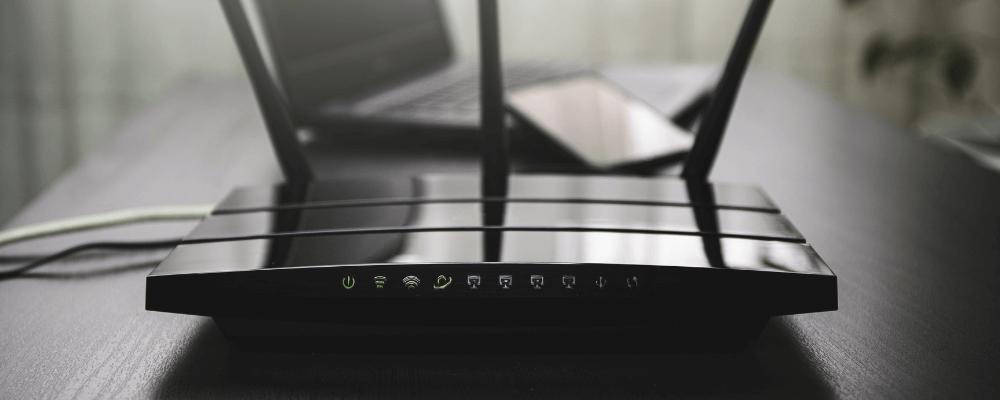
Are you trying to change your wireless network password? If it’s been a while, or if you’ve never changed it, you’ll want to do so immediately. Cybersecurity is a huge issue, and one of the easiest ways to strengthen your wireless internet network is by using a secure password.
To change your Wi-Fi password, you'll generally need to find your router's IP address, log into it to access your settings, and change your password from there.
Let's get into the details to help you learn how to change your Wi-Fi password.
Changing your Wi-Fi password: Prerequisites
Setting a new Wi-Fi password will involve logging in to your router, but you’ll want to gather some other information first:
- The Wi-Fi network name aka SSID (Service Set Identifier) and password
- Your router’s IP address (or default gateway)
- The router username and password
How to find your router's IP address
Your router’s IP address will vary based on the manufacturer. If you’ve got the user manual handy, that information should be in the router’s documentation. Common wireless router IP addresses include:
- 192.168.0.1
- 192.168.1.1
- 192.168.2.1
- 192.168.1.100
- 10.0.1.1
- 10.0.0.1
You can also quickly look up your router’s default IP address through settings on your PC or Mac. That process differs based on the operating system (OS) that you’re using.
On Windows:

- Open the Control Panel (for some Windows 10 users, this may be Settings instead)
- Select Network & Internet (Windows XP: Network and Internet Connections)
- Click Network and Sharing Center (Windows XP: Network Connections)
- Choose Change Adapter Settings (Windows Vista: Manage Network Connections; Windows XP: Skip Change adapter settings)
- Double click Current Connection (either Ethernet or Wi-Fi depending on which you’re connected to)
- Pick Details (Windows XP: Support > Details)
- Look under IPv4 Default Gateway, IPv6 Default Gateway, or Default Gateway to find your router’s IP address.
Alternatively, you can find your router’s IP address using the command prompt:

- Press Win (Windows key) + R
- Type cmd and hit enter
- Input ipconfig/all
- Check the Default Gateway field to find your router’s IP address
On macOS:
- Open System Preferences
- Select Network
- Click Advanced
- Choose TCP/IP tab
- Look by Router for your router’s IP address
Log into your router

By default, many routers come with a standard username/password combination, such as “admin/admin” or “admin/password.” If you’re changing your security key for the first time, use the default password and username provided by your router manufacturer or internet service provider. Alternatively, if you’ve previously set new credentials, enter those details in Steps 4 and 5 below.
Common default router usernames:
- username
- user
- admin
Common default router passwords:
- admin
- password
To access your router’s software (where you’ll update your Wi-Fi password), you’ll first need to log in:
- Connect to the same network as your router over Wi-Fi or Ethernet.
- Fire up a web browser (Chrome, Firefox, Brave, Safari, Edge, etc.).
- Enter your router’s default gateway. You’ll change your Wi-Fi password using your router’s software settings.
- Input your admin username. This username is different from your Wi-Fi network name. Depending on your specific router, you may only have a password. If so, skip to the next step.
- Enter your router login password (this is different from your wireless network password).
- Optional step: Pull your hair out while trying to remember the secure password you set that you definitely didn’t forget. Caps lock must be on or something.
For instance, I fired up my web browser and entered 192.168.1.1, which brought me to the friendly Linksys router login screen.
Access your Wi-Fi login settings
After successfully logging in to your router’s software, find the appropriate Wi-Fi username and password setting section. This tab varies by manufacturer but should be pretty easy to locate. Possible names for the section where you’ll manage your wireless network include “Wi-Fi Settings” and “Wireless.” On my router, this was the Wireless tab.
How to change your Wi-Fi password

After you’ve located the wireless management section in your router’s software, you can edit the password. You may see multiple passwords, depending on how your router is configured and the number of frequency bands available. You’ll run into this if you have a dual- or tri-band router with 2.4GHz, 5GHz, or 6GHz available.
Once you find the password field, enter the new password and make sure to save it. Your router may reboot on its own after you make this change.
I changed two passwords in my wireless router software: one for its 2.4GHz network and another for the 5GHz band. Different passwords and SSIDs were able to be set for each.
Password creation tips
It’s crucial to choose a strong password for your wireless network. A strong password contains:
- At least 8 (but ideally 13 or more) characters
- Uppercase and lowercase letters
- Numbers
- Symbols
For more tips, check out our guide to creating a strong Wi-Fi password.
Best internet plans for Wi-Fi
While you’ll want to have a good router, a solid internet connection is crucial as well. Accordingly, you’ll want to find an internet service provider (ISP) with the best speeds in your area. One of the first steps in upgrading internet packages or switching to a new ISP is determining what connection (fiber, cable, DSL, etc.) is best for you.
|
Verizon

myPlan + 5G Home
$35/mo
with AutoPay and any Verizon mobile phone plan
|
|
Xfinity

300 Mbps
$40/mo
Internet price guaranteed for 5 years. Price includes $10/mo autopay and paperless discount.
|
|
Verizon Fios

300 Mbps
$30/mo
with AutoPay
+ $99 Upfront
|
|
T-Mobile

Rely Internet + T-Mobile voice line
$35/mo
with AutoPay. Plus taxes and fees.
+ $35 Upfront
|
|
Spectrum

Spectrum Internet® 100
$30/mo
for 1 year
+ $20 Upfront
|
Best Wi-Fi routers
In addition to changing your Wi-Fi password, you may consider upgrading your router. While home router placement is important, you’ll want to install a router that works best in your space. Don’t want to upgrade your router? A Wi-Fi range extender could bolster your wireless network.
How to change your Wi-Fi password FAQs
How do you change your Wi-Fi password?
Here are the steps for changing your Wi-Fi password:
- Open a web browser.
- Enter your router’s IP address.
- Log in to your router (you may need to use the default username and password combination).
- Locate the wireless or wireless security section.
- In the Wi-Fi password field, change your wireless password.
- Press save or ok.
How do you change your Wi-Fi SSID?
Aside from setting a new security key, you can create a different network name:
- Fire up a web browser.
- Navigate to your router’s IP address and log in.
- Find the wireless or wireless security tab.
- Under the network name, SSID, or Wi-Fi name field, enter your desired Wi-Fi network name.
- Press ok or save.
How often should you change your wireless network password?
We recommend changing your Wi-Fi password about every 90 days at a minimum. If you want to be really careful, you could switch passwords once a month.
What makes a strong Wi-Fi password?
Setting a new wireless password isn’t enough. A secure passkey features:
- At least eight characters (more is better)
- Numbers
- Characters
- Upper and lowercase letters
- No common words (i.e., “password”)
Moe Long
Senior Writer

Enter your address to find the best internet providers available in your area.

Related Articles


.jpg?w=160&h=160&usm=20&usmrad=0.8&fit=crop "Viasat vs Hughesnet Internet Plans Compared")
Related Topics
InternetPopular Topics
Internet Spectrum Internet Xfinity Research and Reports AT&T T-Mobile News Verizon MINTernet App ExplainersInternet Providers by State
- Internet in Alabama
- Internet in Alaska
- Internet in Arizona
- Internet in Arkansas
- Internet in California
- Internet in Colorado
- Internet in Connecticut
- Internet in Delaware
- Internet in District of Columbia
- Internet in Florida
- Internet in Georgia
- Internet in Hawaii
- Internet in Idaho
- Internet in Illinois
- Internet in Indiana
- Internet in Iowa
- Internet in Kansas
- Internet in Kentucky
- Internet in Louisiana
- Internet in Maine
- Internet in Maryland
- Internet in Massachusetts
- Internet in Michigan
- Internet in Minnesota
- Internet in Mississippi
- Internet in Missouri
- Internet in Montana
- Internet in Nebraska
- Internet in Nevada
- Internet in New Hampshire
- Internet in New Jersey
- Internet in New Mexico
- Internet in New York
- Internet in North Carolina
- Internet in North Dakota
- Internet in Ohio
- Internet in Oklahoma
- Internet in Oregon
- Internet in Pennsylvania
- Internet in Rhode Island
- Internet in South Carolina
- Internet in South Dakota
- Internet in Tennessee
- Internet in Texas
- Internet in Utah
- Internet in Vermont
- Internet in Virginia
- Internet in Washington
- Internet in West Virginia
- Internet in Wisconsin
- Internet in Wyoming


.jpg?w=280&h=280&usm=20&usmrad=0.8&fit=crop "Verizon Fios Internet vs. Optimum Internet")

.jpg?w=280&h=280&usm=20&usmrad=0.8&fit=crop "Viasat vs Hughesnet Internet Plans Compared")


.jpg?w=280&h=280&usm=20&usmrad=0.8&fit=crop "gFiber vs. AT&T Fiber: Which internet is better for you?")


