
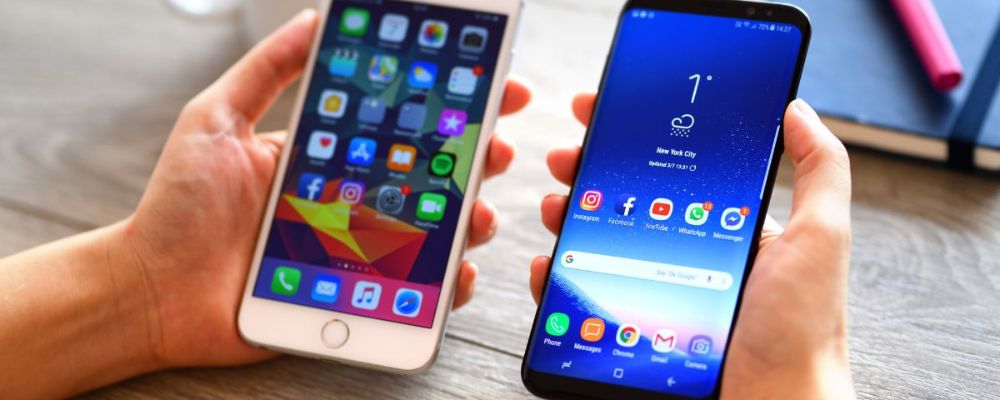
So, you’ve decided to switch to team Android, and now you’re faced with the daunting task of changing everything over to an entirely new ecosystem. *Cue existential dread.* No worries—switching phones is actually pretty simple and only takes a few minutes to do.
One of the major pieces of data you’ll want to make sure transfers over is your contact list (I mean, who memorizes phone numbers anymore?). There are a few different ways to do this—both wired and wirelessly, as well as through a cloud sync and backup.
We’ll walk you through how to transfer your contacts from an iPhone to an Android phone without the headache.
Psst...before you buy that Android phone...
Take it from us—NEVER buy a brand-new phone for full price! Androids are some of the most-discounted devices on the market, with both major and MVNO carriers offering free (and nearly free) devices all the time. And if you don’t need the latest (and most expensive) device, you can get even steeper discounts on last year’s models.
Check out the latest cell phone deals before shelling out more than you have to.Before you start your transfer
The first thing you need to do is charge your new Android device fully before beginning your data transfer. While you’re at it, make sure your iPhone’s software is updated and the device is charged as well.
Once you are ready and both devices are turned on, follow the instructions on your Android screen to connect your new phone to your mobile and Wi-Fi networks. Then, opt for any of the methods below to begin your contact transfer.
Fastest: Wired and wireless transfer options
You can choose to export contacts from your iPhone wirelessly or by using a cable. Either option is secure, so you don’t have to worry about your information being stolen.
Going wireless
First, you can try the cable-free method of transferring contacts and other data. When you see the on-screen prompt, tap “Cable doesn’t fit?” or “No cable?” to continue.
Your iPhone contacts will begin transferring to your new Android phone wirelessly. This should only take a few minutes, so sit back and relax.
Using a cable
If you have a USB-C cable that plugs into the lightning end of your iPhone, you can use this to transfer your contacts between devices. Once both devices are charged and turned on, you can start the transfer.
When prompted, plug the USB-C cable into your new Android device and your iPhone. If your iPhone is an older model, you may also need a USB-A to USB-C adapter.
Once you do that, all you need to do is follow the on-screen instructions. Select whatever data, including contacts, you’d like to transfer to your Android. Wait until the transfer is complete before disconnecting the cable. Like the wireless method, this is one of the fastest ways to transfer contacts from an iPhone to an Android phone.
Sync using your Google Account
Another easy and effective way to transfer your contacts is by backing up your contacts to your Google account. If you haven’t previously added your Google account to your iPhone, you’ll need to do that first.
- In your iPhone Settings app, tap Contacts.
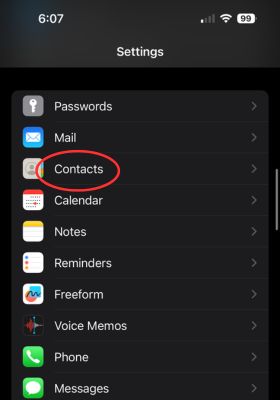
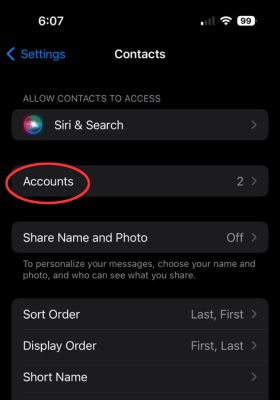
- Select Accounts.
- Choose your Gmail account, if it’s already there, or tap Add Account > Google > enter your email and password to add your Google account.
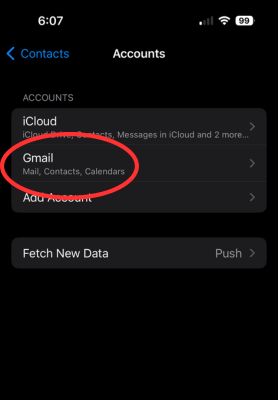
- Toggle the Contacts to “on.”
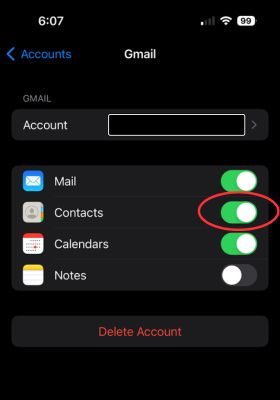
Now, when you turn on your new Android, your contacts will be on your Android device through your Google account.

Using the Google One app
Another easy and fast—but not free—way to move your data from an iPhone to an Android is to use Google One. Google One is a paid cloud storage service similar to Apple’s iCloud, where you can manually or automatically back up your contacts and more to the cloud. You can pay monthly or annually for a Google One plan, with costs as low as $19.99 per year.
Here’s how to do this:
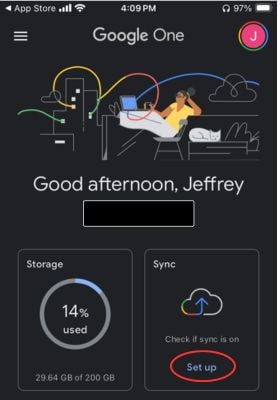
- Download the Google One app for your iPhone.
- Sign in, select a plan, and set up your account.
- Tap Sync > Set up/View > Contacts.
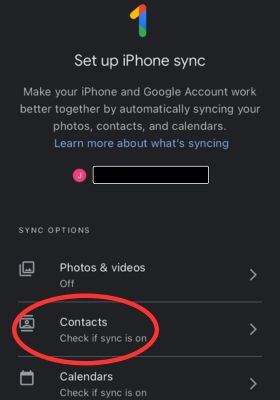
- Select Set up sync.
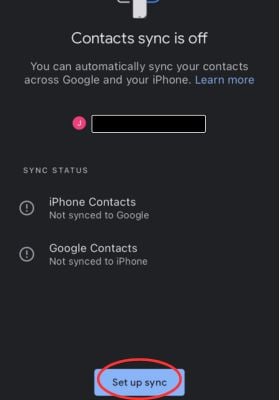
- Choose Upload contacts.
.jpg "Choose Upload contacts in Google One app")
Once the process is complete on your iPhone:
- Make sure your Google account is active on your Android device (see the instructions above for a refresher). The process below will differ slightly based on what kind of Android phone you have. Here is an example of transferring your data on a Google Pixel.
- In your Settings app, choose Google > Setting for Google Apps.
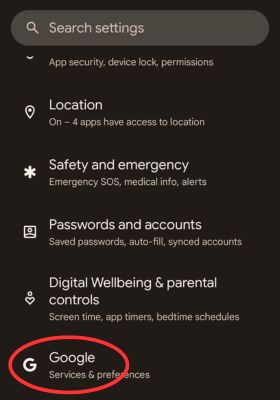
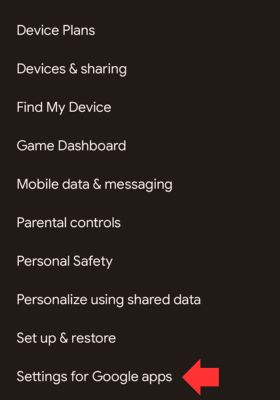
- To initiate the sync, tap Google Contacts sync.
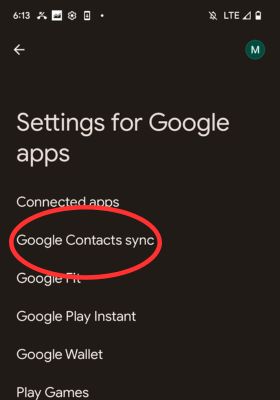
While you don’t need the Google One app to complete the syncing process on your Android, you’ll obviously want to download it to your Android device as well to easily manage sync settings right from the app.
Use a third-party app
If you’d prefer to use a third-party app to transfer your contacts, you have plenty of options.

1. Immediate Contact Transfer
- iOS app
- Android app
Immediate Contact Transfer offers two methods for transferring your contacts from an iPhone to Android—an app-to-app option or through an email attachment. No cloud or account signup is required, which is great for those loathe to create yet another name and password, as well as those concerned about allowing third-party apps access to your secure cloud information.
Simply download the app on each phone and follow the prompts for transferring your contacts, or download it on your iPhone to create the email attachment, which you can then upload to your Android via your Gmail app.

2. My Contact Backup
- iOS app
- Android app
My Contact Backup is another third-party app you can download from the iPhone app store. Like Immediate Contact Transfer, you don’t need to create an account or sign in. Unlike the previous app, though, you don’t have an app-to-app option for transferring—instead, this is an email transfer only. Your contacts will be emailed from your iPhone to your email account as a .vcf or .csv attachment; on your Android, simply open the mail app and download the attachment.
If you choose, though, you can also download and use My Contact Backup on your Android as another form of contact management. You can sort and filter your contacts by attributes such as job titles and even birthdays.

3. Contact Transfer
- Android app
Not to be confused with the similarly named app above, Contact Transfer is an app for PCs that allows you to move contacts from your iPhone to Android using your computer. First, you’ll need to download both iTunes and Contact Transfer to your PC, and download the Contact Transfer app on your Android device.
After that, follow these steps:
- Open Contact Transfer on your Windows PC.
- Click iOS Device as the source.
- Select Android device as your destination and click Continue.
- Use a USB cable to connect your iPhone to your PC.
- Open the Contact Transfer app on your Android and scan the QR code on your PC screen.
- Choose the contacts you want to transfer or select “All.”
- Tap Transfer to move your contacts.
This certainly isn’t the fastest or easiest method, but if you’d prefer to use your computer for whatever reason, this might be a good solution for you.
Marisa Crane
Staff Writer

Thousands of cell phone plans unpacked. All the facts. No surprises.





.png?w=280&h=280&usm=20&usmrad=0.8&fit=crop "The Best Cheap Phone Plans for 2026: We Tested Them All to Help You Save")


