
Your mobile hotspot is one of the simplest ways to get online when Wi-Fi isn’t available, but it’s also one of the easiest things to overlook when it comes to security. If your hotspot password is weak or outdated, anyone nearby could connect to your network, use your data, or access your private information.
Updating your hotspot password settings protects your connection and makes sure only the people you choose can get online. It takes less than a minute, and you can do it directly from your smartphone’s settings.
In this guide, you’ll learn how to find your hotspot password, how to change your hotspot password on both iPhone and Android, and a few quick tips for creating a strong password for your hotspot network.
So let’s begin.
How to find your hotspot password on an Android
Before you can change your hotspot password, you first need to locate it in the settings on your phone. Luckily, you can find your Android hotspot password without too much digging.
Go to Settings > Connections > Mobile Hotspot and Tethering > Mobile Hotspot, and you’ll see your current password displayed on the same screen where you can edit it.
Changing your hotspot password on Android
Once you’ve found your hotspot password, changing it only takes a few seconds. Like before, the exact wording in your settings might vary slightly. I will be using my Samsung Galaxy ZFold 5 on the Android 16 OS as an example in this guide. But the process should be nearly identical across all Android devices, and you can find everything you’ll need under your hotspot settings, which you can access when you turn on your mobile hotspot.
Here’s how to do it:
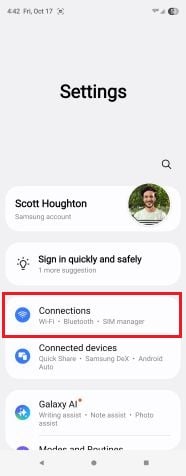
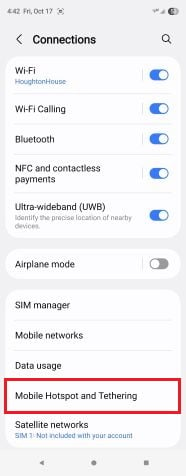
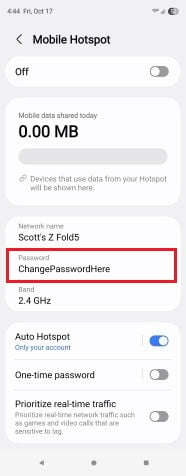
On most Android devices, you can change your hotspot password by navigating to Settings > Connections > Mobile Hotspot and Tethering. From the final menu, you can tap on your password to edit it.
Image: Scott Houghton | WhistleOut
- Open your Settings app.
- Swipe down from the top of your screen and tap the gear icon or open Settings from your app drawer.
- Tap Connections > Mobile Hotspot and Tethering > Mobile Hotspot.
- From this menu, you can change everything like your hotspot network’s name and password and even the network speed.
- Tap Password and enter a new password that is at least eight characters long.
- Tap Save.
Simple enough, right?
Bonus tip
On Samsung phones, you also have the option to generate a one-time password. To do this, simply toggle the option One-time password, and your phone will generate a completely random, temporary password. If you leave this setting toggled on, your phone will generate a new password every time you turn on your hotspot.
This option is perfect for moments when a friend needs quick access to the internet via your hotspot, you are temporarily connecting a work computer to your hotspot, or you want to keep your main password private while helping someone get online.
How to find your hotspot password on an iPhone
Locating your hotspot password on an iPhone also only takes a few taps:
- Simply go to Settings > Personal Hotspot, and you’ll see your current password displayed near the top of your screen.
Changing your hotspot password on iPhone
Changing your hotspot password on an iPhone is straightforward and takes less than a minute. Just like for Android phones, the option lives in the Settings menu that you’d use to set up a hotspot on your iPhone.
Here’s how you do it:
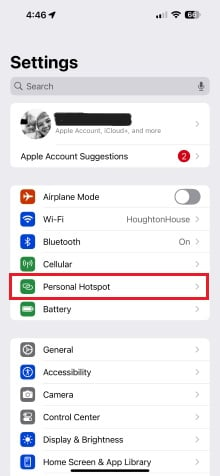
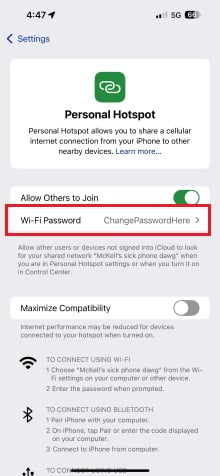
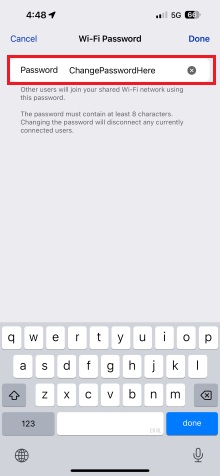
On an iPhone, changing your hotspot password is just as simple. Go to Settings > Personal Hotspot and tap on Wi-Fi Password to enter a new one.
Image: Scott Houghton | WhistleOut
- Open your Settings app.
- Tap Personal Hotspot > Wi-Fi Password.
- Delete the existing password (if there is one), then type in your new password.
- Tap Done to save your password.
How to create a strong hotspot password
Your mobile hotspot password is like the lock and the key on your mobile connection. The stronger it is, the harder it is for anyone nearby to slip in and use your data.
A strong password isn’t just long, it’s unpredictable. Don't use something obvious like your name or an easily guessable string of numbers (we're looking at you, "1234" people). Instead, it's best to combine random words, numbers, and special characters into a combination that you can easily remember but others will struggle to guess.
Updating your hotspot password often helps you stay in control of who’s using your data. Especially if you’ve recently shared your password with a bunch of people, a simple password change keeps old devices from reconnecting automatically. You won’t have to worry that someone still has access to your hotspot network.
Bonus tip
If you have trouble remembering passwords, a password manager can help. It stores your logins securely and can even generate strong ones for you, so you stay protected without having to memorize them all. Check out our guide to learn which password managers we recommend.
Best mobile hotspot plans
Not all hotspot data works the same way. Some plans include dedicated hotspot data that’s separate from your plan’s regular usage, while others pull directly from your overall data allotment. That distinction matters—especially if you rely on your hotspot often. Once that hotspot data runs out, your connection can slow to a crawl or stop altogether, even if your main plan still has data left.
If you use your hotspot for work, while you travel, or to keep other devices connected when Wi-Fi isn’t available, it’s worth knowing how your plan handles hotspot data. The right hotspot plan gives you the speed, coverage, and consistency to stay connected without draining your monthly data too quickly.
Our favorite mobile hotspot plans include US Mobile's Unlimited Premium plan, which offers 50GB of 5G hotspot data. Also, we’re impressed with T-Mobile's Experience Beyond plan that comes with 250GB of mobile hotspot data. Other contenders include Visible's $35 Visible+ plan, which provides unlimited hotspot access but at reduced speeds of 15Mbps.
|
Visible

$25 Visible Plan
$25.00/mo
Taxes & Fees included
|
|
US Mobile

Unlimited Starter Plan
$10.00/mo
|
|
T-Mobile

Experience Beyond 2.0
$100.00/mo
with Auto-Pay + Taxes and fees
|
Hotspot password FAQs
Can I connect to someone's hotspot without a password?
Technically, yes, but we don't recommend it. Hotspot passwords are there for a reason—they protect both the network owner and the connected device from potential security risks. Connecting without permission, or allowing someone else to, can expose your or the other person's sensitive data.
Can I change my hotspot name?
Yes. On both Android and iPhone, you can change your hotspot name in the same menu where you change your password. A recognizable name helps you find your hotspot network easily, especially in crowded areas.
Is it safe to share my hotspot with others?
Generally, yes, so long as you trust the person you share it with. Just remember that anyone connected to your hotspot is using your data, which can affect your speeds and overall data allotment.
What is my mobile hotspot password if I've never set one?
If you've never changed it, your phone likely has a default password assigned by the manufacturer or your carrier. Following the steps outlined in our guide will allow you to see the current password and change it to something more secure.
Scott Houghton
Jr. Staff Writer

Thousands of cell phone plans unpacked. All the facts. No surprises.





.png?w=280&h=280&usm=20&usmrad=0.8&fit=crop "The Best Cheap Phone Plans for 2026: We Tested Them All to Help You Save")


