
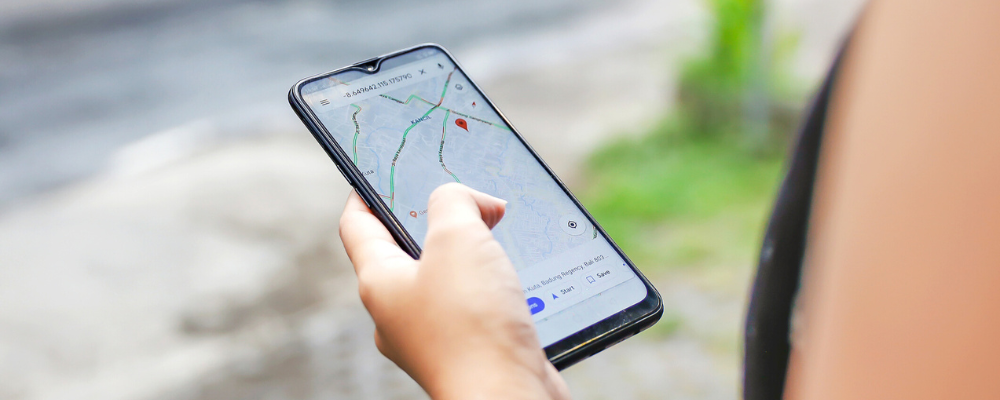
Keep meaning to buy your nephew a belated birthday gift? We’ve all been there. Whether you're notoriously forgetful or just want to be a better auntie, setting reminders can help—setting location-based reminders can help even more. iPhone and Android users can take advantage of their smartphones' location-based reminders to get notifications when needed most.
Creating a location-based reminder is as easy as telling the reminder when and where you would like to be notified, such as "Remind me to buy Benjamin a gift at Target." Your smartphone will then use GPS technology to track your trip to Target and notify you when you’ve arrived.
Read on to learn how to set location-based reminders on your phone. (Your nephew will thank you.)
How to set location-based reminders on your iPhone
If you’re like me, you haven’t been using your iPhone’s Reminders app to its fullest capacity. Perhaps you’ve set an iPhone reminder to buy toilet paper at Costco, only to leave the store without it. Apple knows that a reminder's effectiveness has a lot to do with when and where it is received. By adding a location to your reminder, you can receive a notification when it’s most appropriate, such as when pulling into the Costco parking lot.
Upgrading a typical reminder to a location-based reminder is easy. First, enable location-based reminders on your iPhone. To do this:
- Go to Settings > Reminders > Location
- Select either Ask Next Time or When I Share, or While Using the App. This will enable Precise Location, which is necessary for location-based reminders.
You are now ready to set your first location-based reminder. To begin:
-
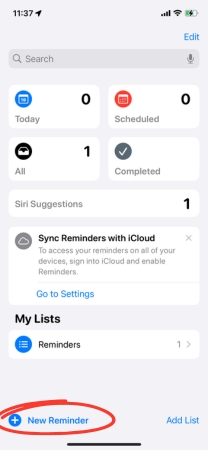
Open your Reminders app and tap the + button in the bottom left corner to add a new reminder. Then, type in your reminder.
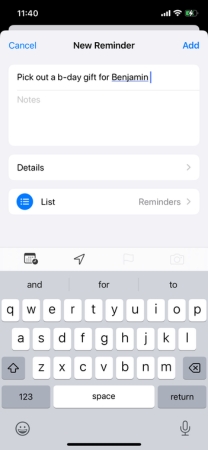
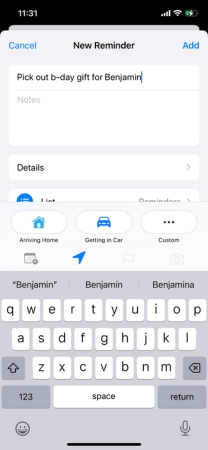
- Tap the Location button (compass arrow) and choose a preselected location, such as Home or Getting in Car, or create a custom location by tapping Custom. Then, type in the name or address of your location, for example, “Target.” Select the specific location from the options listed: “Target 1288 Camino del Rio N.”
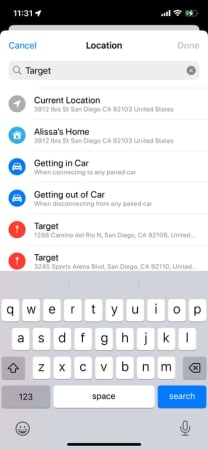
Home or work address not showing up? Update My Card
If your home or work address doesn’t show up when you create your reminder, it means you haven’t added them to Apple Maps or My Card. While Apple Maps may be familiar to you, MyCard likely isn’t. My Card is simply your contact information located in your Contacts app. Thankfully, it’s easy to find and even easier to update. We recommend this method as many of us, myself included, use Google Maps rather than Apple Maps (no offense, Apple).
To update My Card with your home and work addresses:
- Open your Contacts app.
- Select your name at the top. You will notice it says “My Card” underneath.
- Tap Edit in the upper right corner.
- Find the field that reads add address and add as many addresses as you want. You can specify them as home, work, school, other, or add a custom label.
These locations will now appear when you add a location-based reminder.
- Choose to further specify where you would like to receive your reminder by dragging the blue circle and manipulating the location radius.
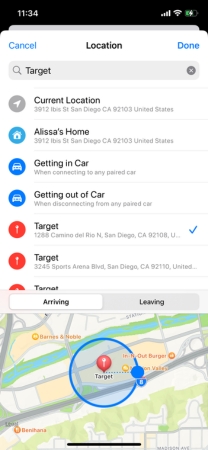
- Select Done and then Add.
Now that you’ve set your reminder, you will receive a notification when you are within the specified range of your destination. No more leaving Target without that birthday gift.
Use Siri to set location-based reminders
iPhone users can use Siri to set location-based and other reminders. For example, if you want to remember to call your mom when you get home from work, simply ask Siri. Your iPhone will send you a reminder when you get home, provided your location settings are on and your Home address is set.
Having trouble using Siri? We have a guide for that.How to set location-based reminders on your Android
When it comes to Android features, a one-size-fits-all approach isn’t always possible, given the variety of models across brands. But worry not! Google makes it easy to enable location-based reminders whether you have a Google Pixel, Samsung Galaxy S24, Motorola Edge, or other Android device.
Setting location-based reminders with Google Keep
What doesn’t Google do? Even as an iPhone user, I opt for Google features as often as possible. With Google Keep, Android (and iPhone) users can, among other things, create notes, sketch drawings, and even set location-based reminders. This app is free and available to anyone with a Google account.
To set a location-based reminder with Google Keep, open the app or download it from the Google Play store if you don’t already have it. From there:
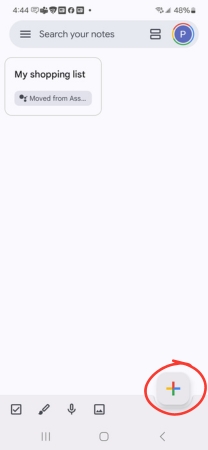
- Tap the + sign in the lower right corner to create a new note.
- Add your note.
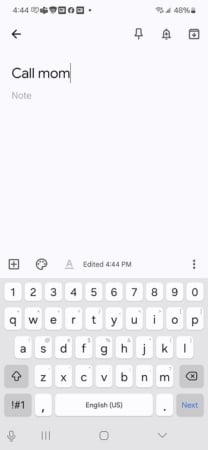
- Tap the bell icon in the top right corner and select where you would like to receive your reminder. You can pick from Home, Work, or Pick a place.
- If you choose Pick a place, you can add any address under Edit location.
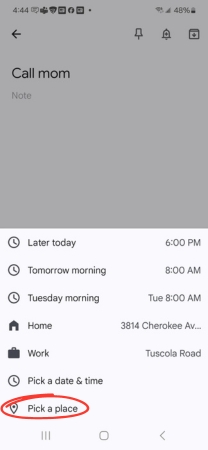
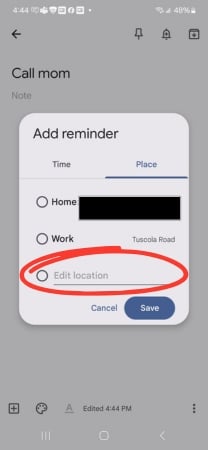
- If you choose Pick a place, you can add any address under Edit location.
- Select Save.
Voila! You have created your location-based reminder.
Best location-based reminder apps
Looking for other ways to keep forgetfulness at bay? iPhone and Android users can try these highly-rated third-party apps to improve their reminder game.
MyLife Organized
Price: Free
Devices: iOS, Android
If you’re searching for an all-encompassing task management app with location-based reminders, look no further than MyLife Organized. Not only can you create tasks and label them by priority, urgency, and more, but you can complete tasks easily when out and about by setting location-based alerts. Say you have a task labeled, Get balloons for the party; MyLife Organized can remind you to pick up the balloons when you are near a party supply store.
MyLife Organized is rated at 4.8 on the Apple Store and 4.6 on the Google Play Store.
The downside: Takes some time to learn the ropes

TickTick
Price: Free for basic features, $3.99 for premium
Devices: iOS, Android
The downside: With so many features, there can be a lot to sift through

AnyDo
Price: Need premium ($9.99/month) for location-based reminders
Devices: iOS, Android
AnyDo has all the best of an organizational app with an added aesthetic appeal. Not only is the app intuitive to use, but the blue and white design has a calming effect that makes task management a little more zen. If you’re looking for an all-in-one calendar, planner, and to-do list that syncs with all your devices, AnyDo might be right for you. Just know that you have to pay for premium access to use location-based reminders.
AnyDo is rated at 4.6 on the Apple Store and 4.4 on the Google Play Store.
The downside: Have to pay for full functionality
How WhistleOut reviews apps
Our mobile experts scour the app stores, looking for the best new apps for Android and iPhone. Before recommending an app, we use the app for at least one full workday, testing its basic functionality and evaluating whether or not it delivers on its promises.
-
Easy to use
Great apps simplify your phone. We selected the tools that don't require a complicated instructional manual. -
Affordability
The internet is filled with expensive price tags, but we're not buying what they're selling. We leaned into inexpensive, quality apps. Extra points if they're free! -
Hands-on testing
We played around with these before recommending them, ensuring they're worth your download.
From there, we weigh the app's pros and cons and then determine whether or not it's a worthwhile download for the wider population of cell phone users.
Alissa Bird
Staff Writer

Thousands of cell phone plans unpacked. All the facts. No surprises.





.png?w=280&h=280&usm=20&usmrad=0.8&fit=crop "The Best Cheap Phone Plans for 2026: We Tested Them All to Help You Save")


