
Your Android phone is hiding a secret. Tucked away in your settings is a hidden menu called Developer Options, and despite the technical-sounding name, it’s not just for coders. This menu is a powerful toolkit for unlocking simple, high-impact changes that can make your phone feel significantly faster and more tailored to you.
Most users never even know it exists, but activating it gives you the power to speed up animations, fix common annoyances (like flaky Bluetooth volume), and fine-tune your device far beyond the standard options.
The best part is how easy this is. In this guide, I’ll walk you through the simple unlock trick and help you safely ignore all the intimidating, complex options. We'll focus only on the handful of settings that will genuinely upgrade your phone's day-to-day performance.How to unlock Developer Options
Unlocking the Developer Options menu only takes a minute, and once you know where to look, it’s easy to do on any Android phone. The exact steps vary a little depending on your device, but the process stays similar across brands:
1. Find your device’s build number.
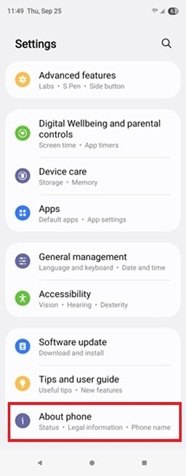
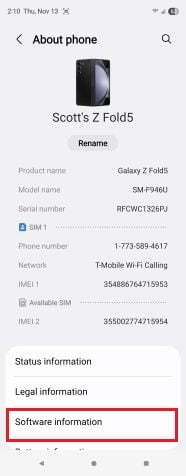
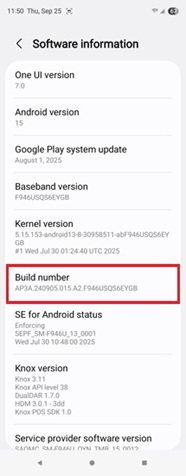
Locating your phone’s build number is simple. On the Galaxy Z Fold5, just go to Settings > About Phone > Software Information, and you’ll see it there.
Image: Scott Houghton | WhistleOut
You can quickly find your device’s Build number through your Settings app. On most phones, you’ll find it under Settings > About phone. But some brands, like Samsung, put it a step deeper.
On my Samsung Z Fold5, you go to Settings > About phone > Software information > Build number. But like I mentioned before, these steps vary slightly depending on your phone’s manufacturer.
Here are a few common pathways to find the build number on other devices:
| Device | Setting |
|---|---|
| Google Pixel | Settings > About phone > Build number |
| Samsung Galaxy S8 and later | Settings > About phone > Software information > Build number |
| LG G6 and later | Settings > About phone> Software info > Build number |
| HTC U11 and later | Settings > About or About phone >Software information> More > Build number |
| OnePlus 5T and later | Settings > About phone > Build number |
2. Tap the build number 7 times.
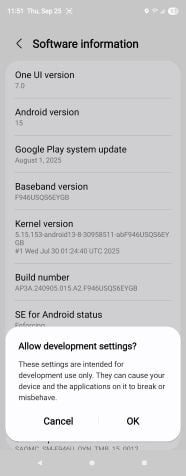
Just tap the build number seven times until your device prompts you to allow developer mode.
Image: Scott Houghton | WhistleOut
Once you’ve found it, tap your phone’s build number seven times in a row. Once you’ve done that, your phone will prompt you to enter your PIN or unlock pattern, followed by a box asking if you want to Allow Development Settings. Tap OK to confirm, and you’ll see the message “Developer mode has been turned on” appear on your screen, meaning you’re ready to access the Developer Options menu.
3. Access the new menu.
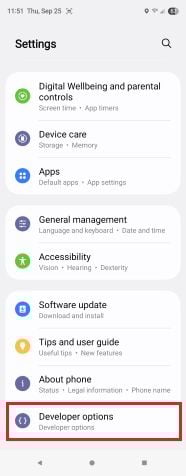
Once Developer Options are unlocked, you can find it at the very bottom of your phone’s setting menu.
Image: Scott Houghton | WhistleOut
Head back to your main Settings screen, scroll to the bottom, and look for a new Developer Options menu. This menu gives you access to multiple custom features and settings for your Android.
Pro tip: If you ever want to hide it again, you can toggle Developer Options off at the top of the menu. Just keep in mind that doing so also resets any settings you’ve changed. So if you do end up adjusting these settings, you’ll need to keep the menu turned on to not lose your changes.Which developer settings should I change?
Once you’ve unlocked the Developer Options menu, you’ll see dozens of settings that may look overwhelming at first glance. The good news: You don’t need to touch most of them. In fact, unless you are an actual developer, you probably shouldn’t touch most of them. But a few can genuinely improve how your phone feels and works.
Adjust the animation speed
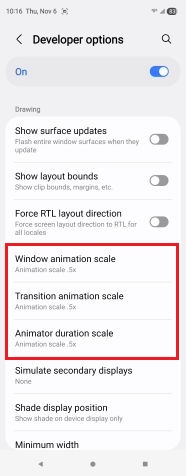
Adjusting the animation settings on your phone speeds up your phone’s menus, app launches, and transitions—making your phone feel much snappier.
Image: Scott Houghton | WhistleOut
By default, your Android’s animations are set to a slower, more dramatic pace. It looks smooth, but it can also make your phone feel sluggish. Dropping the scale from 1x to 0.5x speeds up menus, app launches, and transitions—making your phone feel much snappier.
To adjust this, open the Developer Options menu and scroll to the Drawing category (about ¾ down the menu). Change the following three settings from 1x to 0.5x:
- Window animation scale
- Transition animation scale
- Animator duration scale
It’s a small change overall, but it makes everyday navigation feel faster and more fluid.
Disable absolute volume
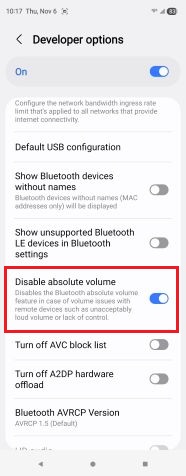
Disabling Absolute Volume gives you the ability to fine-tune your Bluetooth audio devices to make sure everything sounds great.
Image: Scott Houghton | WhistleOut
If you frequently use Bluetooth headphones or speakers, Absolute Volume can easily cause more problems than it solves. By linking your phone and Bluetooth device to the same volume control, it takes away the ability to fine-tune sound on each one, which can cause issues like:
- Volume that won’t go low enough: Even at the lowest setting, the sound can still be louder than you want in quieter environments, like trying to listen to music in bed without waking your partner.
- Volume that won’t go high enough: Sometimes the slider maxes out before your headphones or speaker hits their full volume. That makes it hard to hear clearly in noisy spots like a busy coffee shop or while mowing your lawn.
- Sudden, uneven volume jumps: The two volume scales don’t always line up. A single tap can make the sound drop to barely audible or jump to uncomfortably loud, leaving no middle ground.
Force multi-window mode
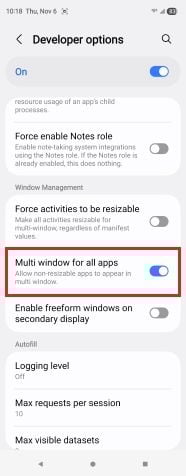
Enabling multi-window for all apps allows you to force any app into split-screen mode even if the app’s developers didn’t originally intend it to..
Image: Scott Houghton | WhistleOut
Android’s split-screen feature is one of its coolest features, but not every app officially supports it. Some apps will simply block you from opening them side by side. Turning on Force multi-window for all apps in Developer Options overrides that setting and lets almost any app run in multi-window mode.
You can find this setting towards the bottom of the Developer Options menu. Once enabled, you’ll be able to open apps in split screen even if the developer didn’t build that feature in.
Just note that not every app behaves perfectly when forced into multi-window—some may look stretched or cut off. Still, it’s a useful way to take full advantage of Android’s split-screen feature.
Looking for a new Android phone?
Android phones have always been some of the most customizable smartphones on the market. If you're interested in learning more about how you can unlock even more hidden features on your Android device, take a look at our in-depth Guide to the ultimate Android features you didn't know about.
And if you’re looking for a new phone, Android phone developers have been really stepping up their game, with the newest Android flagships like the Google Pixel 10 and Samsung Galaxy S25 leaning heavily into powerful on-device AI features, next-generation processors, and professional-grade camera systems for taking crisp, professional-looking photos.
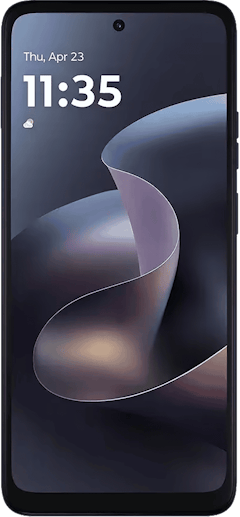
Moto G 5G (2026) 128GB
- 6.7 inch display
- Rear Cameras: 50MP, 2MP
- Front Camera: 32MP
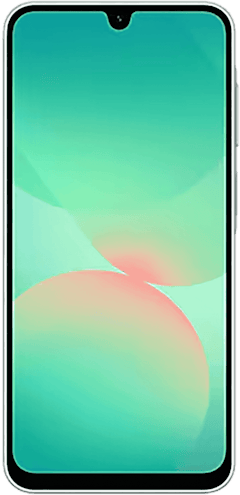
Galaxy A26 5G
- 6.7 inch display
- Rear Cameras: 50MP, 8MP, 2MP
- Front Camera: 13MP
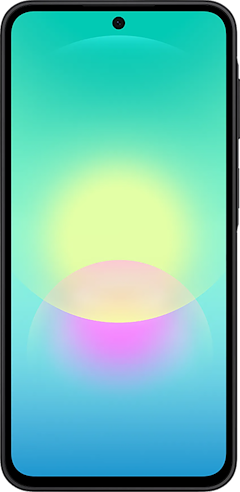
Galaxy A27 5G 128GB
- 6.7 inch display
- Rear Cameras: 50MP, 5MP, 2MP
- Front Camera: 12MP
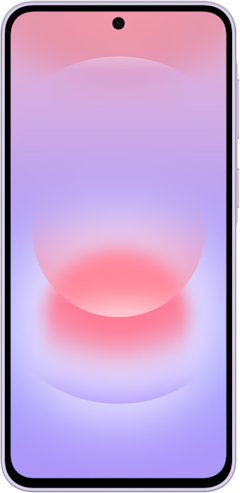
Galaxy A37 5G 128GB
- 6.7 inch display
- Rear Cameras: 50MP, 8MP, 5MP
- Front Camera: 12MP
Edge (2026) 128GB
- 6.3 inch display
- Rear Cameras: 50MP, 50MP, 10MP
- Front Camera: 50MP

Scott Houghton
Jr. Staff Writer

Thousands of cell phone plans unpacked. All the facts. No surprises.





.png?w=280&h=280&usm=20&usmrad=0.8&fit=crop "The Best Cheap Phone Plans for 2026: We Tested Them All to Help You Save")


