
New with Android 17
Android 17 is rolling out now, and it adds a few features worth knowing about:
- Bubbles: Long-press any app icon to turn it into a floating window, which pairs well with split screen.
- Screen Reactions: Record your screen and your selfie camera at the same time.
- Biometric “Mark as lost”: Lock a missing phone so that even someone who knows your PIN can’t get in or turn off tracking.
Android 17 is available on Google Pixel phones now and is rolling out to Samsung Galaxy, Motorola, and other devices in stages. See every new feature and how to update in our guide to the latest Android OS version.
As of 2025, about 42% of Americans use an Android phone daily. The beauty of the Android operating system is that, unlike iOS for iPhone, you can tweak, tinker, and tailor your phone until it feels like an extension of yourself. The downside? With so many hidden features buried under layers of settings and menus, it’s easy to miss out on the really good stuff.
That’s where I come in. I’m the resident Android nerd here at WhistleOut. Having owned an Android for more than a decade, I don’t just prefer my green bubbles—I wear them like a badge of honor every time I crash a mixed-phone group chat. Over the years, I’ve uncovered features most people don’t even realize their phones can do, and now I get to share them with you. So buckle up. In this guide, I’ll walk you through the hidden Android features you need to know, so you can unlock smarter multitasking, stronger privacy, and a few tricks that will definitely make your iPhone friends a little jealous.
Heads-up
Not every hidden Android feature is easy to find and enable. Some are simple, while others take a few extra steps or live deeper in your phone’s settings. As we go, I’ll call out the Complexity Level—graded as Beginner, Intermediate, or Advanced—so you know what to expect with each one.
Reverse wireless charging: How to charge other devices with your Android
Complexity level: Beginner
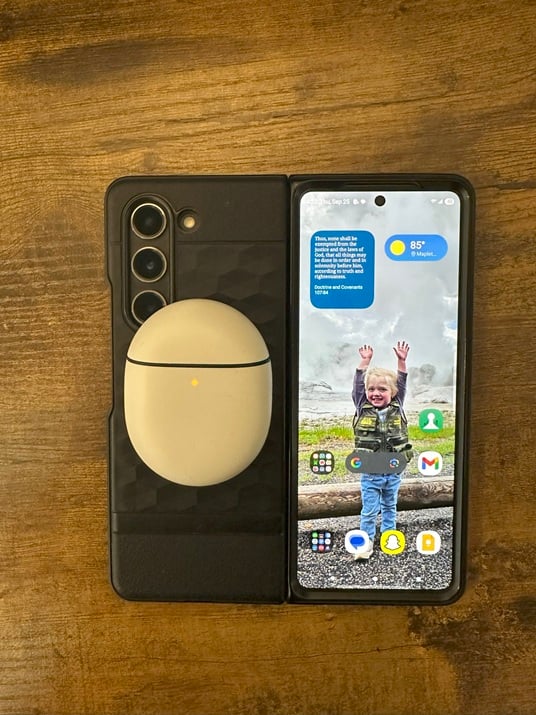
Charging my earbuds on the back of my phone using Samsung Reverse Power Sharing.
Image: Scott Houghton | WhistleOut
Reverse wireless charging has been on smartphone wish lists for years, and it’s finally here. Available on the latest Samsung and Pixel devices running Android 16, it lets your phone double as a wireless charger. That means you can juice up your earbuds or smartwatch, or even bail out your friend with a dying iPhone—no cable required.
How reverse wireless charging works on Pixel and Samsung phones
On both Samsung and Pixel devices, reverse wireless charging is tucked into the settings menu. Once it’s turned on, you simply place another Qi-compatible device on the back of your phone, and it starts charging immediately.
How to use Wireless Power Sharing on Samsung Galaxy phones
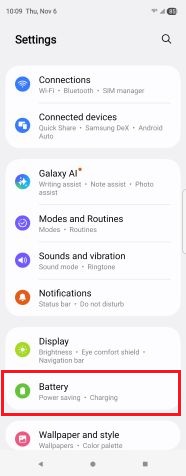
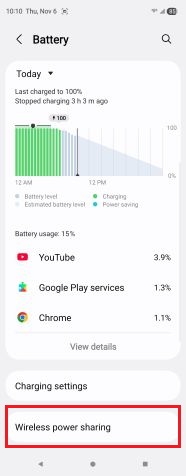
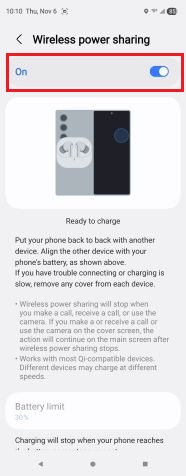
Wireless Power Sharing lets you charge everything from your earbuds to your friend’s phone.
Image: Scott Houghton | WhistleOut
Samsung calls this feature Wireless Power Sharing, and you find it by going into Settings > Battery >
Wireless Power Sharing. You then toggle it on, flip your phone over, and you’re ready to charge.
How to use Battery Share on Google Pixel phones
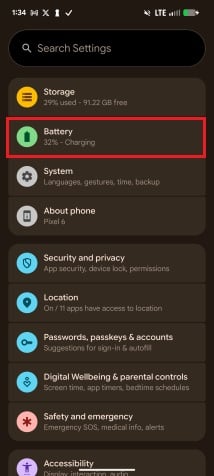
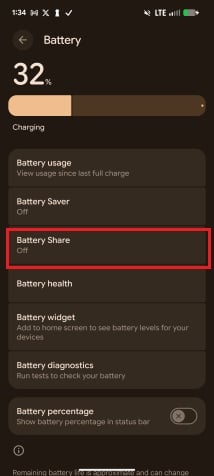
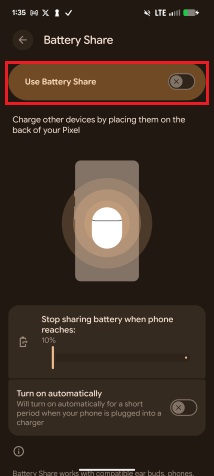
Battery Share is a game-changer for charging things like earbuds.
Image: Max McCaskill | WhistleOut
Pixel calls this feature Battery Share, and you find it by going into Settings > Battery > Battery Share. From there, just like Samsung phones, you toggle it on, flip your phone over, and set a compatible device to start charging.
One thing to keep in mind is that reverse wireless charging is slower and less efficient than plugging in a device, so it’s not a full replacement for wired charging. But in a pinch, it offers more than enough utility for when you’re on the go.
Android Guest Mode: Lend your phone without sharing your data
Complexity level: Intermediate
One of the Android features I’ve come to appreciate is Guest Mode. Phones hold so much of our personal lives—for better or worse. Handing one over, even for something as simple as a quick call or text, can feel a little nerve-racking. Guest Mode takes the stress away by creating a pared-down version of your phone. Anyone borrowing your phone has access to the basics, while everything important or personal to you stays out of reach.It’s also a smart option for parents and families.
Guest Mode can give kids a safe way to stay connected without giving them full access to a phone. For example, one parent can bring their phone while the other leaves theirs at home in Guest Mode. That way, kids have a reliable way to call or text you if they are home alone, need a ride after practice, or get separated from you at an event. They can reach out when needed, but your messages, apps, and other data stay completely private.
Best cell phone plans for teens with parental controls
When your child is ready for their own phone, you need a plan that delivers peace of mind without the high price tag. We've sorted through all the options to find the best plans that offer strong parental controls, affordable data, and the flexibility your family needs.
Find the perfect fit in our guide to the best cell phone plans for kids and teens.How to turn on Guest Mode on a Google Pixel
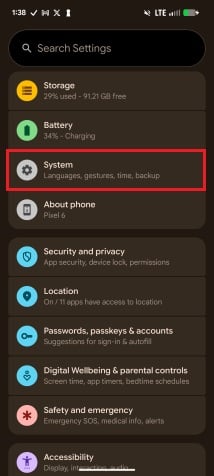
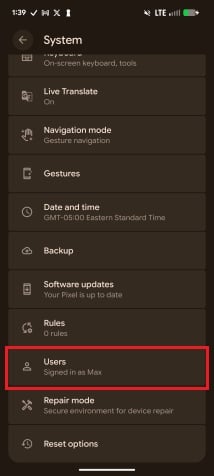
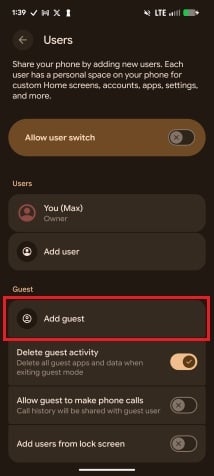
Guest Mode is perfect for when a stranger needs to borrow your phone. With a guest account, you can be sure your sensitive data stored on your phone is safe.
Image: Max McCaskill | WhistleOut
Currently, the Guest Mode feature is only available on Google Pixel phones; however, it is available on Samsung tablets and may be introduced to Samsung phones in the near future.
Enabling Guest Mode on your Pixel is easy. Simply open Settings > System > Users > Add Guest.
To exit Guest Mode, follow the same steps and then tap Exit Guest Mode.Pixel 10a 128GB
- 6.3 inch display
- Rear Cameras: 48MP, 13MP
- Front Camera: 13MP
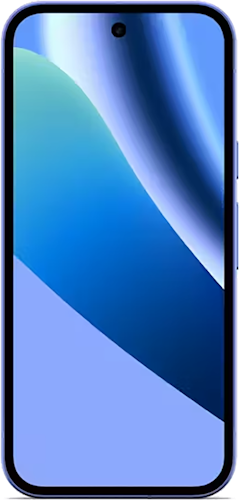
Pixel 11 256GB
- 6.3 inch display
- Rear Cameras: 48MP, 13MP, 10.8MP
- Front Camera: 10.5MP
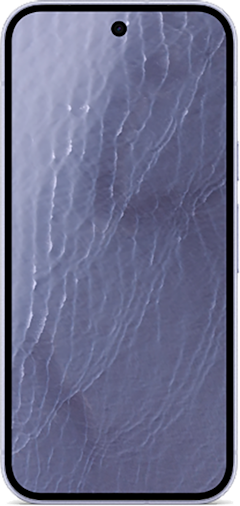
Pixel 11 512GB
- 6.3 inch display
- Rear Cameras: 48MP, 13MP, 10.8MP
- Front Camera: 10.5MP

Split-screen multitasking: How to use two apps at once on Android
Complexity level: Intermediate
Android’s split-screen multitasking is one of the clearest ways it stands apart from its blue-bubble sibling. Using two apps side by side—texting while streaming, notes next to Chrome, maps next to Spotify—makes your phone feel more like a tool and less like a toy.
Every Android can do it, but foldables take it even further. With more screen real estate, running multiple apps feels natural, not cramped. Once you get used to split screen, it stops feeling like a gimmick and starts feeling like the kind of practical feature Android and iOS strive for.How to use split screen on Android
Turning on split screen works almost the same across all Android phones. Here’s the general process:
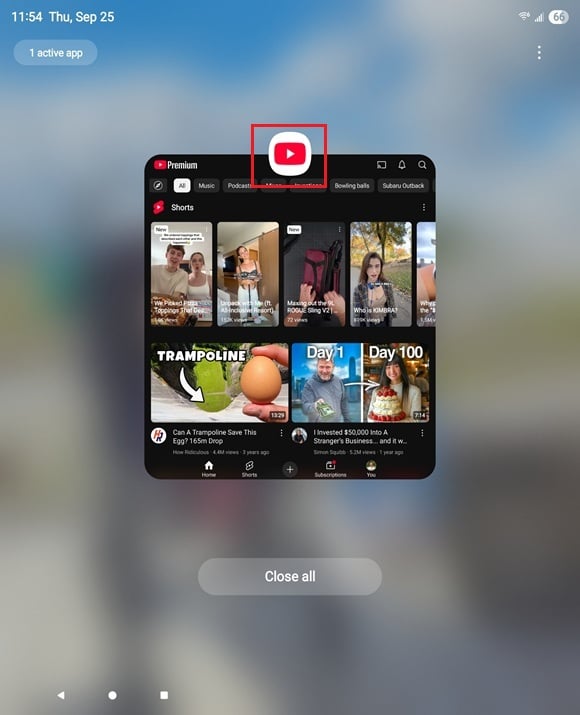
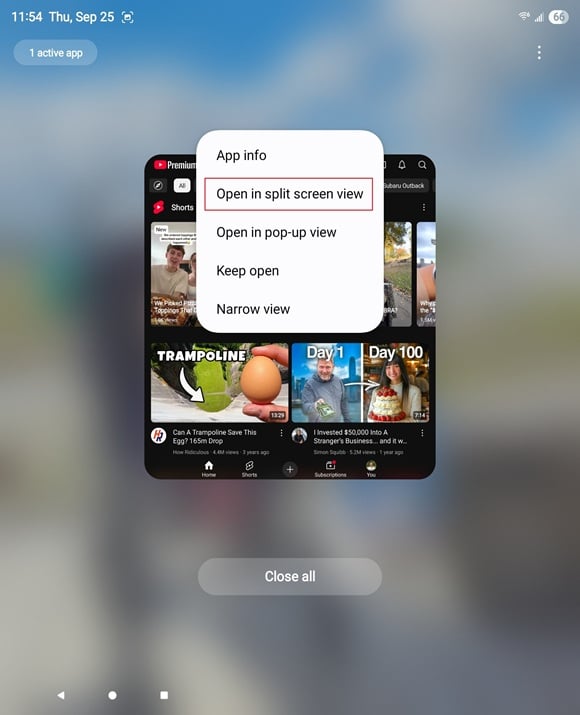
Split screen is best experienced on a foldable phone.
Image: Scott Houghton | WhistleOut
1. Open up the first app you want to use.
2. Tap the app icon at the top of the preview and then select split screen.
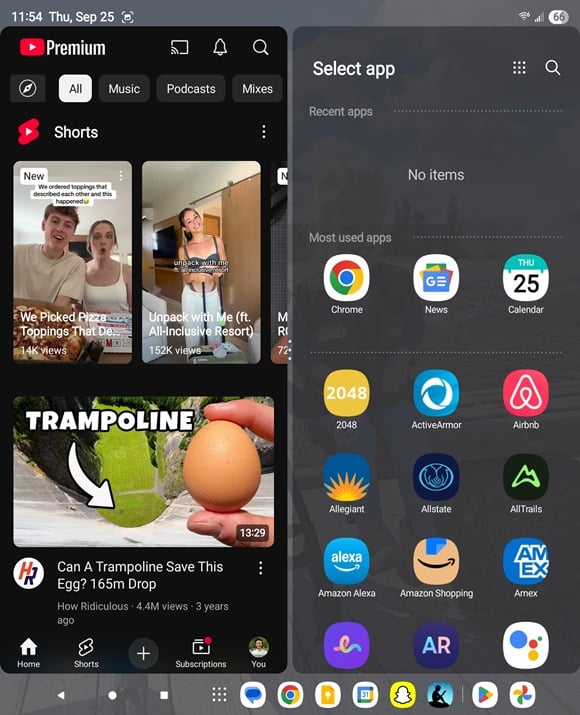
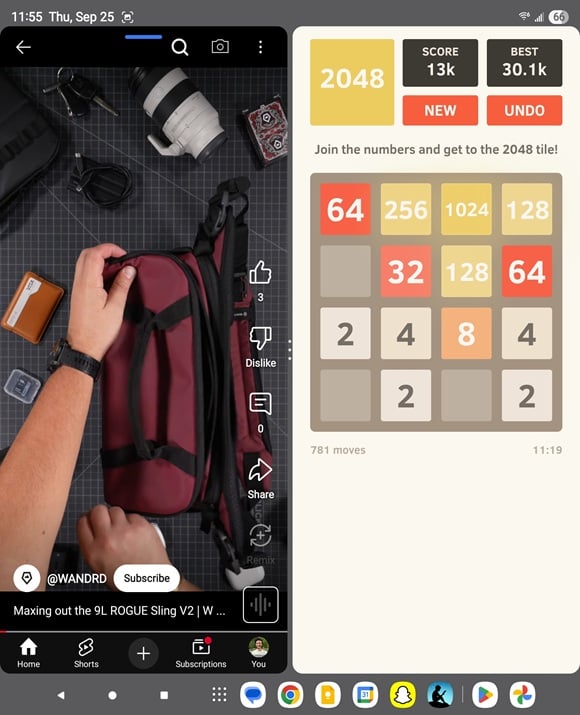
Split screen lets you use two apps at once (don’t judge me for watching YouTube and playing 2048 at the same time).
Image: Scott Houghton | WhistleOut
3. Choose the second app. You can pick from a list of your recently used apps, most-used apps, or a search for any app on your phone.
On Samsung foldables like the new Galaxy Z Fold7, you even have the option to drag and drop apps directly into split screen from the Edge Panel.
Best ways to use split-screen multitasking on Android
It’s easy to dismiss split-screen as a gimmick or just a way to consume media too fast. But it’s much more than that—it has plenty of real productivity uses that make your phone feel like a true multi-tasking device:
- Research and writing: Keep an article or PDF open on one side while taking notes on the other.
- Studying or learning: Watch a lecture or tutorial while following along in the notes app.
- Navigation and communication: Use Maps in one window while keeping messages or WhatsApp open to coordinate with friends.
- Shopping comparison: Compare two retailers side by side instead of flipping back and forth between apps.
Sure, you can still use split screen for entertainment—I’ve used it to scroll TikTok on one side while checking Instagram on the other—but its real power is helping you get things done.
Pro tip: Force any app into split screen
Not every app supports split screen by default. If one doesn’t, you can force it into split-screen mode by enabling the right setting in the Developer Options menu, which we’ll cover in the next section.
Developer Options: The most powerful hidden Android feature
Complexity level: Advanced
Unlike iOS, Android gives you a lot more freedom to customize your device. You can find a menu hidden in your settings called Developer Options, and contrary to what the name implies, this menu isn’t just for developers. Developer Options gives you a ton of really cool settings for the day-to-day functionality, look, and feel of your phone.
Most Android owners never even realize this menu exists—I’ve been using an Android for over a decade, and I only discovered Developer Options a couple of years ago. But once unlocked, you’ll find dozens of options for fine-tuning your phone’s performance, visuals, and even how your phone handles things like multitasking.
Of course, not every setting here is useful for the average person, and once you’re in, the menu can look overwhelming. But a handful of them can make a noticeable difference in how smooth, responsive, and user-friendly your phone feels—and those are the ones worth paying attention to.
Unlocking the menu only takes a minute, and once you know where to look, it’s easy to do on any Android phone.
How to unlock Developer Options on Android
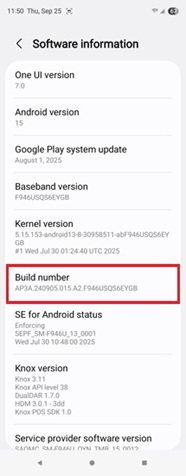
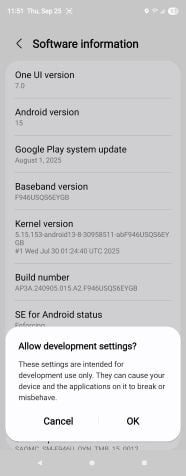
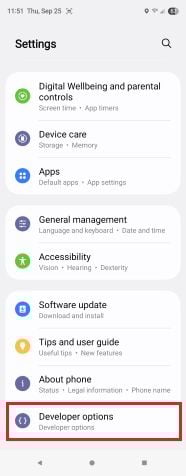
Turning on Developer Options opens you up to a new world of smartphone customization for your Android device.
Image: Scott Houghton | WhistleOut
- Find your device’s Build number. On most phones, you’ll find it under Settings > About phone. (Samsung users need to go one step further into Software Information.)
- Tap the Build number seven times in a row.
- Enter your lockscreen PIN or pattern when prompted to confirm.
- Head back to your main Settings screen and scroll to the bottom to find the new Developer Options menu.
While you shouldn’t touch most of the settings in this new menu, a few can genuinely improve how your phone works.
Here are the settings we recommend changing:
- Adjusting the animation speed: Makes your phone feel significantly faster by speeding up the visual effects you see when opening apps or navigating menus.
- Disabling absolute volume: Fixes erratic volume jumps on devices connected via Bluetooth by giving you separate, fine-tuned volume controls for your phone and headphones/speakers.
- Force multi-window mode: Forces apps to work in split-screen, even if the app’s developer didn’t originally support the feature.
To see exactly where to find these settings in the menu and get the complete, step-by-step walkthrough for adjusting them, check out our in-depth guide to unlocking Developer Options.
Bonus hidden features for Samsung Galaxy phones: Good Lock and DeX
Nearly 81% of Android users in the U.S. own a Samsung phone, which makes Samsung the clear leader in the Android space. With such a big share of the market, it’s no surprise that Samsung packs in extra features you won’t find on other Android devices. Check out these Samsung-specific Android features to get the most out of your device.
Samsung Good Lock: The best customization apps for Galaxy phones
Complexity level: Advanced
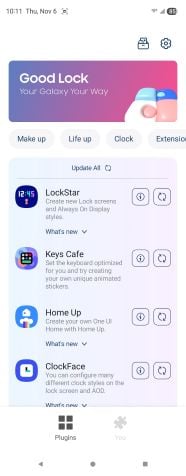
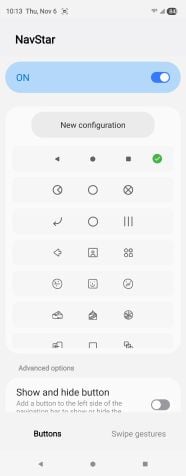
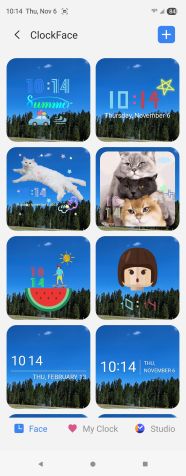
Samsung’s Good Lock apps truly take phone customization to a new level. They’ve made it extremely easy to tailor your smartphone’s appearance to your preferences, no matter how weird.
Image: Scott Houghton | WhistleOut
One of Samsung’s best-kept secrets is its Good Lock app suite. Instead of a single app, Good Lock is more like a toolbox filled with mini apps that let you customize and fine-tune virtually every corner of your phone’s appearance. For everything from the look of your lock screen to the organization of your notifications, the Good Lock app suite gives you a level of control you won’t find on stock Android phones.
To give you a clear picture of what’s included, here’s a breakdown of the most popular Good Lock apps and what each of them can do:
| App | What it does | Who it's for |
|---|---|---|
| LockStar | Lets you redesign your lock screen with widgets, layouts, and shortcuts. | Users who want quick access to specific tools from the lock screen. |
| NavStar | Customizes the navigation bar and gesture controls. | Users who want more intuitive or cleaner navigation. |
| NotiStar | Creates a searchable archive of notifications with filters. | Busy users who don’t want to lose track of alerts. |
| QuickStar | Lets you tweak the Quick Settings panel layout, icons, and colors. | Users who want faster access to their most-used controls. |
| Theme Park | Creates custom themes, icons, and color palettes. | Users who want their phone to look completely unique. |
| Wonderland | Lets you design animated, interactive wallpapers. | Users who love flashy, dynamic home screens. |
Samsung DeX: How to turn your Galaxy phone into a desktop computer
Complexity level: Intermediate
Samsung DeX is one of the most impressive features built into Galaxy phones. On the surface, it looks a little like Apple AirPlay, but Samsung takes it a step further. Instead of just mirroring your screen, DeX creates a true desktop environment completely powered by your phone.
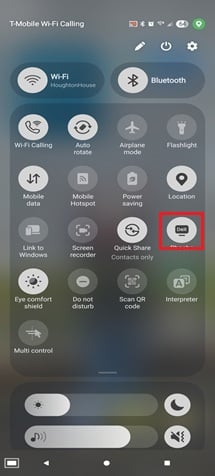
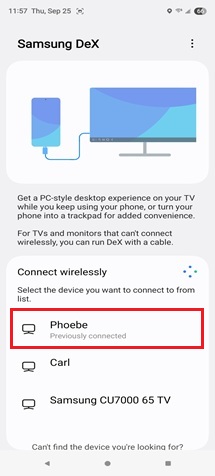
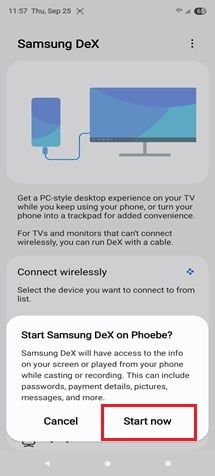
Use Samsung DeX to turn any smart TV or monitor into a desktop computer.
Image: Scott Houghton | WhistleOut
Connecting is simple. Just swipe down to open your quick settings panel > press the DeX icon > select any smart TV or monitor nearby. You can even pair a Bluetooth keyboard and mouse, and suddenly your phone transforms into a desktop computer.
Samsung DeX gives you the flexibility of a PC without the bulk of extra hardware. It’s one of Samsung’s most forward-thinking features, proving your phone can be much more than just a phone.Best affordable phone plans for Android phones
It’s clear that Android phones come packed with tools that go way beyond the basics. But to really take advantage of these features, you’ll want a device that can handle them all and a plan that makes staying connected affordable.
That’s why many people turn to MVNOs (mobile virtual network operators) that run on the same major networks but at a fraction of the cost. Some of our favorites include Mint Mobile, Cricket Wireless, and US Mobile. Each offers budget-friendly plans that pair perfectly with the latest Android flagships like the Galaxy S25 Ultra, Galaxy Z Fold 7, and Google Pixel 10.
|
Visible

$25 Visible Plan
$25.00/mo
Taxes & Fees included
|
|
Mint Mobile

Unlimited Data Plan
$10.00/mo
$60 for 6 months of service
|
|
US Mobile

Unlimited Starter Plan
$25.00/mo
|
|
Cricket

Supreme Unlimited Plan
$55.00/mo
with AutoPay; $60 for the first month.
+ $9.99 Upfront
|
|
Boost Mobile

Unlimited Plan
$10.00/mo
with AutoPay
|
Scott Houghton
Jr. Staff Writer

Thousands of cell phone plans unpacked. All the facts. No surprises.





.png?w=280&h=280&usm=20&usmrad=0.8&fit=crop "The Best Cheap Phone Plans for 2026: We Tested Them All to Help You Save")


