
Ever glance down at your iPhone and see “SOS” in place of the standard 4G/5G symbol? Chances are you’re in a remote area without solid coverage, and your iPhone is trying to make sure you stay connected while off the grid.
Enter Apple’s Emergency SOS feature. Emergency SOS on an iPhone allows you to call local emergency services, even if you don’t have any wireless service and are outside your carrier’s coverage area. It also sends your emergency contacts a message about your location so they can stay informed and help you.
How to use SOS on an iPhone depends on which model you have. Let’s run through what Emergency SOS does and how to set it up. Plus, how to troubleshoot when your phone is stuck in Emergency SOS mode.
What “SOS” means on your iPhone

If you are seeing the message “SOS only” in your iPhone status bar, it means that you don’t currently have cellular service but you are able to make emergency calls via other carrier networks.
When you use Emergency SOS, your iPhone calls the local emergency number and shares your location with the operator. Moreover, your phone will automatically text your emergency contacts your location so they can take action.
All iPhones have SOS capabilities; however, if you have an iPhone 14 or newer, you can use Emergency SOS via satellite to text message emergency services when you don’t have mobile service or coverage. This may be helpful for discrete situations in which making a phone call isn’t realistic or safe.
How to set up iPhone Emergency SOS
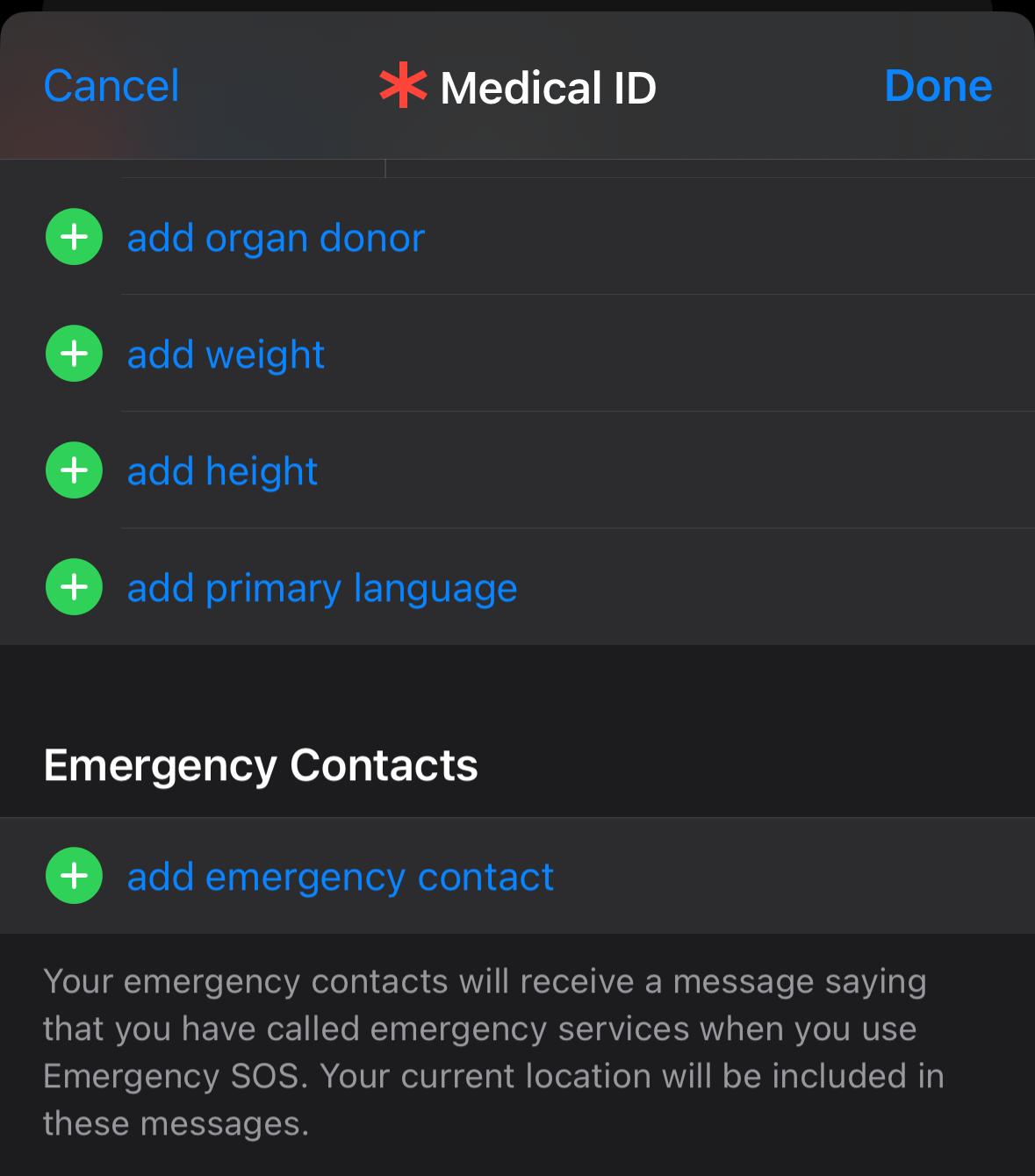
In order to get the most out of Emergency SOS on your iPhone, you’ll want to add emergency contacts so that they can be alerted if something happens. Here’s how:
- Open the Health app.
- Click your profile picture.
- Click Medical ID.
- Click Edit, then scroll down to Emergency Contacts.
- Click the Add button (the green plus sign) to add an emergency contact.
- Select an existing contact, then add their relationship.
- Click Done to save your changes.
What Triggers SOS on iPhone accidentally
- Button press error: Holding both the side and volume buttons too long can activate SOS by accident.
- Network problems: If your iPhone loses its main network but finds another carrier's signal, it may show "SOS" to allow emergency calls.
- Software glitches: Software updates or errors can also cause SOS mode to turn on unexpectedly.
How to use Emergency SOS
How you use Emergency SOS will depend on which iPhone model you have.
Once your call has ended, your iPhone will text your emergency contacts your current location, unless you tell it not to. It will do this even if Location Services is turned off. If you move locations, your contacts will receive an update with your new location.

If you have an iPhone 8 or newer:
- Press and hold the side button and volume button until you see the Emergency SOS slider.
- Drag the slider to call emergency services.
- If you continue holding the volume and side buttons instead of dragging the slider, you will see a countdown and hear an alert sound.
- If you release the buttons after the countdown, your iPhone will call emergency services.
Crash Detection and Emergency SOS
On an iPhone 14 or newer, your iPhone is also able to call 911 and send a text to your emergency contacts when it detects a severe car crash.
If you have an iPhone 7 or older:
- Press the top or side button five times quickly.
- You will see the Emergency Call slider appear on your screen.
- Drag the SOS slider to call emergency services.
How to cancel an Emergency SOS call
If you accidentally make an SOS call on your iPhone, you can easily cancel it.
- On an iPhone 8 or newer, let go of the side button and volume button before the countdown ends.
- On an iPhone 7 or older, press the Stop button and then click Stop Calling.
Don’t worry if someone picks up and you don’t need emergency services. Simply explain to the responder that you don’t need help and then hang up.
How to get your iPhone out of Emergency SOS mode
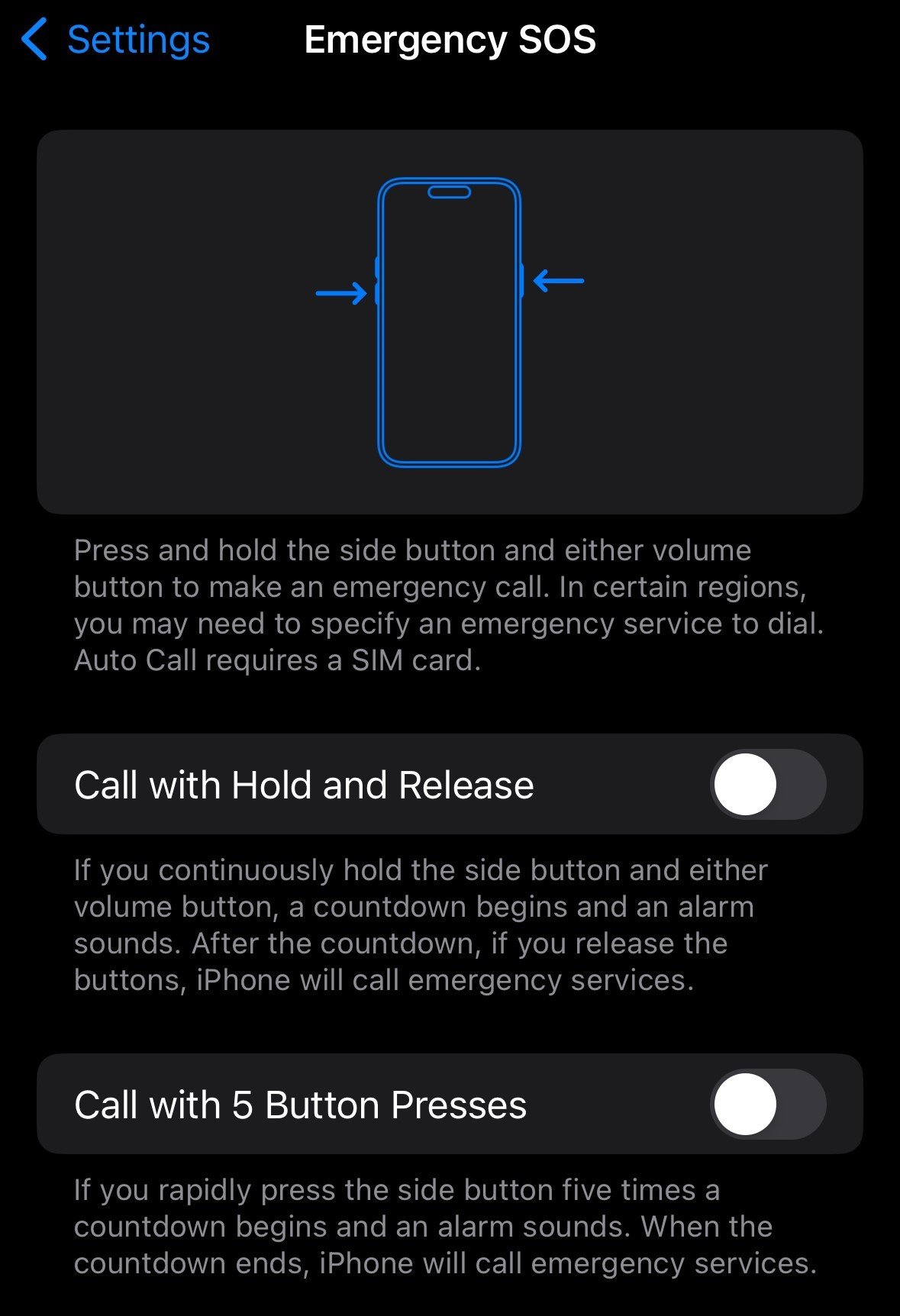
Occasionally, you may find that your iPhone is stuck in Emergency SOS mode. To fix this, first try to turn off Emergency SOS in your settings:
- Tap into your Settings app.
- Scroll down and select the Emergency SOS menu.
- Toggle off all of the options.
If that doesn’t work, you can try to force restart your iPhone. To do this, press and quickly release the volume up and volume down buttons while pressing and holding the side button. When you see the Apple logo, you can release the side button.
Lastly, you can try removing and reinserting your SIM card (if your iPhone has a physical SIM) to ensure it is in your phone correctly. Check that your SIM tray is in good shape, too—a bent one could prevent the SIM card from connecting successfully.
Marisa Crane
Staff Writer

Thousands of cell phone plans unpacked. All the facts. No surprises.





.png?w=280&h=280&usm=20&usmrad=0.8&fit=crop "The Best Cheap Phone Plans for 2026: We Tested Them All to Help You Save")


