
Just because you don’t have Wi-Fi, doesn’t mean you can’t access the web. Personal mobile hotspots keep all your devices connected to the web by turning your phone’s cellular connection into a mobile Wi-Fi source. But that connectivity isn’t limited to one device—hotspots can also be shared with your family or friends.
In this guide, we’ll show you how to share your mobile hotspot on both iOS and Android systems. We’ll also break down how to improve your mobile hotspot and show you where to find the best cell phone plans for hotspotting.
How to share your mobile hotspot on iPhone
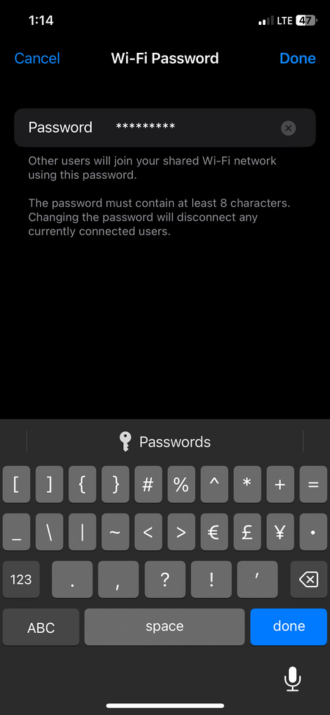
To allow someone else to use your mobile hotspot’s Wi-Fi, you’ll need to turn on your hotspot and create a password. Then, on their device, they’ll find your network and enter the password.
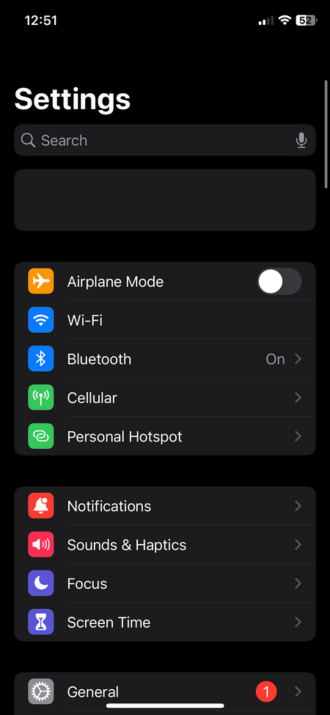
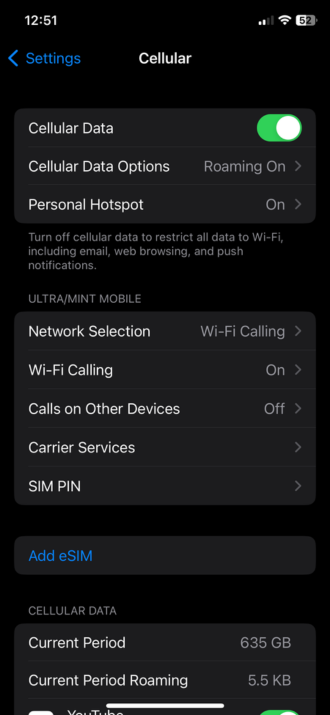
First, to setup and enable your mobile hotspot on your iPhone, you can either search for it, or find it in the Settings menu:
- Open the Settings app on your iPhone.
- Tap Cellular.
- Tap Personal Hotspot.
- Toggle to Allow Others to Join.
- Tap Wi-Fi Password to see or to change the hotspot password.
How to connect other devices to your hotspot
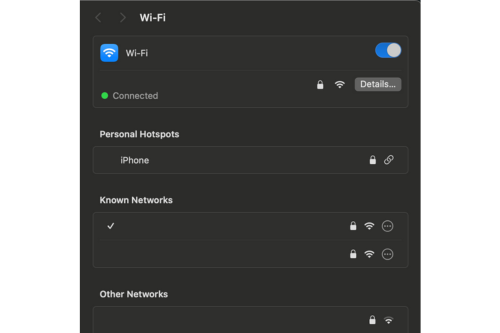
Via Wi-Fi
Find your iPhone’s network name in Wi-Fi settings on the device you’re looking to connect, then enter the hotspot password.
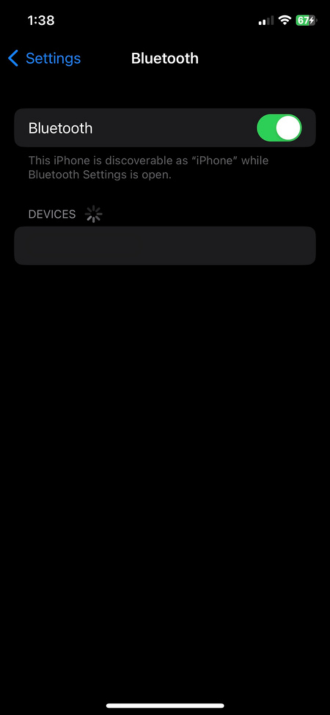
Via Bluetooth
Pair your iPhone with the other device via Bluetooth, then connect.
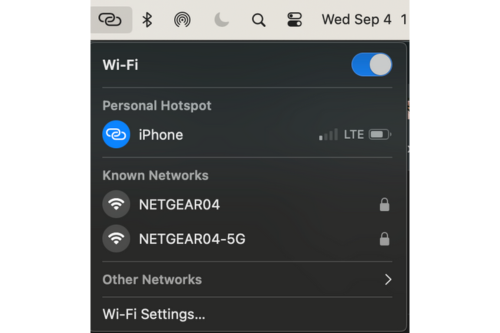
Via USB
Connect your iPhone to the device with a USB cable and select your iPhone from the list of network interfaces. You’ll need to allow or trust both devices. If you’re having issues finding the device, make sure you’ve download the latest version of iTunes and Finder on your Mac.
What’s the difference between tethering and a mobile hotspot?
Like hotspotting, tethering allows you to share your Wi-Fi connection. Unlike hotspotting, tethering typically connects a single device to another with Wi-Fi, while mobile hotspots offer Wi-Fi to multiple devices simultaneously.
How to change your hotspot username
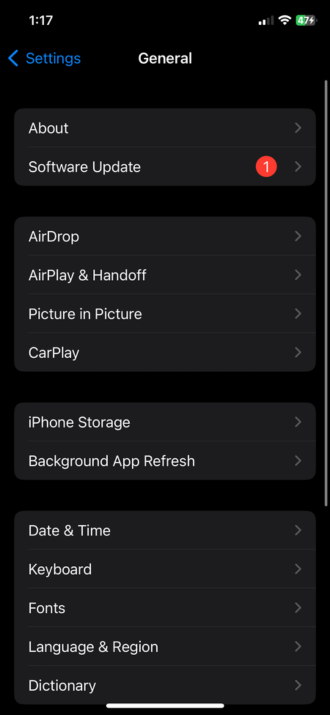
Your default hotspot username will be the same as your iPhone’s name. To change your iPhone and hotspot network name, follow these steps:
- Open Settings.
- Tap General.
- Tap About.
- Tap Name.
- Enter a new iPhone name.
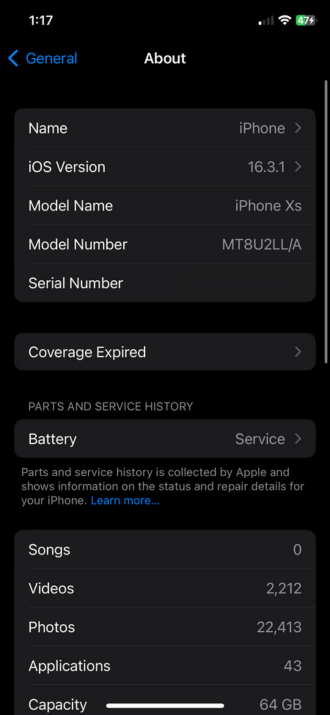
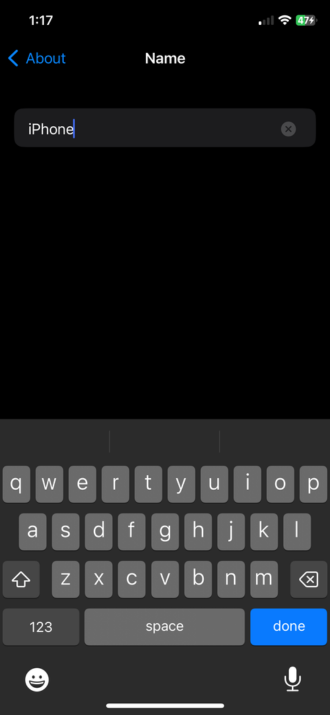
Once you’ve enabled your hotspot and set up a password, you can connect other devices through Wi-Fi, Bluetooth, or USB.
What does “Trust This Device” mean on iPhone?
For added security, your iPhone will prompt you with a “Trust This Device” message when you try to connect another device. Trusted devices can then sync with your photos, videos, contacts, and more. Devices that are not trusted won't have access to content on your device.
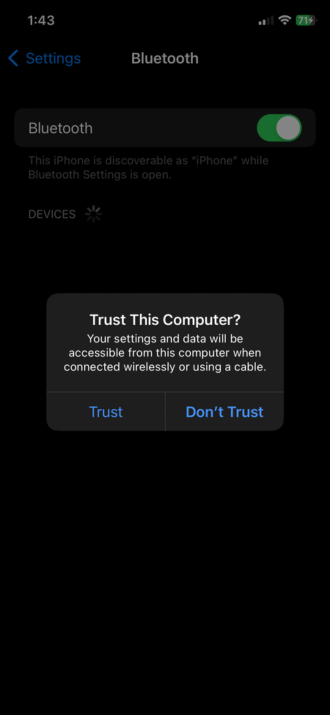
This alert will pop up when connecting new devices, backing up trusted devices, or connecting to a device you’ve previously chosen not to trust.
Use Family Sharing for instant connectivity
Re-entering Wi-Fi information and passwords can be a hassle, especially when they’re tough to type or remember. Fortunately, Apple includes automatic sharing for families, which makes sharing across your household easier.
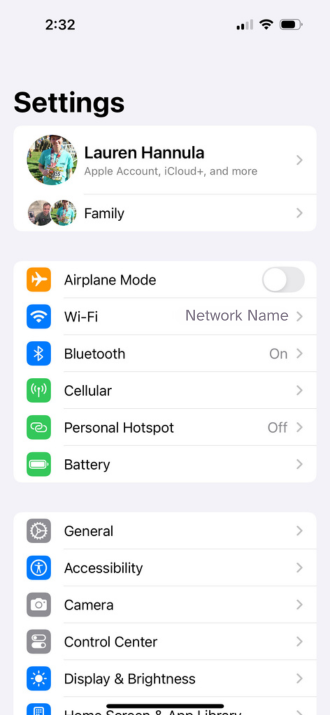
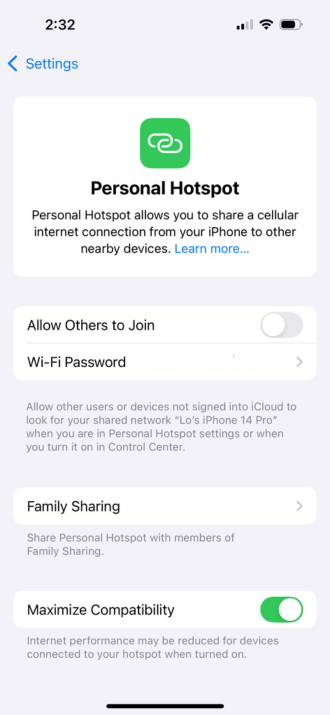
Here’s how to enable Family Sharing on your phone:
- Go to Settings.
- Find Personal Hotspot.
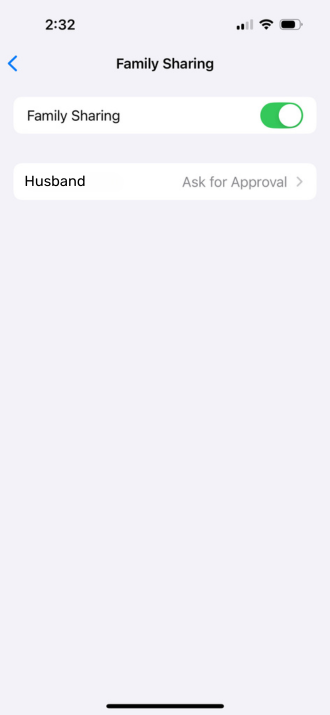
- Go To Family Sharing.
- Toggle Family Sharing on. (It will turn green.)
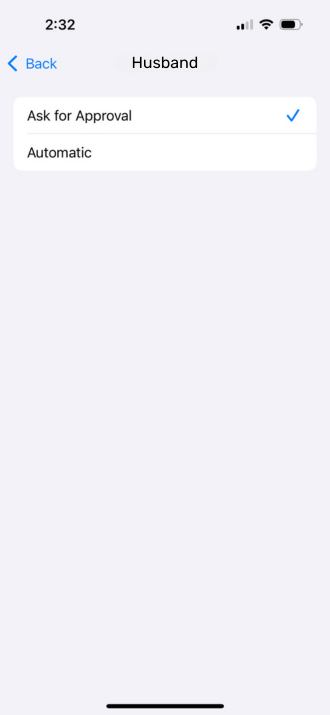
- Tap each name to set permissions for automatic Family Sharing.
How to share mobile hotspot on Android
Setting up a mobile hotspot on Android is as quick as using the Hotspot button in your device’s quick settings drawer, but you’ll want to make sure your settings are configured first.
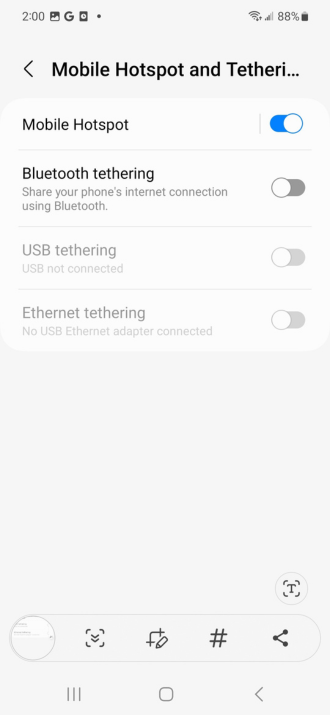
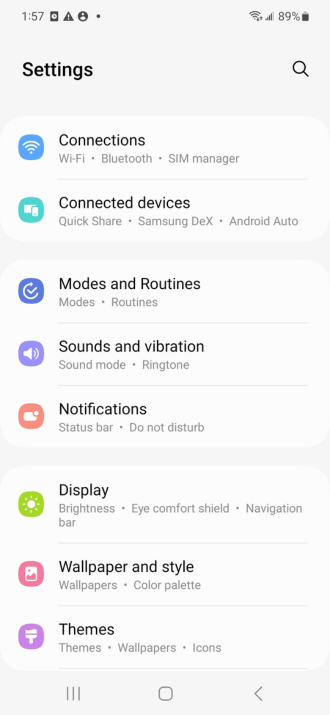
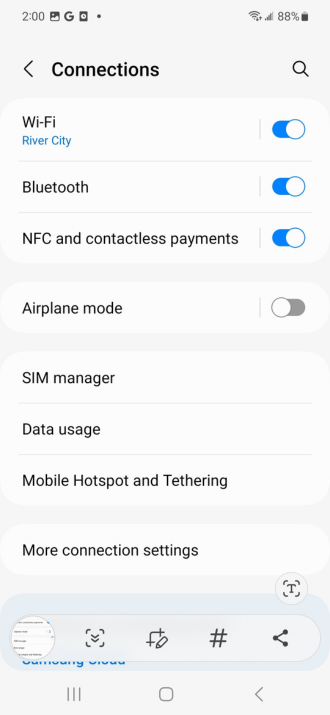
- Go to Settings.
- Tap Network & internet or Connections, depending on your device.
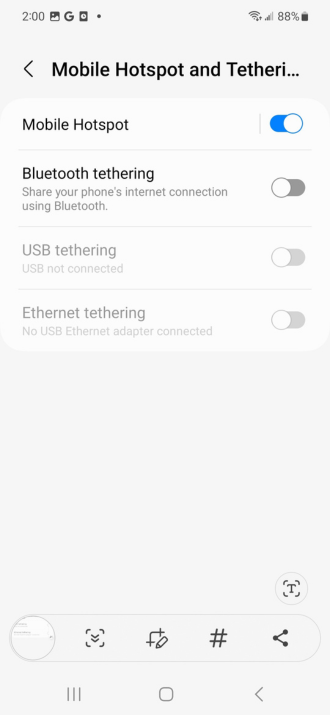
- Tap Mobile Hotspot & Tethering.
- Turn on your Wi-Fi hotspot.
- Configure your Hotspot Settings. In this menu, you can customize your hotspot’s name (SSID), set a password, and choose the band (2.4GHz or 5GHz).
- On your other device, find your hotspot’s name in the Wi-Fi networks list and enter the password.
Improve your mobile hotspot
Hotspots are generally hassle-free, but you'll also find some potential drawbacks. Hotspots allow other devices to use your cellular or hotspot data, which eats up your monthly allowance. Unlimited data plans and plans with dedicated mobile hotspot data will help with that problem, but they can often be pricey.
Mobile hotspots also generally broadcast slower data transfers than your typical mobile speeds, meaning high-data activities like loading YouTube videos or streaming music from Spotify might take longer.
Luckily, you can take a few steps to improve speeds, whether you’re sharing your hotspot or using it yourself:
- Find a clear and centralized location away from thick walls and other electronics.
- Use the right frequency band: 5 GHz is faster within a short range, but 2.5 GHz has a longer range overall, so choose what makes sense for your situation.
- Disconnect devices you’re not using to free up data bandwidth.
- Switch to a less congested network if your device supports multiple sim cards, or use a VPN to access other servers.
Public internet use always has security risks, and a mobile hotspot can present some of the same issues. Here are a few recommendations for making sure your hotspot adds convenience, not concerns:
- Set a strong password: Most people use mobile hotspots to avoid unsecured Wi-Fi networks, so adding a password prevents random strangers from using your hotspot, accessing your data, or compromising your security.
- Monitor your battery: Tethering or using a mobile hotspot can quickly drain your phone’s battery due to the extra power required to broadcast the Wi-Fi signal. Keep your phone plugged in or charged wirelessly while sharing your connection to avoid running out of juice.
- Keep an eye on data usage: Your hotspot data usage counts against your phone plan’s data allowance or hotspot allowance. Many unlimited plans have a high-speed hotspot limit, after which your carrier will reduce your data speeds. If you have a capped data plan, be cautious of overage charges. Frequent hotspot users should consider upgrading to plans with unlimited hotspot use.
How far do mobile hotspots reach?
The average mobile hotspot can cover about 30–50 feet indoors, depending on the device. You can check your phone’s specs or user manual for specifics on its hotspot capabilities.
Environmental factors—such as obstacles like walls, floors, and furniture—may limit your effective hotspot range. Open spaces provide better coverage, while denser materials like metal and concrete can impede the signal.
It’s worth testing your range by connecting a device and moving away from the source until you see the connection weaken or drop. If you have access to both a 5 GHz and a 2.5 GHz band, you can also test whether you need the 2.5 GHz's extra range or not.
Can I share a VPN through a mobile hotspot?
A VPN can help protect your personal information online. Unfortunately, when you connect your mobile device to a VPN and then use it as a hotspot, the connected device will not use the VPN. It will instead access the internet through your regular ISP connection.
A VPN may also cause issues with your mobile hotspot by preventing use or slowing down data speeds.
Using a portable Wi-Fi hotspot
For more flexibility, you can also use a portable Wi-Fi hotspot, which is a dedicated mobile internet device that helps you conserve your phone’s battery life and plan minutes when paired with a mobile hotspot plan.
This “pocket Wi-Fi” also allows you to replace your home internet with service from carriers like Verizon, T-Mobile, and AT&T. However, you’ll need compatible hardware, which varies by carrier.
For the most part, we recommend choosing a cell phone plan with hotspot data instead of a standalone hotspot device. You’ll often get similar hotspot data along with extra benefits for about the same monthly cost.
Best mobile hotspot plans
When shopping for mobile hotspot plans, you’ll want to compare cost, data limits, speed throttling, network coverage, device compatibility, plan flexibility (prepaid, month-to-month, longer contracts), and any additional features like international roaming, free streaming data, and device protection. While that’s a lot to consider, we can help you narrow down your options.
Here are the best mobile hotspot plans we recommend from major carriers:
- Verizon's Unlimited Ultimate (60GB + optional 100GB add-on)
- AT&T's Unlimited Premium PL (60GB hotspot)
- T-Mobile's Experience More (60GB hotspot)
Our favorite is Verizon's Unlimited Ultimate, which offers a massive 60GB hotspot in addition to its unlimited 5G Ultra Wideband service.
|
Verizon

Unlimited Ultimate
$95.00/mo
+ Taxes & Fees. Price includes AutoPay & Paperless discount.
+ $40 Upfront
|
For inexpensive wireless and hotspot plans, we recommend the following MVNOs:
- Visible Wireless
- US Mobile
- Cricket Wireless
- Google Fi
The best plan from that bunch is US Mobile's Unlimited Premium, which includes a 50GB mobile hotspot and the ability to connect to all three major wireless networks.
|
US Mobile

Unlimited Premium Plan
$20.00/mo
|
Generally speaking, we recommend unlimited mobile hotspot plans for worry-free use, but if you don’t require all that data, you may find cheaper plans that work for you.
Trevor Wheelwright

Thousands of cell phone plans unpacked. All the facts. No surprises.





.png?w=280&h=280&usm=20&usmrad=0.8&fit=crop "The Best Cheap Phone Plans for 2026: We Tested Them All to Help You Save")


