

The easiest way to migrate apps from Android phones to iPhones is to use the "Move to iOS" app. If you’re switching from Android to iOS, you’ll want to bring over data like contacts, pictures, and applications.
To get started, you’ll need to download the Move to iOS app from the Google Play store. However, you can also use iCloud or other cloud storage options like Google Drive. Read on to learn how to transfer apps from Android to iPhone with the Move to iOS app.
How to transfer apps from Android to iPhone
The simplest way to transfer apps to iPhone from Android is with the Move to iOS app:
- Set up your iPhone until you hit the Apps & Data screen.
- Hit Move Data from Android.
- Download the Move to iOS app on your Android phone from the Google Play Store.
- Open the Move to iOS app and tap Continue.
- Enter the six-digit code appearing on your iPhone screen to your Android handset.
- Select Continue on the Android Device once your iPhone and Android connect over Wi-Fi.
- Choose Connect and select your preferred iPhone transfer data, like contacts, apps, and photos, then press Continue.
- Wait for the phone transfer to complete and hit Done.
- Hop over to your iPhone and pick Continue Setting Up iPhone.
- Follow the on-screen prompts to complete your iOS device configuration.
Now, your shiny new Apple device will have your apps and data. You can begin calling, texting, and streaming your favorite Adele albums on Apple Music. But your iPhone is a powerful tool for advanced functionality like recording calls or scanning documents.
Move to iOS alternatives: How to use cloud storage services to migrate apps between Android and iPhone
For an Android to iOS data transfer, cloud backup services like Google Drive, Google Photos, and Dropbox work well. But the official Move to iOS app is your best option to transfer files. And once you've completed the transfer process, don’t forget to schedule regular iCloud backups.
iOS apps vs. Android apps: What's the difference
Most Android apps are also available on iOS. However, during the move to iOS from Android, some apps might not transfer if there’s no Apple version.
If you’re encountering error messages, learn what “This accessory may not be supported” means on your iPhone. Or, learn how to fix a frozen iPhone. For comprehensive troubleshooting, find out how to fix your Apple iOS device.
Best iPhones for switching from Android
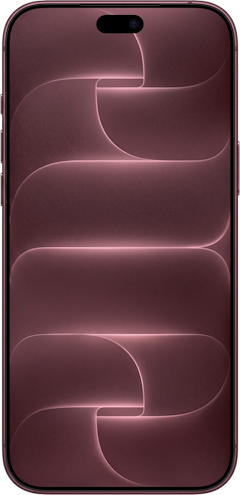
Our favorite iPhones include the iPhone 16, iPhone 15, iPhone 15 Pro Max, and iPhone SE 3rd gen (2022). We also like the iPhone 14 series. Once you’ve picked out a new iPhone, customize it with fun, downloadable wallpapers. And find out how to set up AirTags to track your Apple iPhone (or other beloved possessions).
iPhone 16 128GB
- 6.1 inch display
- Rear Cameras: 48MP, 12MP
- Front Camera: 12MP
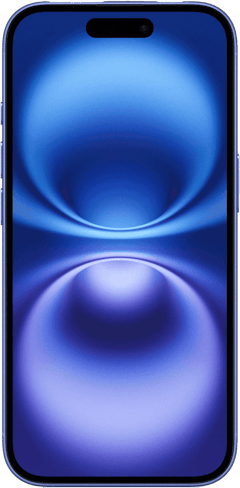
iPhone 18 Pro 256GB
- 6.3 inch display
- Rear Cameras: 48MP, 48MP, 48MP
- Front Camera: 18MP
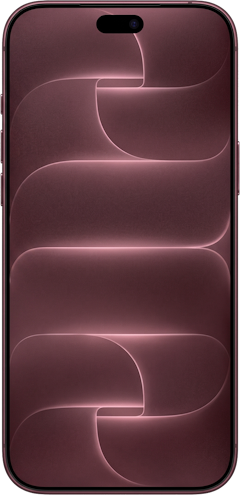
iPhone 18 Pro Max 256GB
- 6.9 inch display
- Rear Cameras: 48MP, 48MP, 48MP
- Front Camera: 18MP
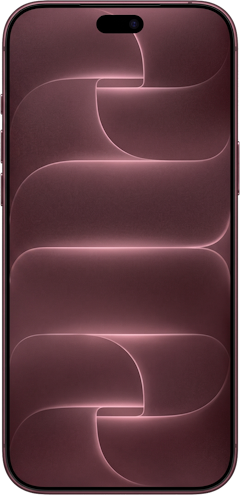
iPhone 18 Pro 512GB
- 6.3 inch display
- Rear Cameras: 48MP, 48MP, 48MP
- Front Camera: 18MP
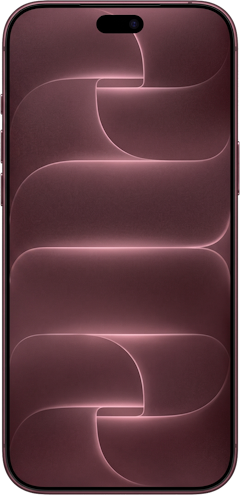
iPhone 18 Pro Max 512GB
- 6.9 inch display
- Rear Cameras: 48MP, 48MP, 48MP
- Front Camera: 18MP

How to transfer apps from Android to iPhone: FAQs
How do I transfer apps from Android to iPhone?
The easiest way to transfer apps from Android to iPhone is the Move to iOS app, which is available in the Google Play Store. Simply download the application and follow the on-screen instructions.
Can I transfer everything from Android to iPhone?
While some specific apps might not be available in the Apple app store, you can transfer mobile applications, contacts, and camera rolls from Androids to iPhones.
How hard is it to switch from Android to iPhone?
Switching from Android to iPhone (or iPhone to Android, for that matter) isn’t hard. Just create an Apple ID or Google account, transfer over your data, and begin enjoying your new device. While there’s a slight learning curve for iOS and Android, it’s not difficult.
Moe Long
Senior Writer

Thousands of cell phone plans unpacked. All the facts. No surprises.





.png?w=280&h=280&usm=20&usmrad=0.8&fit=crop "The Best Cheap Phone Plans for 2026: We Tested Them All to Help You Save")


