
Image: Google
Summer is here, and for most families, that means the school schedule and structure disappear, and your kid's screen time quietly increases before you even know it's happening. The good news is you don't have to wait until you're already three weeks into an argument about too much YouTube. Setting up parental controls now means the guardrails are already in place before the habits form—and if you've been meaning to get that done on your child's Android device before summer starts, now is the time to do it.
Google Family Link is the best parental control tool for Android, giving parents direct oversight of their child's screen time, app downloads, and location from a single app. It's free, it's built into the Android ecosystem, and it gives parents a level of control that most third-party apps charge a monthly fee to match. The catch is that it takes a little time to understand what it actually does and doesn't do.
What is Google Family Link?
Google Family Link is a free parental control platform from Google that allows parents to remotely manage their child's Android device, including screen time limits, app approvals, location tracking, and content filtering across Google services.
As a parent, all you need to do is download the Family Link app on your phone and link it to your child's Google account. The parent dashboard then gives you a real-time view of their device activity. From there, you can set daily screen time limits, approve or block app downloads, schedule automatic schedules, and track your child's device location.
Finally, download the Family Link companion app on your child's device. Family Link runs quietly in the background and enforces whatever rules you've set. Your child can see when limits are reached but can't override them without your approval.
Family Link is available on both Google Play and the App Store, though it's considerably more capable on Android, as I cover below.
Your state might require age verification
If you live in Texas, Alabama, Utah, or Louisiana, new state laws now require you to verify your age on your Google account. This won't disrupt your Google Family Link settings, but it's important to know how it will affect you and your kids. To learn more about this, check out our guide to Google's age verification rules.
Google Family Link features
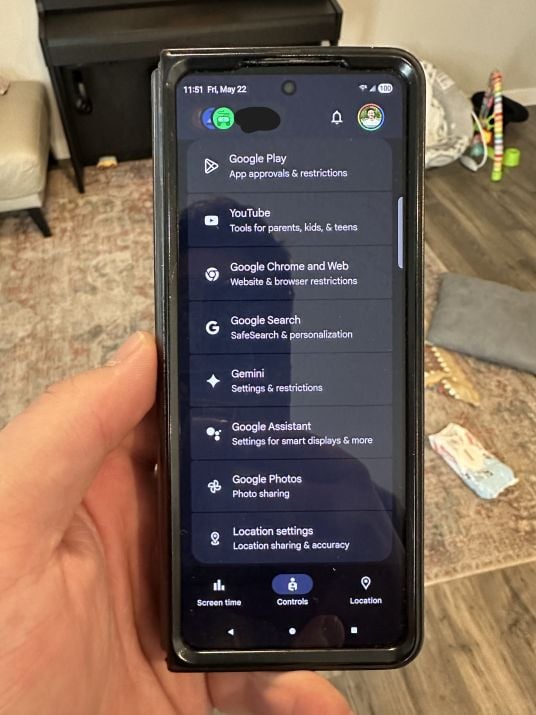
Image: Scott Houghton | WhistleOut
Google Family Link covers five core areas of parental control: screen time scheduling, app management, web and content filtering, location tracking, and account security. Here's a rundown of its features:
Screen time limits
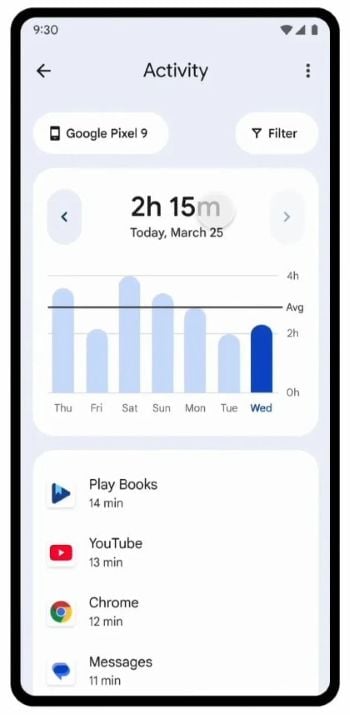
Image: Google
Google Family Link screen time controls let you set a daily time limit for your child's Android device. Once the time runs out, the phone locks your child out. They can request more time from you directly if you are interested, but you are ultimately in control of whether or not they get more time.
You can also configure specific lockout windows, including:
- School Time, which blocks out specific times to automatically restrict their phone use
- Bedtime, which locks the phone at a set time every night
This customizability makes the screen time controls a lot more flexible than a simple daily cap. A school day and a Saturday can have completely different rules without you having to manually adjust anything.
App management
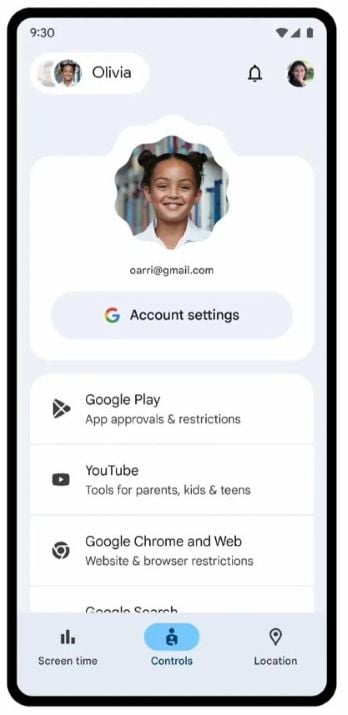
Image: Google
Family Link gives you a full picture of how your child uses their apps, including daily breakdowns of which ones were open and for how long. From the parent dashboard, you can set individual time limits on specific apps, whitelist educational apps for unlimited use, block apps entirely, and require your approval before any new app can be downloaded from the Play Store.
What parents are saying about Google Family Link
Google Family Link has over 5 million reviews on Google Play and a 4.6-star rating—not bad for a free app. Here's what parents are actually saying:
"Perfect for keeping my son from watching inappropriate content online. I'm also able to set up a daily schedule for his daily usage. This app is extremely simple to use and my personal number one favorite for monitoring the things my kiddo is being exposed to." — Crystal Freed, Google Play review
"Family Link gives you peace of mind when setting up your child's devices and helps you stay in control and monitor what's being watched, played, searched, and more. The app is not hard to use, and I've never had a problem removing any of my kids' old devices. I've been using Family Link since 2019." — Keanna Reynolds, Google Play review
Still not convinced? Kids have been flooding the r/familylink Reddit thread complaining about how annoying and restrictive Family Link is. Probably the best endorsement the app could ask for.
Web filtering and content controls
Google Family Link also lets parents set content controls across Google's core services, including:
- Chrome
- YouTube
- Google Search
- Google Play Store
You can block specific websites in Chrome, enable SafeSearch, restrict YouTube to YouTube Kids, and manage app content ratings in the Play Store.
On Android, your child signs in to their Google account on the device itself, not just inside an app, the same way you sign in to an Apple Account on an iPhone. Family Link's controls are tied to that account, so they apply across the whole device instead of to a single browser or app. That means your child can't get around the Chrome content filters just by switching to a different browser.
Location tracking
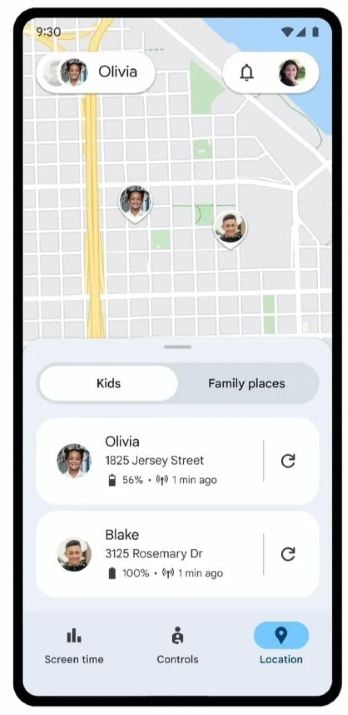
Image: Google
Family Link's real-time location tracking shows all of your family's connected devices on a single map. You can set up arrival and departure alerts for specific locations like school, home, or even a friend's house, and get notifications when your child comes or goes. You can also remotely ring the device from the parent app if it goes missing.
One thing to know about location tracking is that it only works as long as the child's device is on and has a signal. This is something to keep in mind when you know your child is going somewhere with a spotty signal, like on a hike or camping trip.
Account security and management
As the supervising parent on a Family Link account, you can reset your child's Google account password, update their personal information, and delete their account entirely if needed. This level of account access is especially useful for younger kids who haven't yet learned to manage their own credentials.
Is Google Family Link good for parental controls?
For families with kids under 13, Google Family Link is the strongest free parental control option on Android. The screen time scheduling, app approval system, and built-in integrations with Google's core services are genuinely useful, and nothing a paid app offers comes close enough to justify the cost difference. Android devices are also more customizable than iPhones, which means you can have full control over your child's phone.
If you want to see how it stacks up to other parental control apps, check out our guide to the best parental control apps for smartphones.
Google Family Link on Android vs. iPhone
Google Family Link was designed specifically for the Android operating system, so it works significantly better on Android than on iPhone.
On Android, Family Link can remotely lock the entire device, approve or block individual app downloads from the Play Store, set granular per-app time limits, view detailed activity reports, and integrate directly with school-issued Chromebooks. The app has deep access to the operating system in a way that isn't possible on iOS.
On iPhone, most of those controls don't translate. Family Link can't manage app installations or enforce device-level screen time limits on iOS the way it does on Android. But that's less of a problem than it sounds, because Apple already has it covered. iPhone's built-in Screen Time features are a genuinely strong parental control tool, and for iOS households, it's the better starting point. Family Link on an iPhone is worth keeping for the location tracking, but the heavy lifting should go through Screen Time.
If you're looking at phones for your kid and want Google Family Link to do its job properly, an Android device is the right call. Here are some of our favorite Android phones:
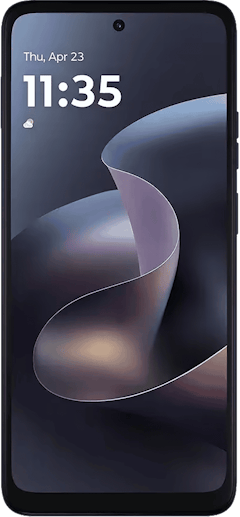
Moto G 5G (2026) 128GB
- 6.7 inch display
- Rear Cameras: 50MP, 2MP
- Front Camera: 32MP
Galaxy A26 5G
- 6.7 inch display
- Rear Cameras: 50MP, 8MP, 2MP
- Front Camera: 13MP

Galaxy A27 5G 128GB
- 6.7 inch display
- Rear Cameras: 50MP, 5MP, 2MP
- Front Camera: 12MP
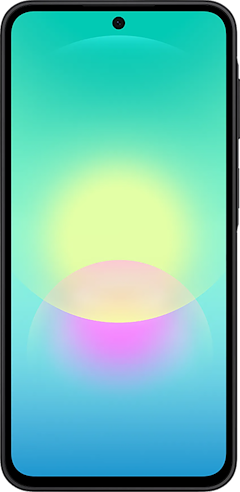
Galaxy A37 5G 128GB
- 6.7 inch display
- Rear Cameras: 50MP, 8MP, 5MP
- Front Camera: 12MP

Edge (2026) 128GB
- 6.3 inch display
- Rear Cameras: 50MP, 50MP, 10MP
- Front Camera: 50MP


Once your child has a phone, take a look at our guide for the best cell phone plans for kids to make sure you're getting the best bang for your buck with your child's plan.
Google Family Link age limit
Google Family Link is designed for children under 13, in line with COPPA (the Children's Online Privacy Protection Act). Kids in this age range are under full parental supervision, with parents controlling account settings, app downloads, and content access.
Children 13 and older can still be supervised through Family Link, but the dynamic changes. Once a child turns 13, parents can remove parental supervision from their account. When this happens, Google will send an email with two options: Continue supervision at the current level or transition to a lighter adult supervision model that retains some oversight while giving the teenager more independence. Neither option is automatic. You make the call.
If you're still deciding whether a phone makes sense for your child at all, our guide on when kids should get a cell phone walks through the considerations worth thinking through first.
Google Family Link: FAQ
Can Google Family Link see text messages?
Google Family Link does not give parents access to their child's text messages or call history. The app is specifically designed to manage screen time, app usage, and location, and not to monitor private communications. Parents looking for message-level monitoring will need a third-party app built for that purpose, as it falls entirely outside Family Link's scope.
Can my child bypass Google Family Link?
Yes, Google Family Link can be bypassed, and it's not especially difficult. The most common workarounds include performing a factory reset on the device (which removes Family Link entirely), using app cloning or a secondary space to run apps outside its visibility, and adjusting the device's time zone to confuse scheduled restrictions like bedtime locks. That's why pairing Family Link with ongoing conversations and periodic check-ins tends to be more effective than treating it as a fully hands-off system.
What devices are compatible with Google Family Link parental controls?
Google Family Link parental controls work on any Android device running Android 6.0 or newer. The parent app runs on both Android and iPhone, so parents on either platform can manage their child's account. The child's device, however, needs to be an Android device to unlock the full set of parental control features, including app approvals, device locking, and activity reports. For iPhone, we recommend parents use the built-in screen time features on iOS.
Scott Houghton
Jr. Staff Writer

Thousands of cell phone plans unpacked. All the facts. No surprises.





.png?w=280&h=280&usm=20&usmrad=0.8&fit=crop "The Best Cheap Phone Plans for 2026: We Tested Them All to Help You Save")


