Taking a trip abroad? Make sure your iPhone doesn't accidentally ruin your vacation budget.
Your iPhone is always quietly working, even when you leave the country. Background processes, automatic downloads, and other features designed to use your cellular data without asking all fire up the second you connect to a foreign network.
While these features are great at home, they can cause problems while abroad. Without the proper preparation, you could get hit with a roaming bill for $500 or more for a trip where you thought you had everything covered.
These five iPhone settings will fix that problem, and they only take about three minutes to complete right before you board your plane. They're some of the most important ways you can prepare your phone for international travel.
Before you board: The 3-minute checklist
While you're waiting at the gate about to board your flight, here are the settings you need to check on your iPhone before traveling internationally:
- Data Roaming → Off
- Airplane Mode → On until you enable your travel eSIM
- Wi-Fi Assist → Off
- Background App Refresh → Off or Wi-Fi only
- Automatic Downloads → Off
1. Turn off data roaming

Image: Max McCaskill
Data roaming is what allows your iPhone to connect to foreign carriers and rack up charges that your domestic plan may not cover.
If your current plan doesn't have international coverage or you haven't purchased dedicated international roaming data, this setting should be turned off.
To turn off international data roaming when traveling:
- Open Settings.
- Tap Cellular.
- Tap Cellular Data Options.
- Toggle Data Roaming off.
Need help finding service while abroad? Check out our international phone plan guide for the best options to cover you at home and on your trip.
2. Enable Airplane Mode (and know how to use it right)
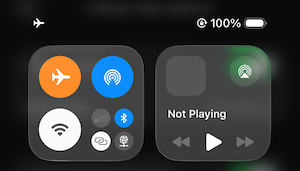
Image: Max McCaskill
Airplane Mode is a flight safety feature, but do you actually know what it does? Airplane Mode suspends all of your iPhone's signal transmissions, including cellular data, Wi-Fi, and Bluetooth signals.
Apart from flight safety, using Airplane Mode when traveling will allow you to toggle between your regular data plan and a travel eSIM before connecting to an international network. Remember, if you accidentally turn on your regular plan while abroad, you'll get charged the second it connects.
To enable Airplane Mode:
- Swipe down into Control Center.
- Tap the airplane icon to enable Airplane Mode (this kills all connections).
- Tap the Wi-Fi and Bluetooth symbols to enable these features independently.
- Leave cellular off until you're ready to use it intentionally.
Pro tip: Don't forget to keep Airplane Mode enabled if you have a layover in a different country than your final destination. For example, if you buy an eSIM for your trip to South Korea, that plan may not cover any data you use if you disable Airplane Mode during your layover in Tokyo, Japan. Stick to the airport's Wi-Fi to avoid costly roaming fees.
3. Turn off Wi-Fi Assist
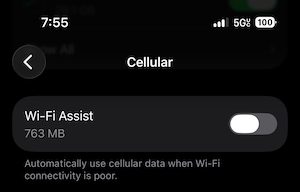
Image: Max McCaskill
Wi-Fi Assist is a helpful feature Apple that keep your iPhone connected to the web. When your Wi-Fi signal is weak, it automatically supplements with cellular data. On a foreign network, that cellular data is your international roaming data.
Unless you have a large data allotment or can use your unlimited plan while abroad, this feature should be disabled.
To turn off Wi-Fi Assist:
- Open Settings.
- Tap Cellular.
- Toggle Wi-Fi Assist off.
4. Turn off Background App Refresh

Image: Max McCaskill
Even when you're not actively using your phone, your apps are refreshing in the background. They'll pull new emails, updating feeds, check for notifications, and track your location. On your home network, this is usually fine. On a roaming connection, every one of those refreshes costs you international roaming data.
To turn off Background App Refresh:
- Open Settings.
- Tap General.
- Tap Background App Refresh.
- Set it to Off or limit it to Wi-Fi only.
Remember, you don't have to disable everything. You can customize and prioritize specific apps you want to receive refreshes. When I travel, I still allow background refreshes for my messaging and financial apps, but disable the feature completely for things I know I won't be using on the trip.
5. Turn off automatic downloads and updates
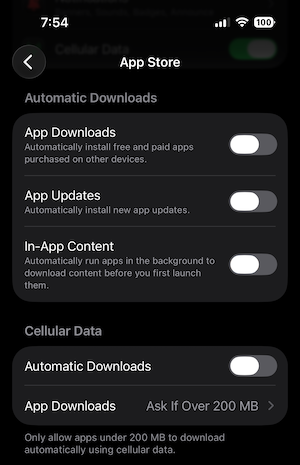
Image: Max McCaskill
If you have Automatic Downloads enabled, your iPhone will attempt to update or download apps the moment it sees a usable internet connection. If you have the wrong settings enabled, a "usable" connection might be an international network.
To turn off automatic downloads:
- Open Settings.
- Tap Apps.
- Go to App Store.
- Find the Automatic Downloads section.
- Toggle off App Downloads, App Updates, and In-App Content.
- Find the Cellular Data section.
- Disable Automatic Downloads.
iPhone travel settings: FAQs
Should you use Airplane Mode internationally?
Yes, you should always use Airplane Mode when traveling internationally. It will prevent your device from connecting to an international network before you are ready.
Is it better to leave data roaming on or off when traveling?
It's better to leave data roaming off when traveling internationally unless you have purchased an international phone plan or travel eSIM. Turning off your mobile data will prevent your carrier from charging you expensive roaming fees.
What happens if I keep my mobile data and Wi-Fi both on at the same time?
If both Wi-Fi and mobile data are enabled, your iPhone will typically connect to Wi-Fi first. However, if your iPhone detects that the Wi-Fi is unstable, it may revert to mobile data unless you disable Wi-Fi Assist.
Should I bring a burner phone when traveling internationally?
Yes, you should always use a burner phone when traveling internationally. If your device is stolen or seized at a border crossing, you don't want it to be your regular smartphone that is taken.
Do I need an international phone plan when traveling abroad?
You don't need an international phone plan if you don't want to connect to the local grid. Disconnecting from mobile data and relying on Wi-Fi are some of the cheapest ways to use your phone while traveling.
Personally, I've made it through trips to the Bahamas and Belize without connecting to their international networks at all. Instead, I used my Wi-Fi from my hotel and local restaurants to stay connected.
Max McCaskill
Sr. Staff Writer

Find a better phone plan
Thousands of cell phone plans unpacked. All the facts. No surprises.


.jpg?w=280&h=280&usm=20&usmrad=0.8&fit=crop "How to Switch to TracFone and BYOP")