

According to the Federal Communications Commission (FCC), about 10% of U.S. smartphone owners have had their phones stolen. Fortunately, nearly 70% have been able to recover their stolen devices. But the ideal scenario is never having to deal with phone theft at all.
Although there is no foolproof way to guarantee that your smartphone will never be stolen, there are many things you can do to protect your personal information and increase your odds of recovering your stolen phone.
Learn how to prevent cell phone theft, increase your chances of recovering your phone in the event of theft, and prevent your information from being stolen.
How to prevent cell phone theft
Tip #1: Enable "Find My iPhone" or "Find My Android"
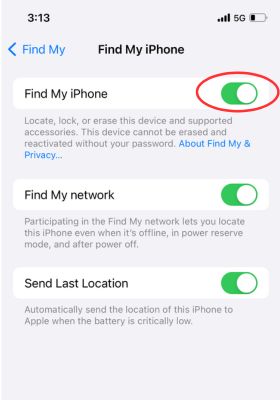
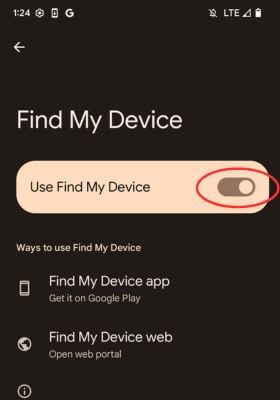
Enabling “Find My Phone” on your iPhone or Android device is one of the best measures you can take to retrieve your device if it is stolen or misplaced. These capabilities use GPS and a cellular or Wi-Fi connection to trace your phone’s location.
These settings are built into your phone's software, but if you’d like additional location-tracking services, there are phone-finding apps available through carriers.
Check out our guides to enable Find My iPhone or Find My Android on your device.Tip #2: Enable strong password protection
One of the easiest ways to prevent your information and identity from being stolen is by using strong password protection for your device. If your phone has the capability, use a form of biometric authentication—fingerprint or Face ID. But you still need a strong password that will be difficult, if not impossible, for thieves to guess. Instead of a 4-digit password, opt for one that is at least 8 digits and isn’t associated with any of your other passwords, important dates, or other easily hacked data.
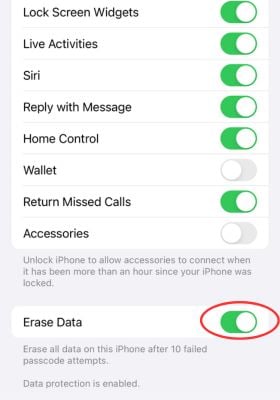
While you’re at it, you’ll also want to turn on the setting that erases your personal data after a certain number of unsuccessful login attempts.
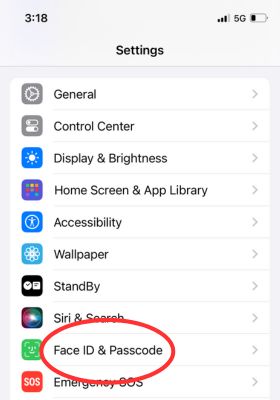
On an iPhone:
- Go to Settings and tap Face ID & Passcode.
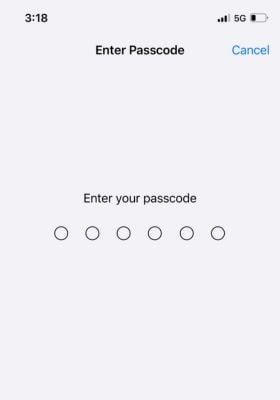
- Enter your passcode.
- Scroll to the bottom and toggle Erase Data to “on.”
On an Android device:
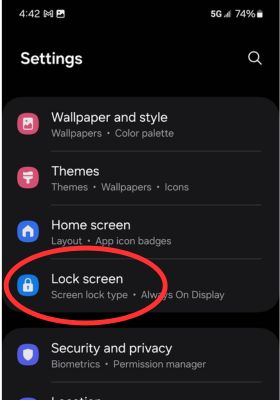
- Go to Settings and tap Lock Screen.
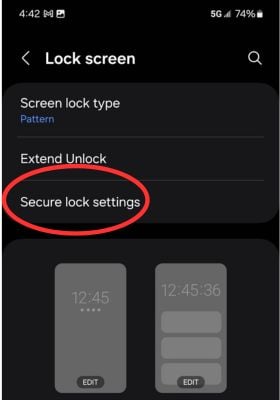
- Select the Secure Lock Settings menu.
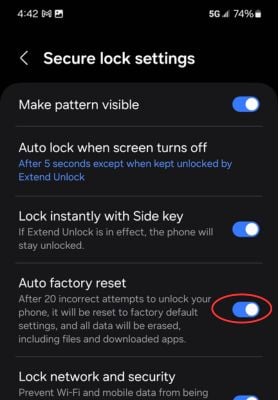
- Toggle the Auto Factory Reset option to “on.”
Tip #3: Write down your phone's IMEI or MEID
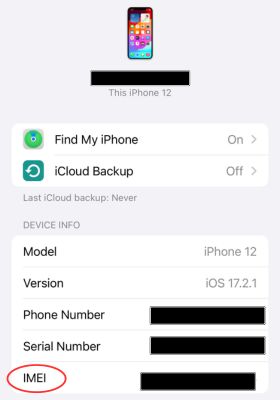
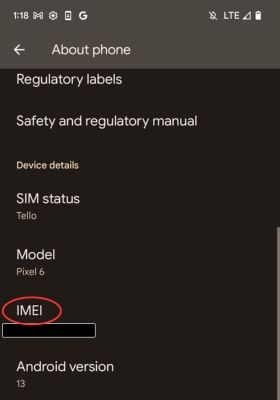
Every phone has a unique serial number known as a Mobile Equipment Identifier (MEID) or International Mobile Equipment Identity (IMEI). These numbers remain with the device even if the SIM is removed.
Your mobile carrier associates this number with you and your phone and may be able to add it to a list of missing devices. If you report the theft, you can also provide this number to the police department in the event they recover it.
Finding your IMEI is easy and takes just a few seconds. Once you find it, make sure you write it down and keep it in a secure location.Tip #4: Make sure cloud storage is set up
Besides the financial burden of having a phone stolen, there is often a sentimental cost as well. No one wants to lose their photos, videos, memories, contacts, and beyond. That’s where cloud storage comes in. Make sure you set it up so that if your phone is stolen, you won’t lose all of your important data.
Set up iCloud storage on your iPhone by following these steps:
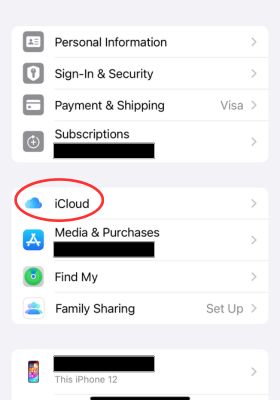
- In your phone Settings, tap your name.
- Select the iCloud menu.
- Find “Apps using iCloud.”
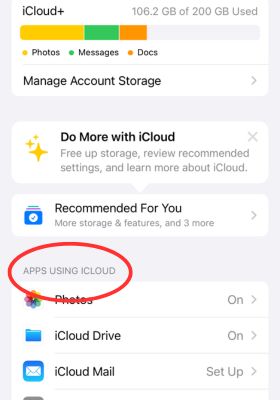
Tap into any of the menus that you want to back up:
- Other downloaded apps (accessed via the Show all menu)
- Passwords and keychain
- iCloud Drive (this backs up your files and documents)
- Photos
- For any of the above, toggle Sync this iPhone to “on.”
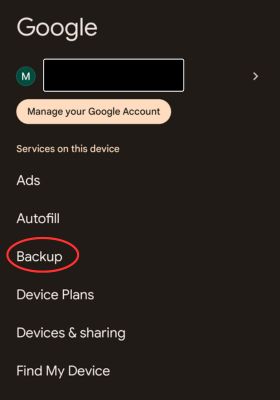
For an Android device, you’ll want to use Google’s Cloud Storage, which is built into the device. Here’s how to enable it:
- In your device Settings, tap Google and choose Backup.
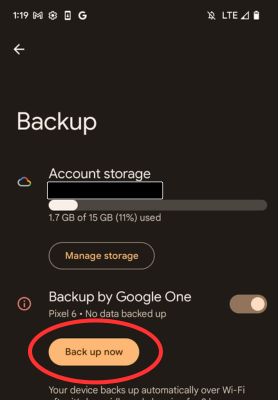
- Toggle Backup to Google One to “on.”
.jpg "Turn on Backup to Google One on Android")
- Select Back up now.
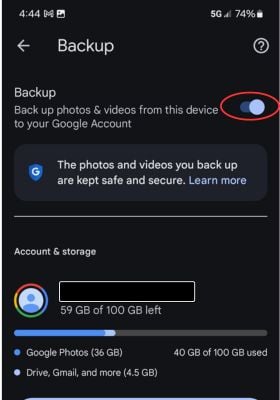
- Scroll down to view what’s included in the backup—tap Photos & Videos and make sure that Backup is toggled to “on.”
- Under Backup details, click Google account data.
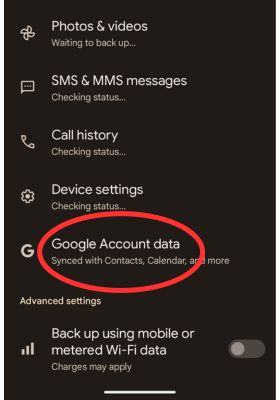
- Choose what apps and information to sync with your Google account
What to do if your phone is stolen
If your smartphone is stolen, don’t panic. Follow these steps in order to recover your phone and protect your identity.
1. Lock your phone remotely
Hopefully, your smartphone is already locked using a strong and unique password and biometric method. Sadly, scammers can still break in. For this reason, you’ll want to lock your device remotely so they can’t use it without your account ID and password.
Here’s how to lock your iPhone remotely:
- Using a computer or tablet, log into your iCloud account using your Apple ID.
- Turn on Find My iPhone and click OK to confirm.
- In the Find My menu, select your missing iPhone.
- Scroll down to Mark as Lost or Lost Mode.
- Click Activate or Enable
- Follow the prompts on the screen.
This functionality not only allows you to lock your screen, it also allows you to display a custom message with your phone number. This, of course, will only be helpful if you misplace it as opposed to have it stolen. You can also remotely erase your iPhone, if necessary.
To remotely lock your Android phone, follow these steps:
- Use a laptop or tablet to log into your Google account.
- Turn on Find My Device.
- Click Secure Device.
- Set a new lock screen password (a strong, unique one).
As with iPhones, you can also choose to remotely erase the information from your phone.
2. Report the theft to your cell phone provider
You’ll want to report the phone theft to your mobile carrier as soon as possible so that it can stop cellular service and prevent the thief from using the network. Your carrier can also mark your device as unusable with a different SIM or on a new provider.
Find your carrier’s customer support info to get in touch
3. Change the passwords to your accounts
Gone are the days of simply using phones for texting and calling. Now that we keep pretty much everything on them, you’ll want to change all of your main passwords. Make sure to change these passwords to strong passwords immediately:
- Mobile banking and investment apps
- Streaming apps
- Shopping apps
- Social media accounts
- Password manager
4. Cancel credit cards that were linked to Google or Apple Pay
One of the first things a thief may try to do when they steal your phone is use Google Pay or Apple Pay to illegally purchase things using your credit cards. Contact your bank and cancel any credit cards you had linked to your smartphone. And if you already notice fraudulent activity, you can report that as well.
5. File a police report
Filing a police report for your stolen phone can help you recover your phone and also aid you in the insurance claim process. Having a police report may also help you when disputing fraudulent charges.
The easiest way to do this is to file a police report online, but you can also call your local police department.
6. File an insurance claim or AppleCare+ claim
Stolen phones are covered under phone insurance or homeowners or rental insurance policies. If someone steals your device, call your insurance provider right away and report it. Additionally, if you have an iPhone with an AppleCare+ with Theft and Loss plan, you may qualify for a much cheaper replacement.
7. Remove your phone from your account
Once it’s understood that you won’t be recovering your phone, you’ll want to remove your device from your account to protect your sensitive information.
Remove it from your Apple iCloud account by:
- Logging into your iCloud account at icloud.com/find
- Clicking All Devices.
- Selecting your stolen phone from the list.
- Clicking Remove from Account.
Follow these steps to remove your device from your Google account:
- Go to account.google.com and click Security.
- Scroll to Your Devices.
- Click Manage all devices and select the stolen phone
- Click Sign out.
- Click Sign out again.
8. Compare cell phone deals
Once your insurance claim is approved and you receive a reimbursement, you’ll need a new smartphone. There’s no point in paying full price for a new phone when you can get a great deal on the latest devices made by Apple, Samsung, Google, and beyond.
How to make your smartphone theft-proof
You can give yourself a leg up on keeping your phone out of the wrong hands by investing in some anti-theft phone accessories. A few that we think are worth the extra expense include:
- Phone lanyard tether: This can help protect you from pickpockets who attempt to steal your phone by keeping you connected to your device.
- Carabiner: A bit more versatile than the lanyard, you can keep your smartphone, keys, and ID close at all times.
- Shoulder strap holder: This anti-theft accessory is sort of like a purse for your cell phone. It goes in a secure holder and straps across your chest.
Marisa Crane
Staff Writer

Thousands of cell phone plans unpacked. All the facts. No surprises.





.png?w=280&h=280&usm=20&usmrad=0.8&fit=crop "The Best Cheap Phone Plans for 2026: We Tested Them All to Help You Save")


